



Setting up Salesforce Claudeforce involves several key steps beyond just connecting the two platforms, including obtaining beta access, activating the Headless 360 MCP Server, and configuring user permissions. This guide details the setup process, ensuring Claude has controlled access to Salesforce data while adhering to existing user permissions. Claudeforce enhances sales capabilities by integrating Salesforce with Claude, providing ready-made sales skills and personalized setups. The guide also emphasizes the importance of a controlled pilot before full deployment, allowing teams to evaluate Claude's functionality with Salesforce data and manage action approvals effectively.
Setting up Salesforce Claudeforce requires more than simply connecting Salesforce with Claude. The process involves beta access, the Salesforce Headless 360 MCP Server, an External Client App, plugin configuration, and user-level permissions.
Each part of the setup is important because Claude needs controlled access to Salesforce data and actions while still following the user’s existing Salesforce permissions. Getting these settings right helps avoid access issues and keeps CRM actions properly governed.
In this guide, we will walk through the complete setup process step by step, from requesting access and activating the Salesforce MCP Server to connecting Salesforce, configuring tool permissions, and asking your first CRM question through Claude.
What’s Included in Claudeforce?
Claudeforce brings Salesforce and Claude together through one plugin, giving sellers access to ready-made sales skills, CRM and Slack data, personalized setup, existing Salesforce permissions, approval controls, and a simple company-wide admin setup.
| Feature | Why it matters |
|---|---|
| Ready-made sales skills | Account research, call prep, renewals, QBR decks, pipeline coverage and follow-ups work on day one (32 in the build we installed; Salesforce has announced 37) |
| Salesforce and Slack, together | One answer can draw on CRM records, Slack threads, calendar and email |
| A personal setup step | On first use, Claude learns each rep’s role and accounts and tailors the skills to them |
| Your permissions, not more | Reps sign in with their own Salesforce login and see only what they already could |
| You approve every change | Read and write tools default to Needs approval; the rep picks Allow once, Always allow or Deny |
| One switch for the whole company | Admins connect Salesforce once instead of setting up every user |
| Works where you work | Claude chat and Claude Cowork, on the web and desktop |
How to Set Up Claudeforce with Salesforce
Before you start
- The latest Sales Cloud Enterprise edition for production (a Developer Edition org works for a trial run)
- A paid Claude plan, plus a Claude admin with Owner or Primary Owner rights
- A Salesforce System Administrator
- Your Salesforce org ID (Setup → Company Information)
Step 1: Request Beta Access on AgentExchange
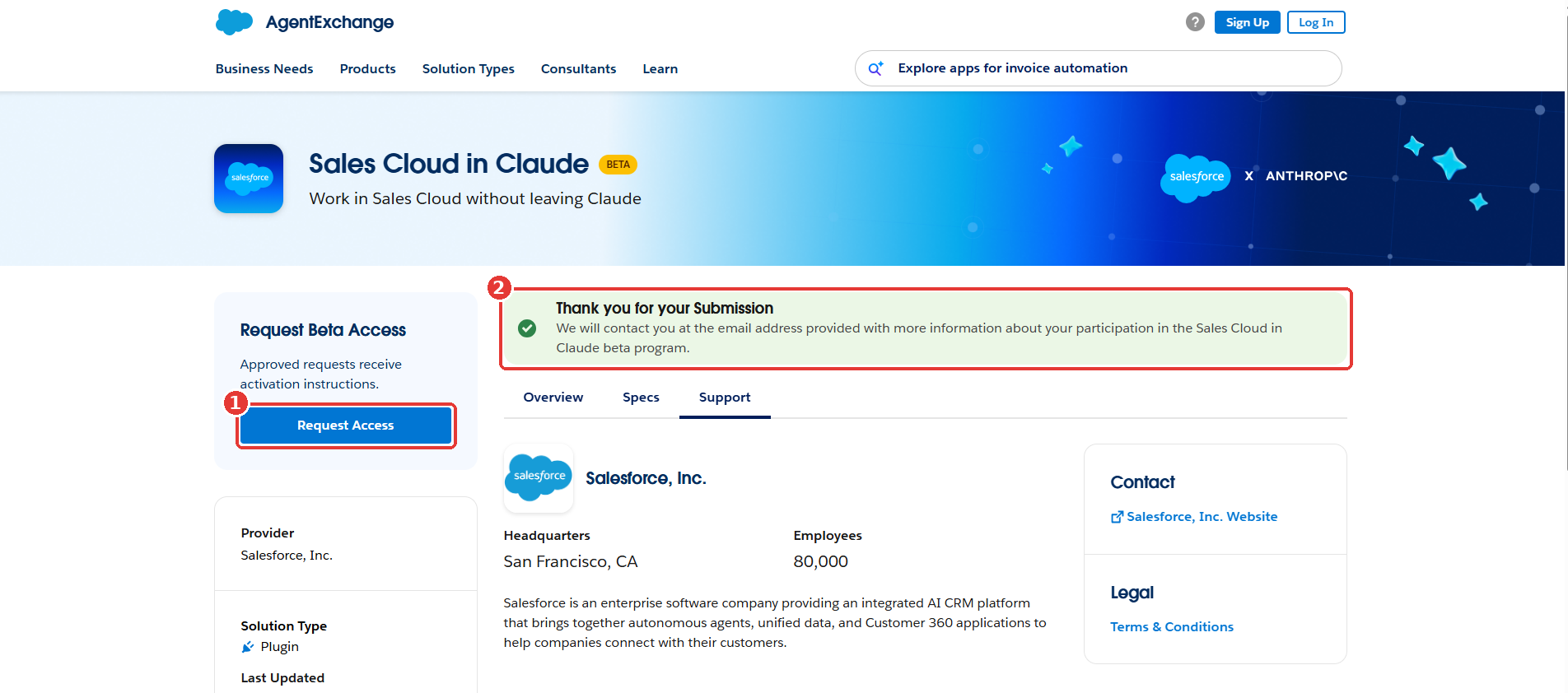
- Open the Sales Cloud in Claude listing on AgentExchange.
- Select Request Access and fill in the form.
- A green Thank you for your submission banner confirms that the request was submitted.
- Salesforce sends activation instructions once your organization is approved.
Step 2: Activate the Headless 360 MCP Server
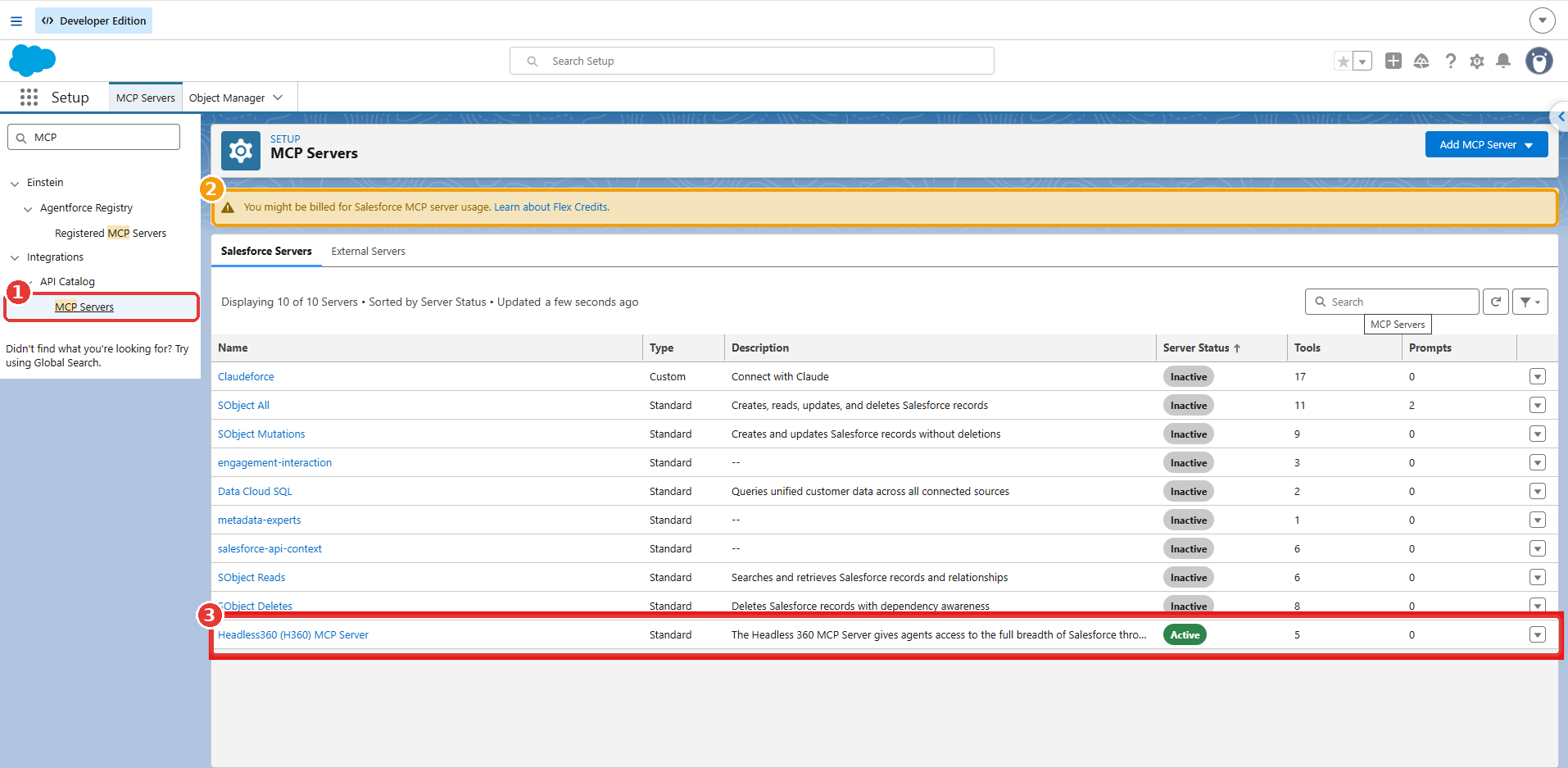
- In Salesforce Setup, search MCP in Quick Find.
- Open Integrations → API Catalog → MCP Servers.
- Review the notice that MCP server usage may be billed through Flex Credits.
- On the Salesforce Servers tab, activate Headless360 (H360) MCP Server.
- This is the server Salesforce in Claude needs, while the other servers can remain inactive.
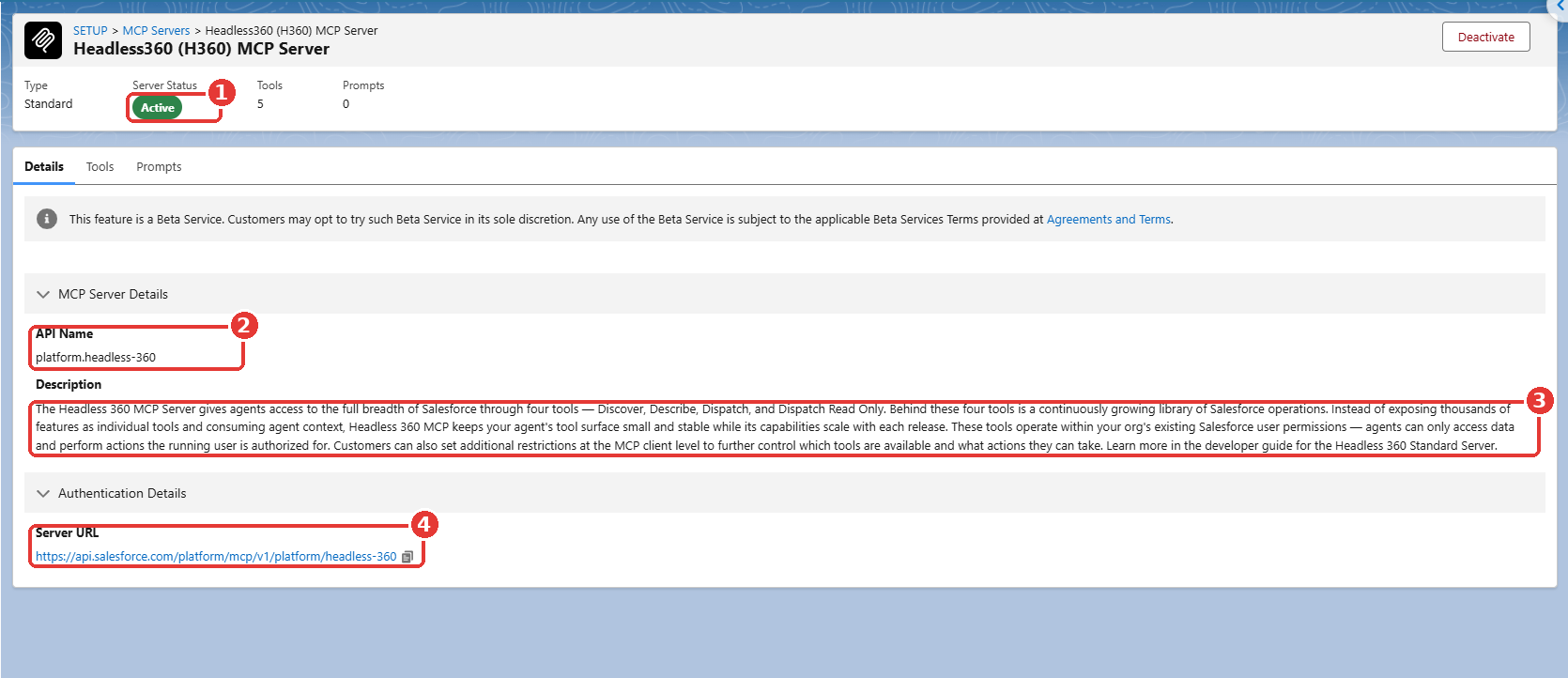
To confirm the server details:
- Server Status: Check that Server Status shows Active.
- API Name: Confirm the API Name is
platform.headless-360. - Tool Review: Review the description showing the four tools Claude uses: Discover, Describe, Dispatch, and Dispatch Read Only.
- User Permissions: Confirm that agents operate within the permissions of the running user.
- Server URL: The Server URL (
https://api.salesforce.com/platform/mcp/v1/platform/headless-360) is what Claude uses to connect to the server.
Step 3: Create the External Client App
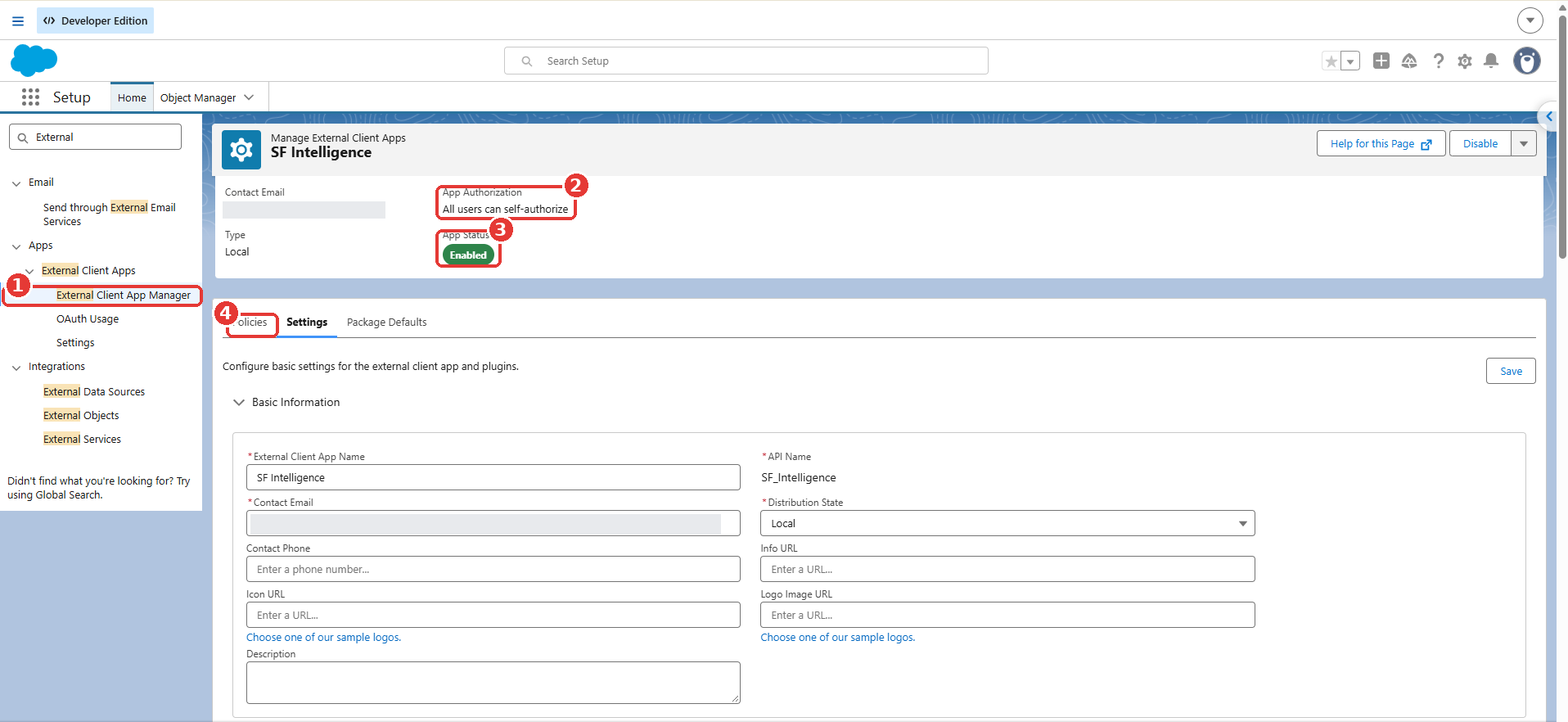
- In Salesforce Setup, go to External Client Apps → External Client App Manager.
- Create a new app. In the test setup, it was named SF Intelligence.
- Set App Authorization to All users can self-authorize so each seller can sign in with their own Salesforce account.
- Confirm that App Status is Enabled.
- Under the Policies tab, set the OAuth scopes
mcp_apiandrefresh_token. - Require PKCE, as described in Salesforce’s setup guide.
- Copy the Consumer Key and Consumer Secret and securely share them with the Claude admin.
- Keep the key and secret out of screenshots and chat threads.
Step 4: Turn On the Sales Cloud Plugin in Claude
For the organization:
- Open Organization settings → Plugins.
- Select an installation preference for Salesforce Marketplace.
- Go to Organization settings → Connectors.
- Open Salesforce (Beta).
- Enter the Consumer Key and Consumer Secret.
For each seller:
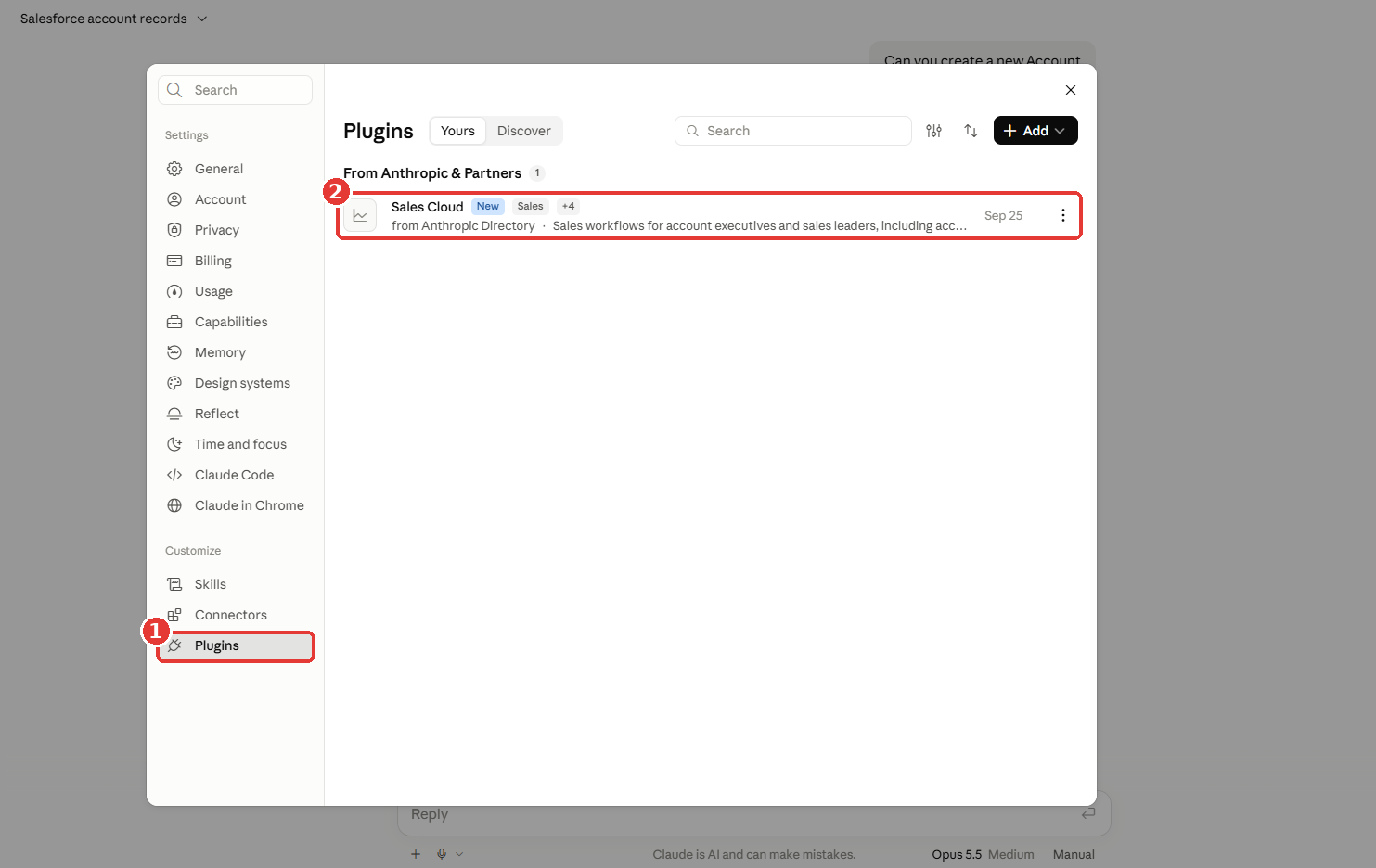
- Go to Customize → Plugins.
- Find Sales Cloud under From Anthropic & Partners.
- Open the plugin.
Step 5: Connect Salesforce and Slack
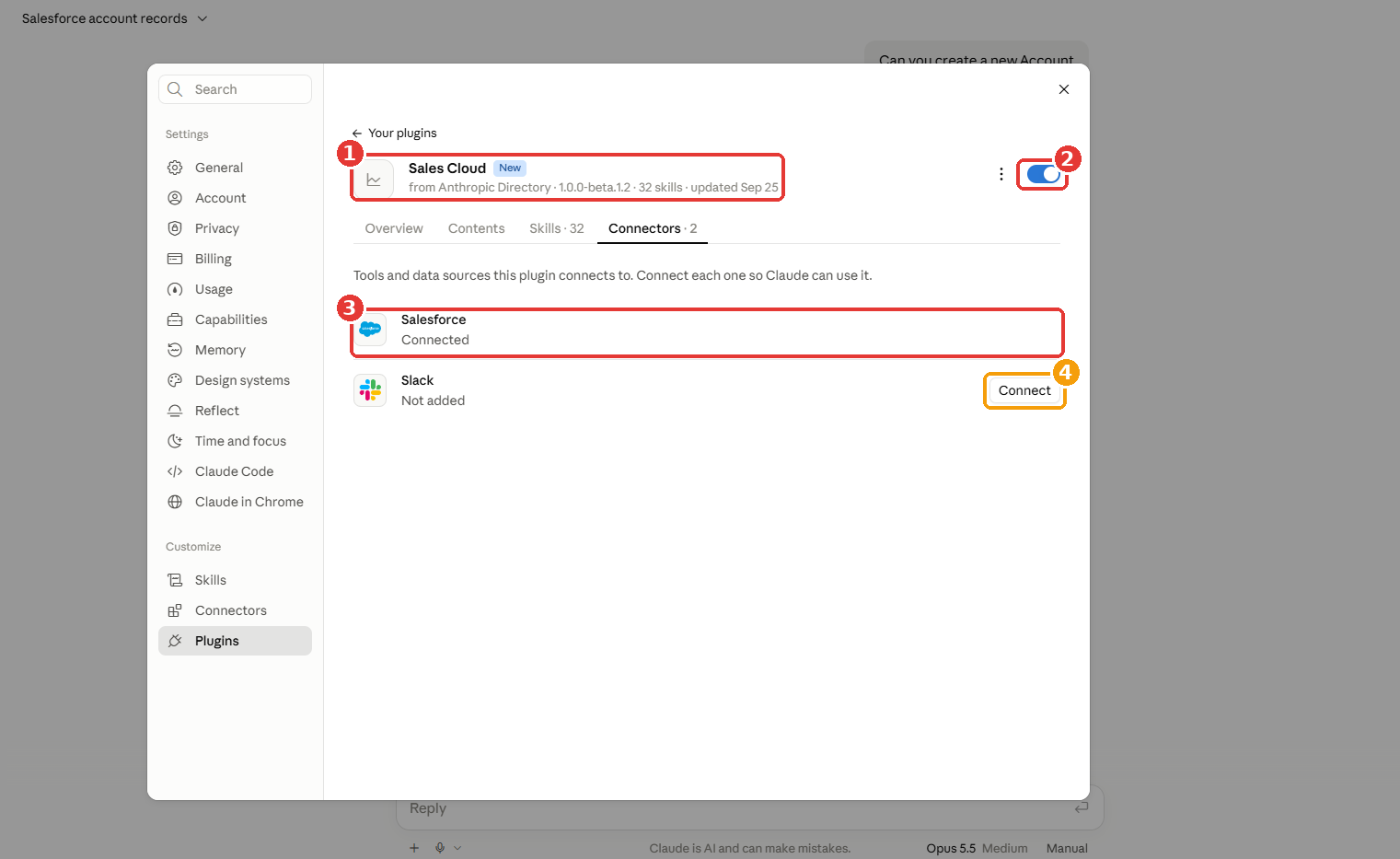
- The plugin page shows the version and skill count (our build: 1.0.0-beta.1.2 with 32 skills).
- Make sure the plugin toggle is On.
- Open the Connectors tab.
- Select Connect next to Salesforce.
- Sign in using your own Salesforce account.
- Confirm that Salesforce shows as Connected.
- Optionally, select Connect next to Slack so skills can also use internal conversations.
Step 6: Choose What Claude Can Do Without Asking
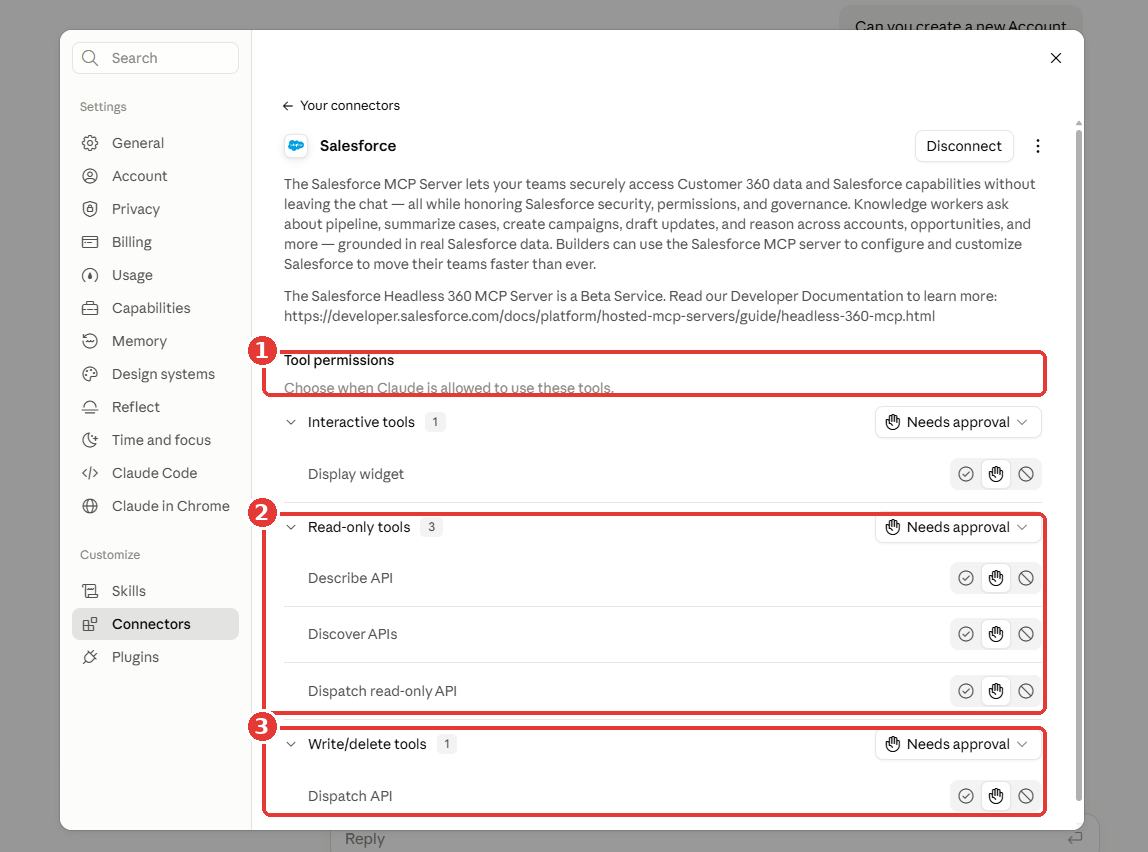
- Go to Customize → Connectors → Salesforce.
- Scroll to Tool permissions.
- Review the read-only tools, including Describe API, Discover APIs, and Dispatch read-only API.
- Review the Dispatch API, which can change or delete records.
- For the pilot, keep all tool groups set to Needs approval.
- Once users are comfortable with the results, read-only tools can be changed to Always allow to reduce approval prompts.
- Keep human approval for write actions when needed.
Step 7: Ask Your First Question
- Start a new Claude chat.
- Try a read-only question such as “Show me my top five open opportunities.”
- The first time, a setup skill runs to learn the user’s role and book of business.
- Claude can then use Salesforce data to answer the question.
See Claudeforce in Action
1. Ask About Open Opportunities
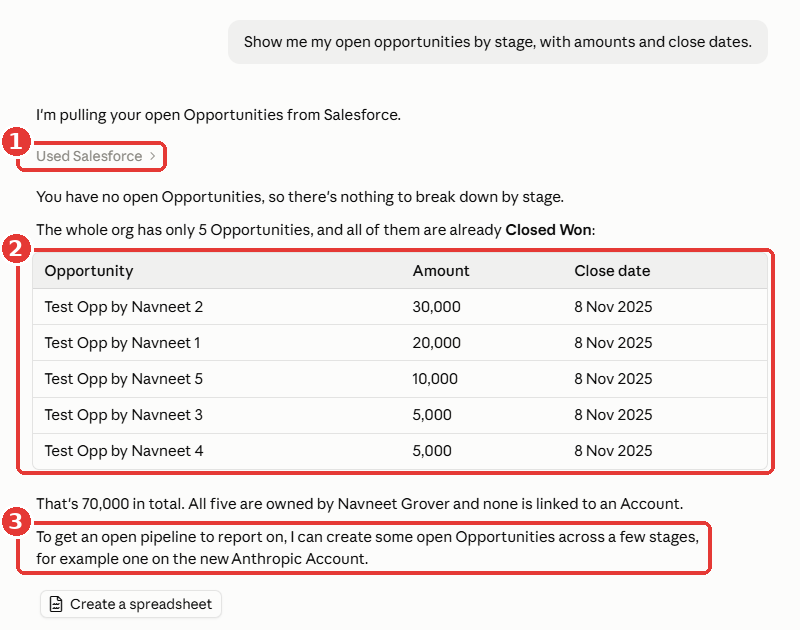
- Ask: “Show me my open opportunities by stage, with amounts and close dates.”
- Claude queries Salesforce live.
- The Used Salesforce line shows where the answer came from.
- In the test organization, there were no open deals, so Claude explained this and showed the five Closed Won deals instead.
- It suggested a next step rather than creating information that did not exist.
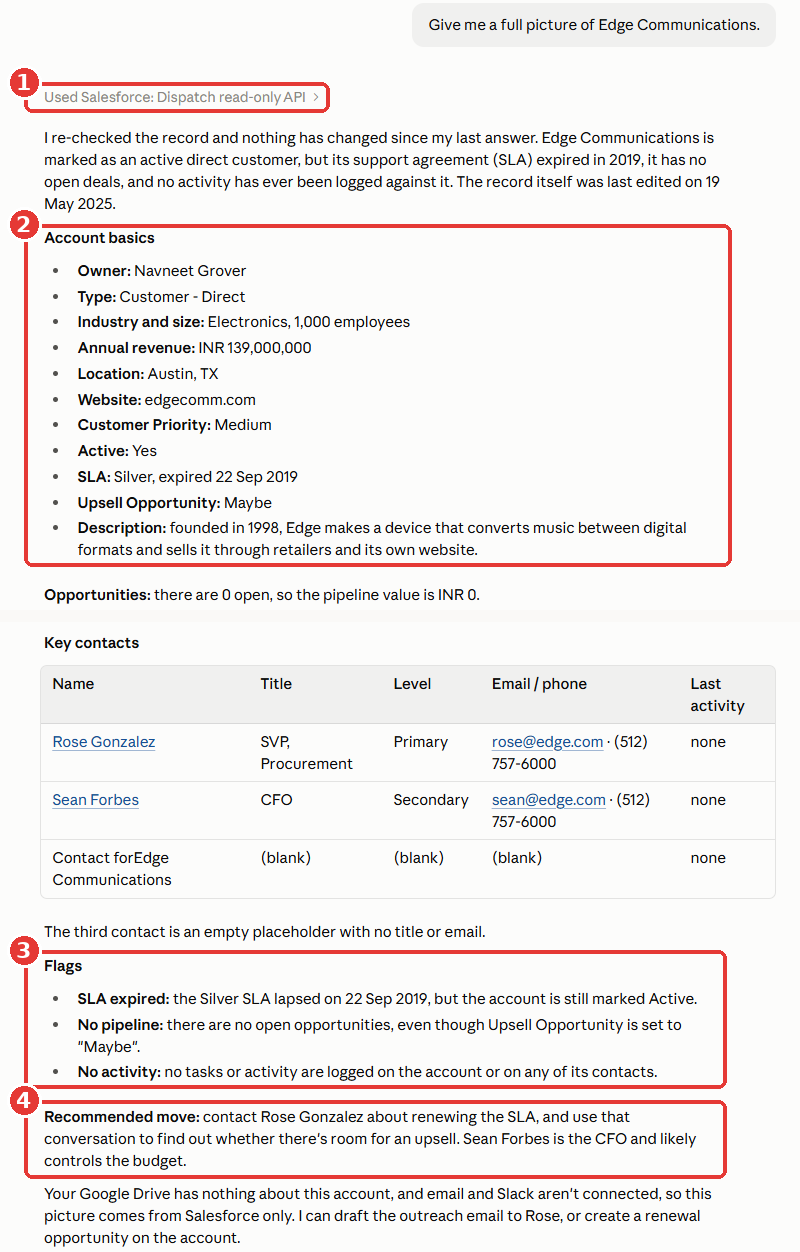
2. Get an Account Overview
- Ask: “Give me a full picture of Edge Communications.”
- Claude performs a read-only lookup.
- Account information comes directly from the Salesforce record.
- Flags can highlight issues that may otherwise be missed.
- A recommended move can suggest the right contact and reason to reach out.
3. Prepare for a Customer Call
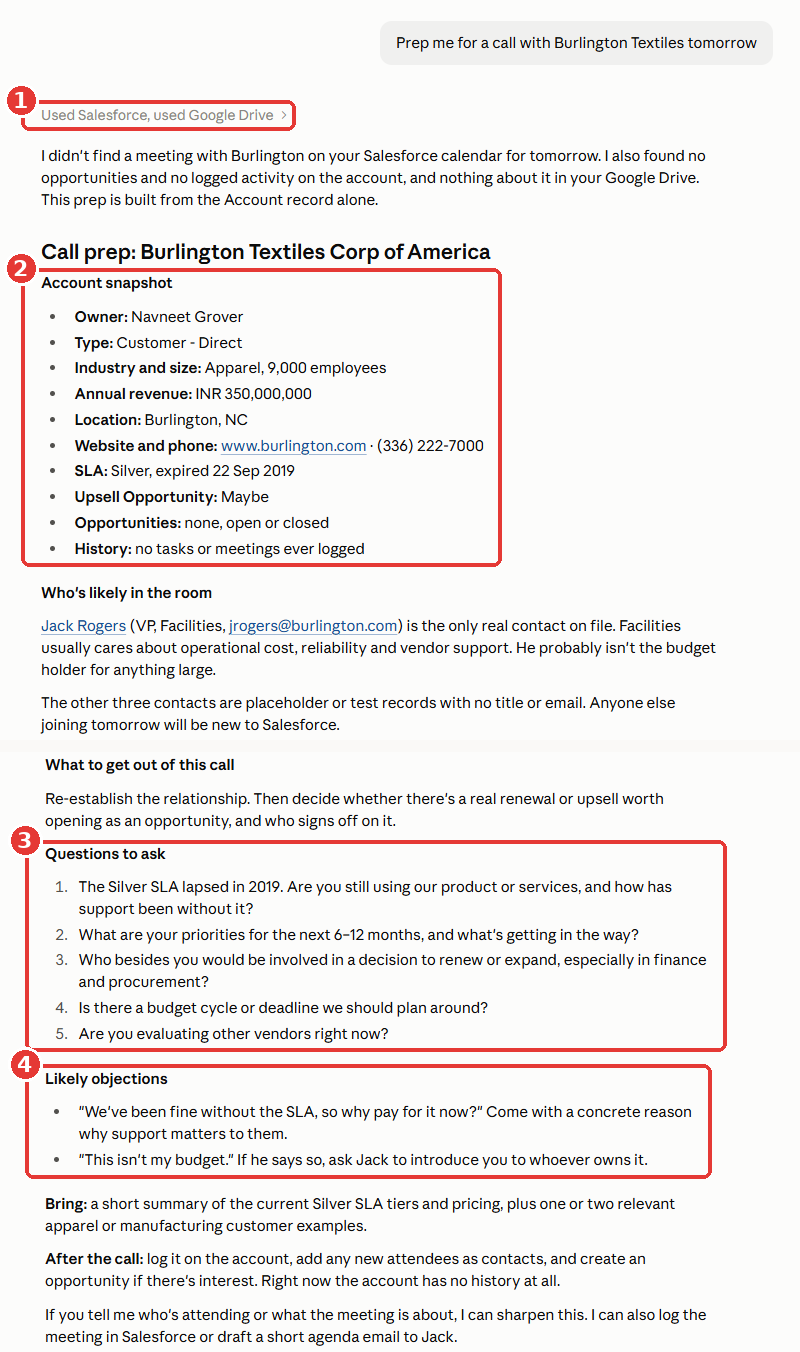
- Ask: “Prep me for a call with Burlington Textiles tomorrow.”
- Claude checks Salesforce and Google Drive.
- It clearly explains what information it did and did not find.
- It provides an account snapshot.
- It suggests tailored discovery questions.
- It also identifies likely objections and suggested responses.
4. Check Pipeline Data
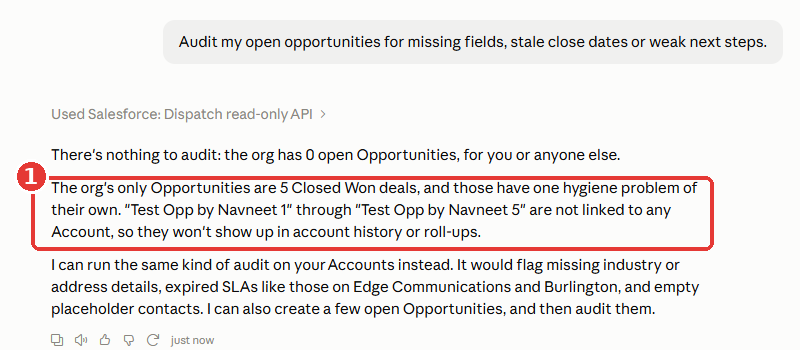
- Ask: “Audit my open opportunities for missing fields, stale close dates or weak next steps.”
- Claude can still identify relevant data issues even if there are no open opportunities.
- In the test organization, it found that closed deals were not linked to an account, which could affect account history and roll-ups.
5. Update a Salesforce Opportunity
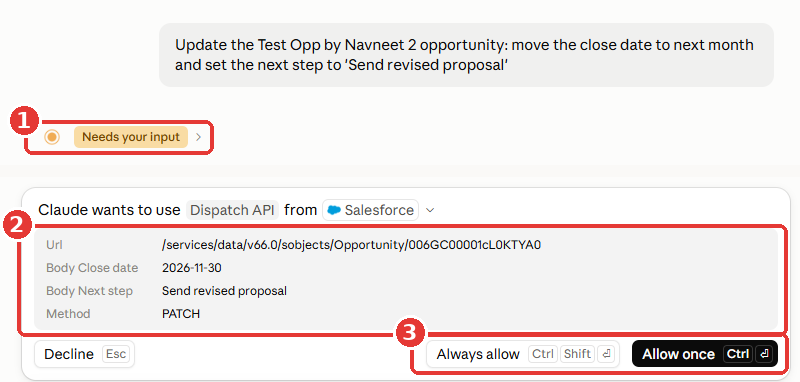
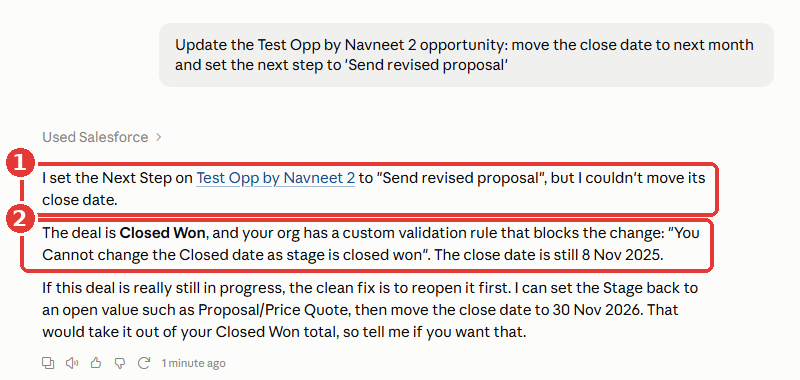
- Ask: “Update the Test Opp by Navneet 2 opportunity: move the close date to next month and set the next step to ‘Send revised proposal’.”
- Before making the change, Claude pauses with Needs your input.
- The approval card shows the record, proposed changes, and method.
- The seller can choose Decline, Always allow, or Allow once.
6. Follow Salesforce Rules
- After approval, Claude attempts to make the requested update.
- Salesforce validation rules can still block changes when the request violates an existing rule.
- In the test setup, a custom validation rule blocked the close-date change for a Closed Won deal.
- Claude reported the validation message and suggested a suitable next step instead of bypassing the rule.
What to Keep in Mind Before Going Live
- Pilot in a sandbox first. Create the External Client App in the sandbox and use
https://test.salesforce.comas the login host. - Start small. Give one sales pod access, learn what they ask, then widen it.
- Keep approvals on for writes. Let sellers review every update until the team trusts the suggestions.
- Tidy permissions first. Claude mirrors each user’s access exactly, so a clean permission model means clean answers.
- Plan for usage costs. Salesforce bills MCP server usage through Flex Credits; Anthropic bills for Claude.
- Know the beta limits. Salesforce approves orgs one by one, the launch focuses on sales teams, and it runs in Claude chat and Cowork.
Conclusion
Once the setup is complete, sellers can use natural-language prompts to work with Salesforce data, research accounts, review opportunities, prepare for calls, and even propose CRM updates. More importantly, these actions continue to work within Salesforce’s existing permissions, validation rules, and approval controls.
For teams exploring Salesforce Claudeforce, understanding the setup and permission model is essential before rolling it out to users. A controlled pilot can help teams evaluate how Claude works with their CRM data while deciding which actions should require approval and which can be automated.
Frequently Asked Questions
Claudeforce is currently available to organizations approved through the AgentExchange beta sign-up. Users also need a paid Claude plan, while production Salesforce orgs require the latest Sales Cloud Enterprise edition.
No. Claudeforce is delivered through one plugin that connects Claude with Salesforce. Admins can connect Salesforce once for the organization instead of configuring every user separately.
No. Each user signs in with their own Salesforce account. Every request runs as that signed-in user, so existing Salesforce sharing rules, field security, and permissions continue to apply.
Not by default. Write actions require approval, and the user can choose Allow once, Always allow, or Deny. Admins and users can also manage permissions for different tools.
The Salesforce Headless 360 MCP Server acts as the bridge between Claude and Salesforce. It provides tools such as Discover, Describe, Dispatch, and Dispatch Read Only, allowing Claude to work with Salesforce operations while following the user’s existing permissions.


 India
India  USA
USA UK
UK Canada