
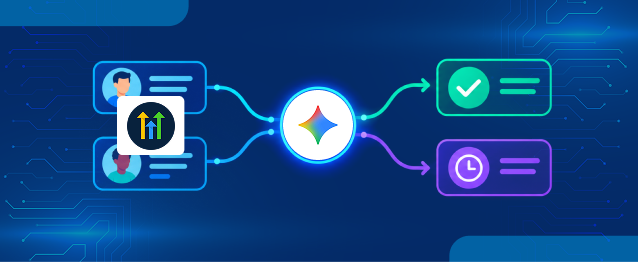
This blog outlines how to automate lead qualification in GoHighLevel by integrating an AI model, Gemini, to evaluate leads based on predefined criteria. The process involves creating custom contact fields, setting up workflows, and utilizing a Node.js backend to handle webhooks and API interactions. The workflow captures lead information, assesses it, and updates the contact's qualification status, score, and recommended actions. The guide provides step-by-step instructions for setting up the necessary integrations, workflows, and testing the system to ensure seamless operation.
GoHighLevel workflows can capture lead details and trigger webhooks, but evaluating each prospect against service fit, budget, and purchase readiness requires additional logic. Connecting an AI model makes this evaluation part of the automated process.
With Gemini, submitted lead information can be assessed against predefined scoring criteria to generate a qualification status, score, reason, and recommended next action. Structured JSON output helps the backend process these results and update the corresponding GHL contact fields.
In this blog, we will walk through how to build this workflow using custom contact fields, GHL automation, a webhook, a Node.js backend, and the Gemini API, from form submission to sales follow-up.
The flow looks like this:
⬇
GHL API updates contact fields + adds a tag
⬇
Workflow 2 (tag added) -> pipeline stage, task, notification
Prerequisites
Before setting up the automation, make sure you have the following:
- GoHighLevel account: Access to forms, workflows, opportunities, custom fields, and Private Integrations.
- Google AI Studio account: Generate an API key from Google AI Studio.
- Node.js: Required to run the backend application.
- Public server URL: Use ngrok for local testing or a hosting platform such as Render, Railway, or Vercel for deployment.
- Basic technical knowledge: Familiarity with JavaScript, REST APIs, webhooks, and environment variables.
Steps to Automate Lead Qualification in GoHighLevel
Step 1: Create a Private Integration in GHL
The backend needs permission to read and update contacts. GHL provides this through a Private Integration token.
- Open the sub-account where your form and workflows live.
- Navigate to: Settings > Private Integrations. If you don’t see it, enable it in the sub-account’s Labs or Advanced settings, depending on your GHL version.
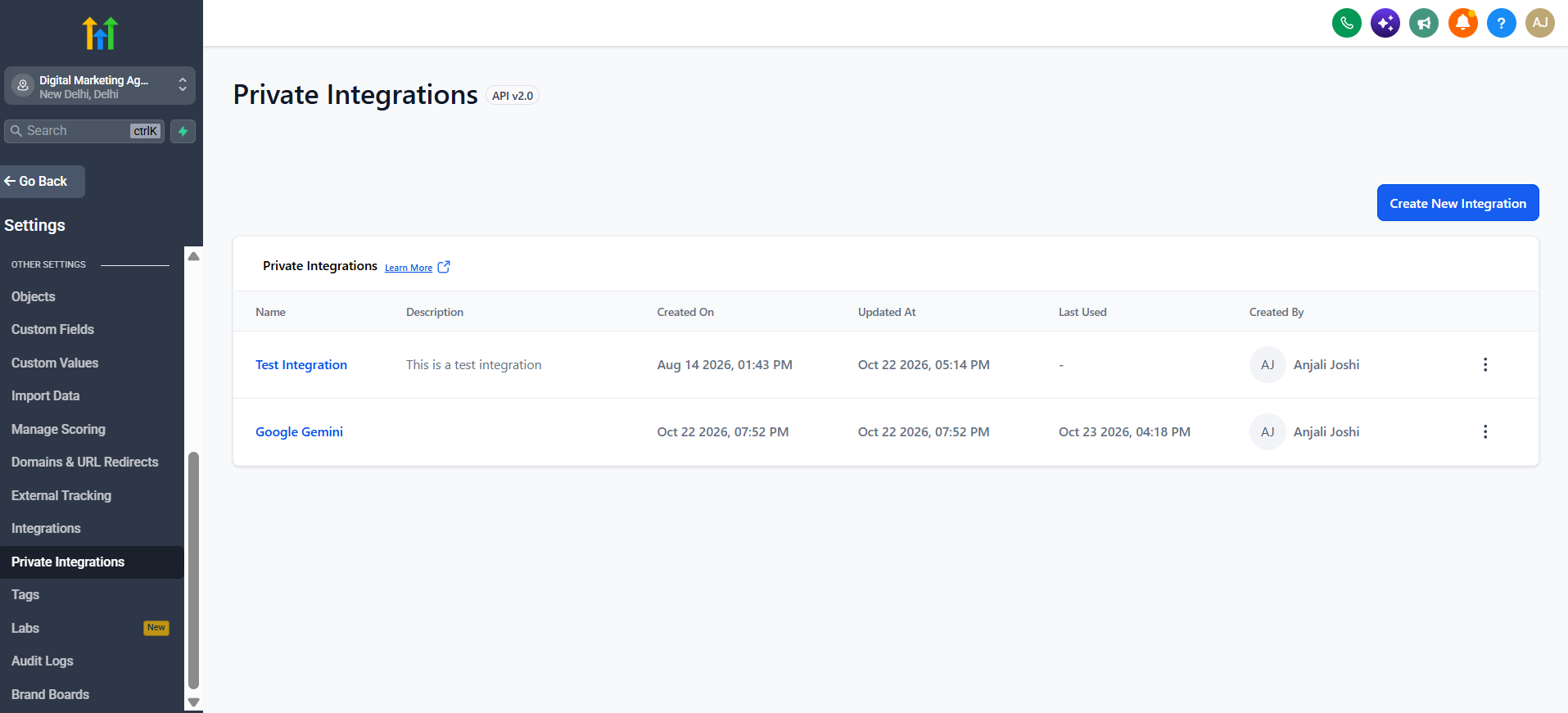
- Click Create new Integration.
- Enter a name and a short description.
- Select the scopes the backend needs:
contacts.readonlycontacts.write
- Click Create and copy the token immediately. GHL shows it only once.
- Note your Location ID, found in Settings > Business Profile or in the URL after
/location/.
Step 2: Create Custom Contact Fields
- Go to Settings > Custom Fields and create these fields:
| Field name | Type |
|---|---|
| Lead Budget | Text or dropdown (budget ranges) |
| Service Required | Dropdown or text |
| Purchase Timeline | Dropdown or text |
| Business Size | Text or dropdown |
| Lead Qualification Score | Number |
| AI Qualification Status | Dropdown with exactly: Qualified, Nurture, Needs Review |
| AI Qualification Reason | Large text |
| AI Next Best Action | Large text |
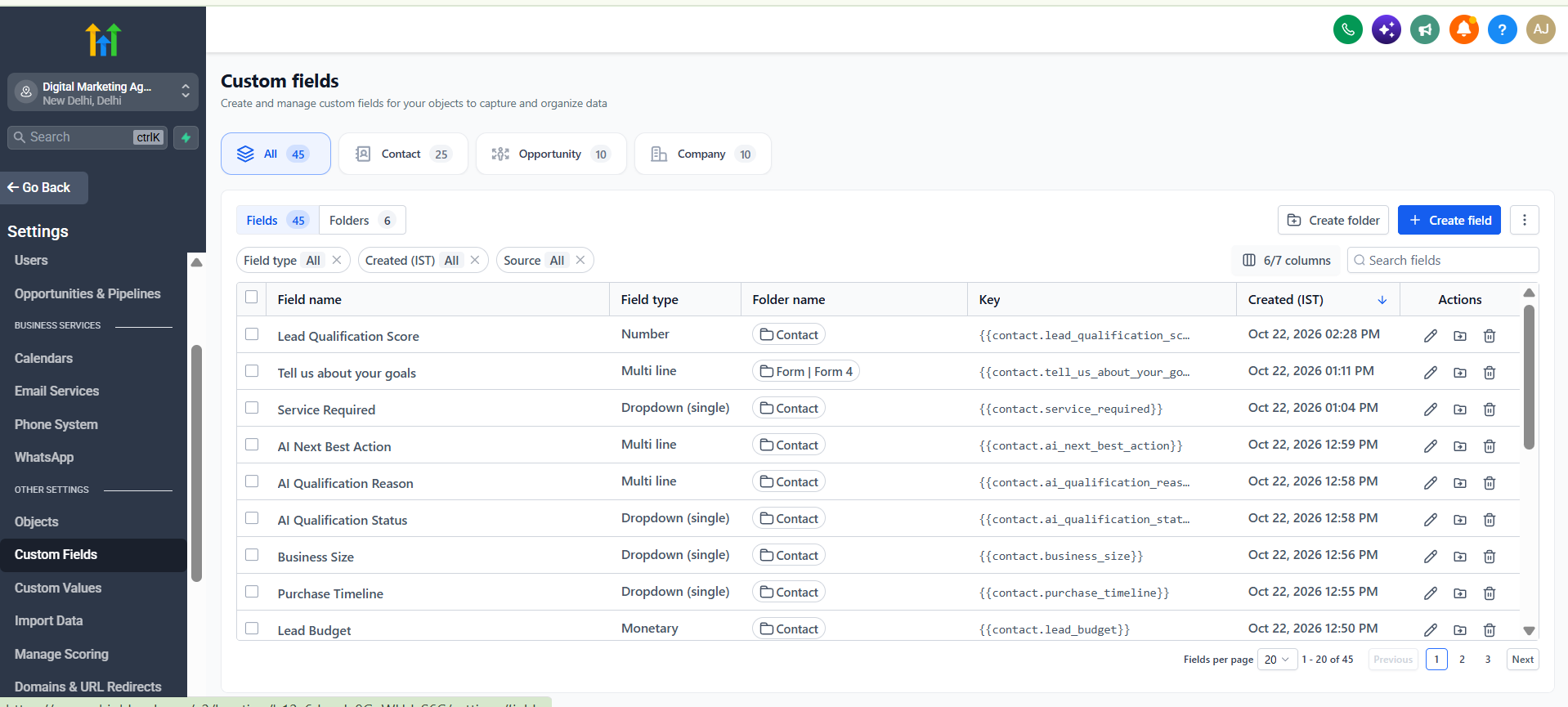
- Get the custom field IDs, fetch the IDs with this request:GET https://services.leadconnectorhq.com/locations/{locationId}/customFieldsHeaders:Authorization: Bearer YOUR_PRIVATE_INTEGRATION_TOKENVersion: 2021-07-28
The response lists every field with its ID, name, and fieldKey. Copy the IDs of the four AI fields (score, status, reason, next action) for use in Step 5.
Step 3: Create the Lead Qualification Form
- Navigate to: Sites > Forms and create a new form.
- Add these fields: Name, Email, Phone, Service Required, Purchase Timeline, Budget, Business Size, and an optional Additional Goals / Comments field.
- Map each field to the matching custom field, so GHL saves the answers on the contact.
- Save the form.
Step 4: Create Workflow 1 to Collect and Send Lead Data
- Navigate to: Automation->Workflows and create a new workflow.
- Set the trigger to Form Submitted and select your form.
- Add these actions in order:
- Add Tag: AI Qualification Needed
- Create/Update Opportunity: place it in the AI Qualification pipeline stage
- Webhook: configured as below
- Configure the Webhook action:
- Method: POST
- URL: https://YOUR-PUBLIC-URL/qualify?key=YOUR_WEBHOOK_SECRET
- Custom data:
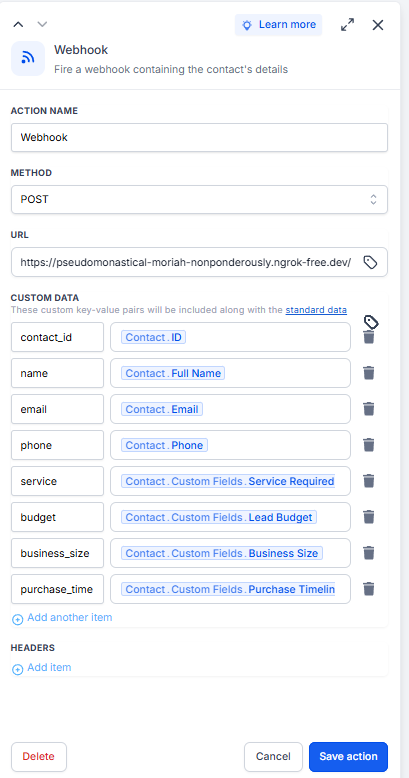
- Save and publish the workflow.
- The webhook secret is a password you invent. Generate one with:
node -e "console.log(require('crypto').randomBytes(24).toString('hex'))"
Use the same value in the webhook URL and in your backend’s .env file.
Step 5: Build the Backend with Gemini
Create a .env file:
Create an index.js file:
- Run it locally:
node index.js - To let GHL reach your computer during testing, open a second terminal and run
ngrok http 3000. Use the HTTPS address it prints in the webhook URL, followed by/qualify?key=YOUR_WEBHOOK_SECRET.
Step 6: Create Workflow 2 to Act on the Qualification Result
- Create a second workflow.
- Set the trigger to On Contact AI Qualification Status field Change.
- Add actions for each outcome:
| Status | Suggested actions |
|---|---|
| Qualified | Move the opportunity to Qualified, create a high-priority task for sales, send an internal notification |
| Nurture | Add the lead to a follow-up sequence |
| Needs Review | Create a task for a team member to clarify missing information |
- Add a final Remove Tag action for AI Qualification Needed.
- Save and publish.
Step 7: Test and Validate the Integration
- Submit a test lead through the GHL qualification form.
- Verify that the initial workflow adds the tag, creates or updates the opportunity, and sends the webhook.
- Confirm that the backend receives the lead information and gets a valid response from Gemini.
- Check that the lead score, qualification status, AI reason, and next step are updated on the GHL contact record.
- Verify that the second workflow updates the opportunity, adds the correct tag, and creates the sales task.
- Test error scenarios, including missing data, failed API requests.
Conclusion
By integrating Gemini with GoHighLevel, businesses can automate lead evaluation, store AI-generated insights, and trigger relevant sales follow-ups. This approach brings together lead scoring, workflow automation, and API integration to make the qualification process more consistent and easier to manage.
HIC Global Solutions, a Salesforce partner, can help organizations evaluate similar automation requirements across their CRM environment, while teams can extend this workflow with additional scoring criteria, review rules, and reporting as their needs evolve.
Watch Demo Video
Frequently Asked Questions
The Gemini API evaluates lead details such as budget, service requirements, business size, and purchase timeline to generate qualification scores and recommended sales actions.
Gemini scores leads from 0 to 100 based on service fit, budget fit, purchase timeline, and business readiness, helping sales teams prioritize promising prospects.
Yes, a Node.js backend can send Gemini’s qualification results to GoHighLevel through its API, updating custom fields for scores, status, reasons, and recommended actions.
The workflow uses three statuses: Qualified for promising leads, Nurture for prospects needing more time, and Needs Review for incomplete, contradictory, or ambiguous information.
Submit test leads, verify webhook delivery, validate Gemini’s JSON response, confirm contact field updates, and check that the correct tags, opportunity changes, and sales tasks are triggered.

 India
India  USA
USA UK
UK Canada