
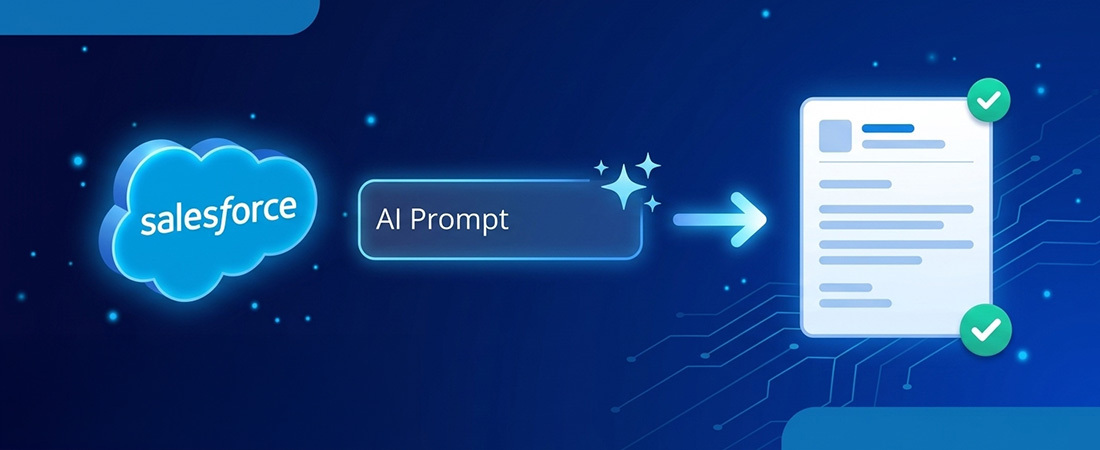
Writing personalized sales emails can be time-consuming, but Salesforce's Prompt Builder simplifies the process by allowing sales reps to create reusable email templates using existing Contact and Account data. This guide outlines the steps to enable Einstein, configure prompts with merge fields, and generate email drafts directly from Contact records. By following these steps, users can enhance their email communication while maintaining a personal touch without starting from scratch.
Writing sales emails for every prospect takes time, especially when each message needs to reflect the contact’s role, company, and business requirements. Generic emails often miss that personal connection.
Salesforce Prompt Builder helps sales representatives create personalised email drafts using information already available in Contact and Account records. Instead of writing every message from scratch, users can work with reusable AI instructions.
In this guide, we will walk through how to enable Einstein, configure a prompt, add Contact and Account merge fields, and generate an email draft directly from a Contact record.
What Is Prompt Builder?
Prompt Builder is a Salesforce tool that lets you create reusable instructions, called prompt templates, for Einstein. You write the instructions in plain English and add merge fields, such as a Contact’s name or Account’s industry.
When someone uses the template, Salesforce replaces those fields with actual record information and sends the prompt to the selected AI model. The model generates an email draft for the user to review and edit before sending.
What You Need Before You Start
Before creating your prompt, make sure you have the following:
- Einstein generative AI access: Your org needs Einstein generative AI enabled through a supported Einstein or Agentforce license. You can also use a free Agentforce Developer Edition org.
- System Administrator access: You need the required permissions to change settings and assign permission sets.
- Contact and Account records: Keep a few Contacts linked to Accounts, with details such as Industry, Number of Employees, Billing City, and Description filled in.
As Quick Check: Type “Prompt Builder” in the Setup Quick Find box. If it shows up, you’re good to go. If it doesn’t, your org doesn’t have the license for it yet.
Steps to Create an AI Sales Email Template Using Prompt Builder
Once the required access and sample records are ready, you can configure Einstein and create your prompt. Follow these steps in order to generate personalised email drafts using a Salesforce email template based on Salesforce Contact records.
Step 1: Turn On Einstein
Everything starts here. If Einstein is turned off, the other options required for this setup won’t work.
- Go to Setup.
- In Quick Find, search for Einstein Setup and open it.
- Switch Turn on Einstein to On.
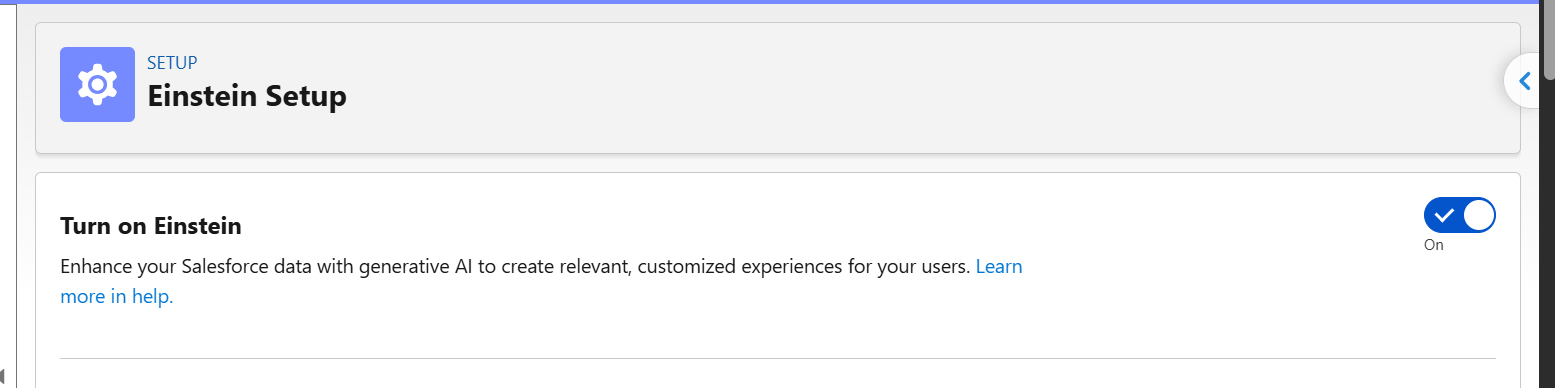
Give it a few minutes after you switch it on. Salesforce needs a little time to get things ready in the background.
Step 2: Turn On Sales Emails
Next, enable the sales email features so Einstein can help users draft emails from Salesforce.
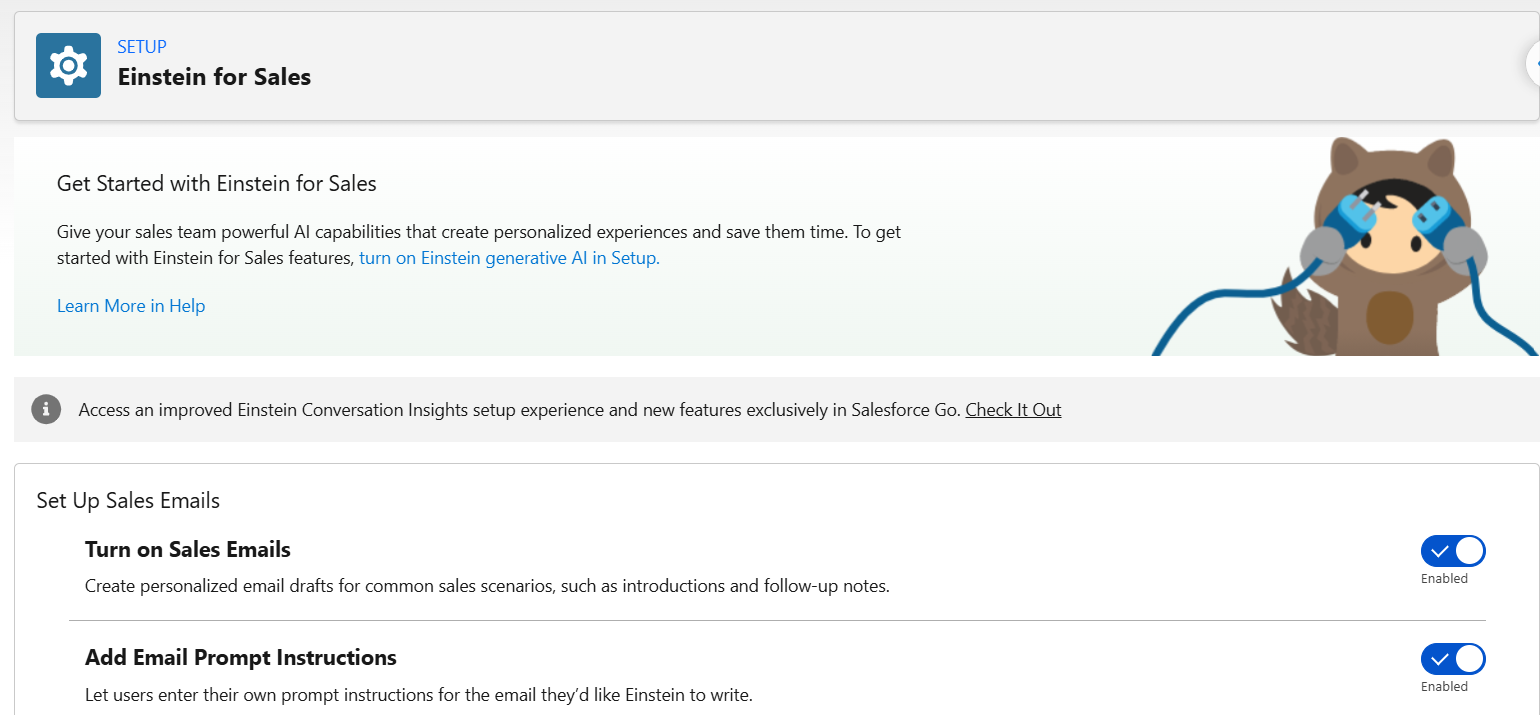
- In Setup, search for Einstein for Sales and open it.
- Under Set Up Sales Emails, you have to Turn on Sales Emails.
- Also enable Add Email Prompt Instructions. This allows users to provide additional instructions when drafting an email.
Step 3: Assign the Permission Sets
Even when the Einstein settings are enabled, the AI drafting option may not appear in the email composer if the user doesn’t have the required permissions.
- Go to Setup → Users and open your user record.
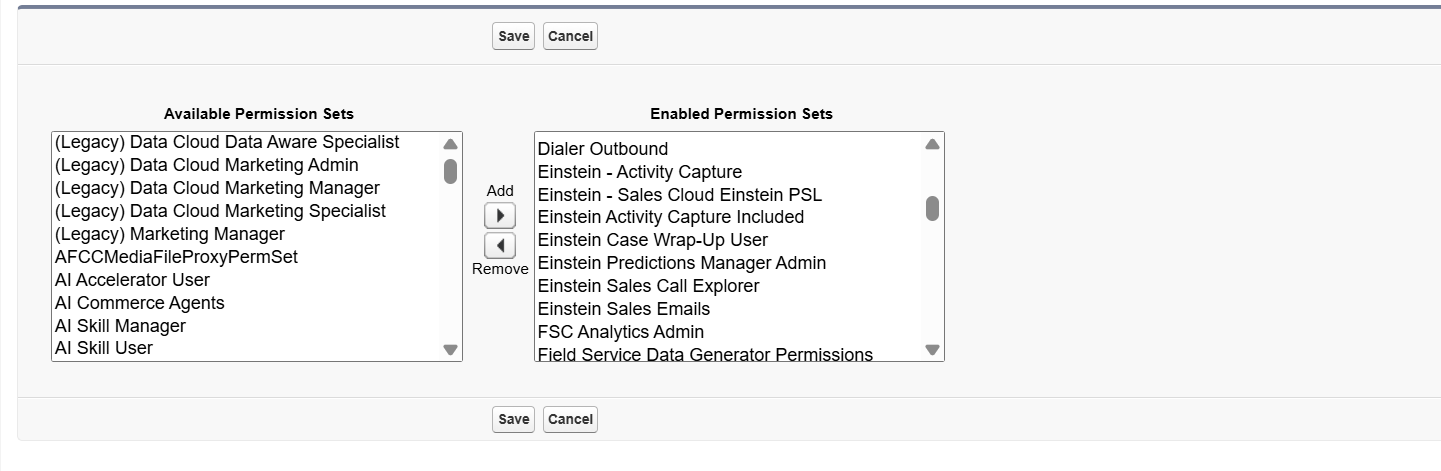
- Scroll to Permission Set Assignments and click Edit Assignments.
- Move the following permission sets into Enabled Permission Sets:
- Einstein – Sales Cloud Einstein PSL
- Einstein Sales Emails
- Prompt Template Manager
- Prompt Template User
- Click Save.
Tip: Assign these to the person who will actually send the emails. After saving, log out and log back in so the new permissions kick in.
Step 4: Open Prompt Builder
Now that Einstein and the required permissions are enabled, you can create a reusable prompt.
- In Setup, search for Prompt Builder and open it.
- Click New Prompt Template in the top-right corner.
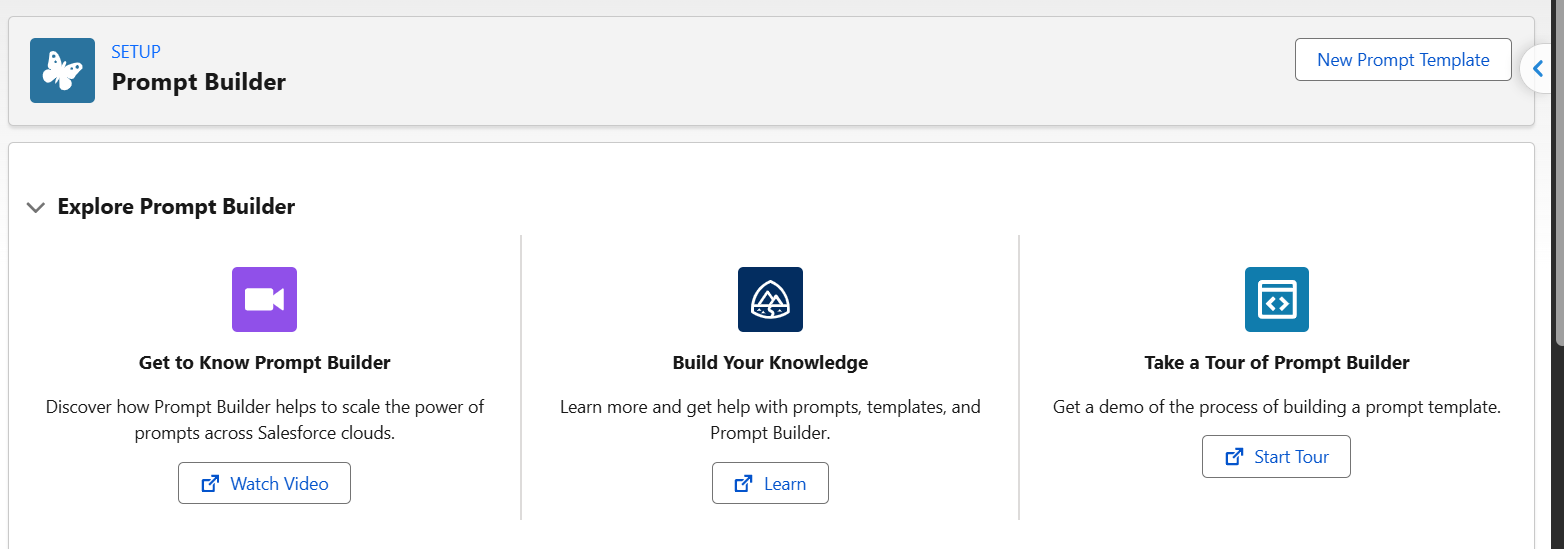
A small window will pop up. Fill it in like this:
- Prompt Template Type: Sales Email
- Prompt Template Name: Sales Emails (or any name you like)
- Recipient: Contact
Leave Related Object empty. You don’t need it, because the Account details come straight through the Contact. Click Next.
Step 5: Write the Prompt With Contact and Account Fields
This is where you define what Einstein should write and which record details it should use. The instructions can be written in plain English, while merge fields pull the required information from Salesforce records.
Use the following prompt:
Here’s the prompt I used. You can copy it as-is:
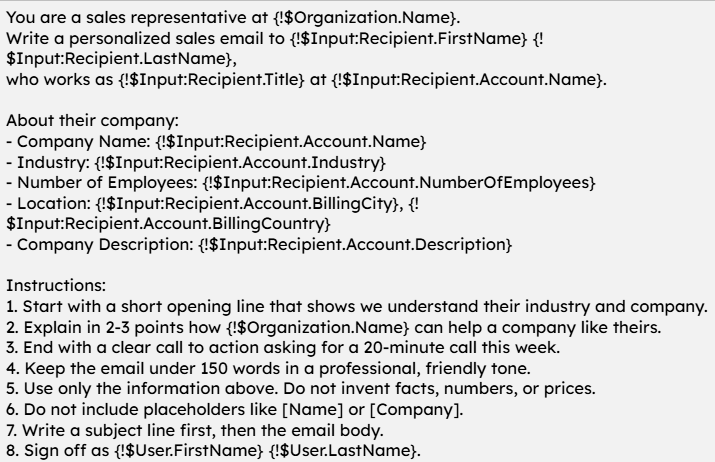
After pasting the instructions, Salesforce converts the merge fields into grey chips inside Prompt Builder. You can also select the AI model from the available options. The model shown in your org may differ depending on your Salesforce setup.
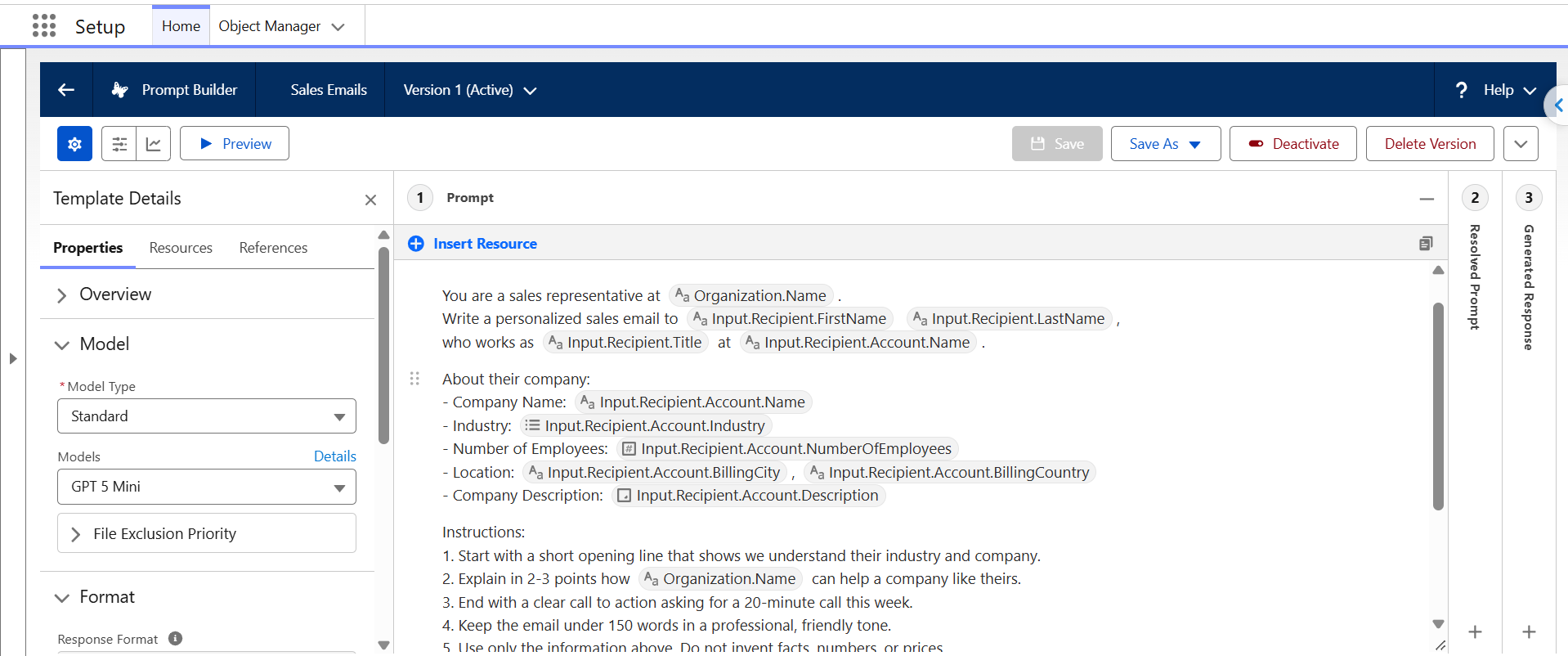
Here’s what the main merge fields do:
- Recipient: Pulls the Contact’s first name, last name, and job title.
- Recipient.Account: Retrieves details from the Account linked to that Contact, including company name, industry, employee count, location, and description.
- Organization.Name: Adds your company’s name to the instructions.
- User.FirstName and User.LastName: Add the name of the person sending the email.
These fields help Einstein use existing record information instead of relying only on a general instruction. For better results, make sure the Contact and Account records contain accurate details.
Step 6: Preview, Save, and Activate
Before making the prompt available to users, check the email it generates with a sample Contact.
- Click Preview at the top.
- Select a sample Contact linked to an Account.
- Review the generated email.
- If the email is too long or the tone doesn’t feel right, edit the Instructions section and preview it again.
- Once you’re satisfied with the result, click Save and then Activate.
If the output feels generic, check whether the Account record has enough information. Adding details such as Industry and Description can give Einstein more context for the email.
Step 7: Use the Prompt From a Contact Record
After activating the prompt, users can access it directly from a Contact record.
- Open any Contact record.
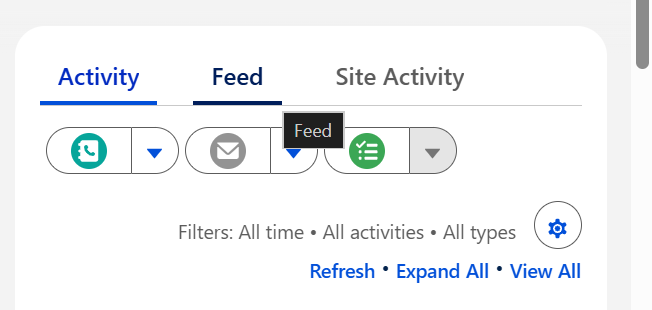
- On the right side, go to the Activity tab.
- Click the email button. If there’s a small arrow beside it, click the arrow to find the Einstein draft option.
- Select your newly created prompt and let Einstein generate the email.
Step 8: Review the Draft and Send It
Einstein generates the email in the composer with a subject line and body based on the Contact’s name and Account information.
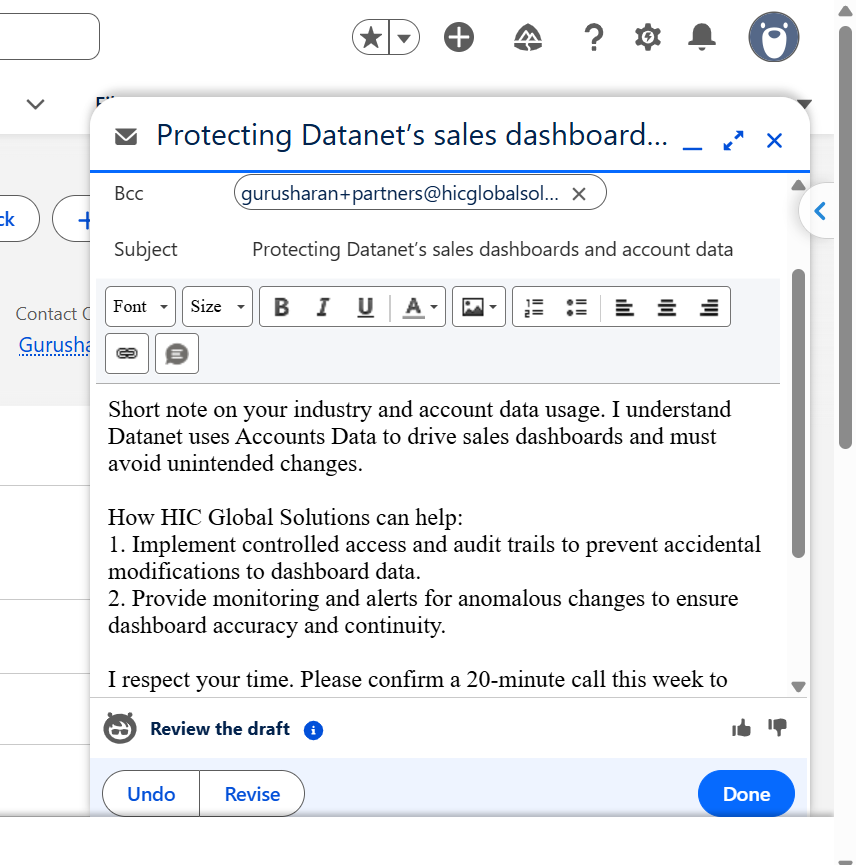
At the bottom you’ll see a few buttons:
- Undo throws away the draft.
- Revise lets you ask Einstein to change something, like “make it shorter” or “sound more casual”.
- Done keeps the draft so you can make your own edits.
Always give it a quick read before you send. Einstein does a good job, but you know your customer better than it does. When it looks right, click Send.
If the Einstein Option Doesn’t Appear
If you can’t find the Einstein drafting option in the Contact email composer, check these settings:
- Your user has the Einstein Sales Emails and Sales Cloud Einstein permission sets assigned.
- Turn on Sales Emails is enabled on the Einstein for Sales page.
- The prompt template is Active, not just saved.
- Your Salesforce language is set to English under Settings → Language & Time Zone.
- You’ve logged out and back in after changing permissions.
Also, confirm that the selected Contact and its Account have the information required by your prompt. Missing record details can affect the generated email.
Conclusion
With Prompt Builder, sales teams can use existing Contact and Account information to prepare personalised email drafts without writing every message from scratch. Reusable instructions also make it easier to maintain a consistent tone while allowing representatives to review and edit each draft.
HIC Global Solutions helps businesses make better use of Salesforce through customisation, automation, and AI-powered implementations. As a Salesforce partner, we can help your team configure Prompt Builder and other Salesforce services around its everyday sales processes.
So, if you require assistance with your Salesforce implementation, Prompt Builder setup, or custom requirements, contact us at Sales@hicglobalsolutions.com.
Frequently Asked Questions
Salesforce Prompt Builder creates reusable AI instructions that generate personalised content, such as sales emails, using existing Salesforce record data.
Yes. Prompt Builder requires supported Einstein generative AI or Agentforce licensing. A free Agentforce Developer Edition org can also be used for testing.
Users may need Einstein – Sales Cloud Einstein PSL, Einstein Sales Emails, Prompt Template Manager, and Prompt Template User permission sets, depending on their responsibilities.
Businesses can improve email quality by maintaining accurate Contact and Account records, using specific prompt instructions, adding relevant merge fields, and previewing outputs before activation.
A Salesforce partner like HIC Global Solutions can help configure Prompt Builder, customise AI workflows, automate sales processes, and integrate Salesforce services based on business requirements.



 India
 USA
 UK
 Canada