
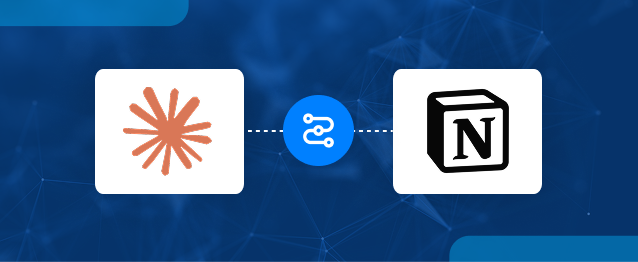
This guide details the integration of Claude with Notion using a custom connector built on the Model Context Protocol (MCP). It outlines the steps to set up a Node.js and TypeScript server, configure Notion API authentication, and connect Claude to retrieve documents without manual uploads. The process includes creating the MCP server, implementing Notion tools, and testing the connection to ensure seamless communication. Once established, users can efficiently search and access Notion data directly through Claude, enhancing productivity and information retrieval.
Claude becomes more useful when it can access information stored in external platforms such as Notion. This connection helps users retrieve relevant business documents without manually uploading them into Claude.
A custom connector built with the Model Context Protocol (MCP) allows Claude to communicate with Notion through a dedicated server. It can search pages and retrieve document content when required.
In this guide, we will walk through the Claude Notion integration, from setting up the MCP server and configuring Notion API authentication to connecting the server with Claude and testing the complete workflow.
How to Set Up the Claude Notion Integration
The setup involves creating a Node.js and TypeScript project, adding MCP tools for Notion search and document retrieval, configuring API access, and deploying the server. Once the server is running, you can connect Claude to Notion through a custom connector and verify the connection.
Step 1: Set Up the Custom Connector Server
The first step is to create the server that will host the custom connector.
- Create a Node.js and TypeScript project.
- Maintain the main MCP server code in src/server.ts.
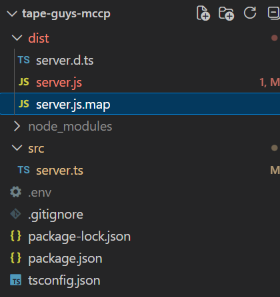
- Generate the compiled JavaScript output inside the dist folder.
Project Structure
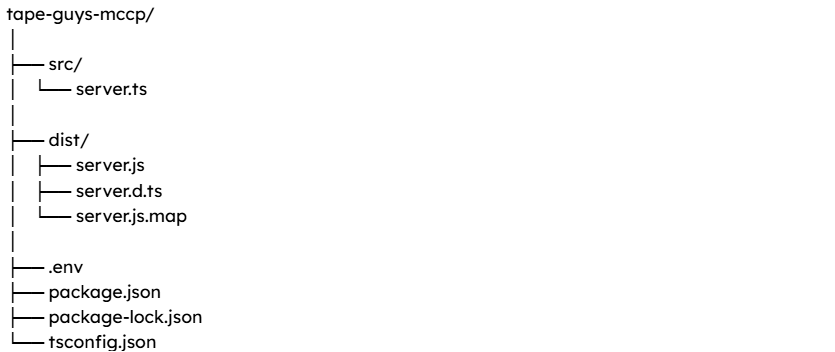
The main development file is:
src/server.ts
This file contains the MCP server logic and the tools that Claude will be able to use.
After TypeScript compilation:
⬇
TypeScript compilation
⬇
dist/server.js
Environment Variables
The .env file stores configuration values and sensitive credentials required by the application.
For example: NOTION_TOKEN=your_notion_api_token
Deployment
For this tutorial, the MCP server can be deployed on Render.
The same application can later be moved to another production server or cloud platform without changing the overall MCP architecture.
The overall architecture is:
⬇
GitHub
⬇
Render
⬇
Public MCP Endpoint
⬇
Claude
Step 2: Create the MCP Server and Notion Tools
The main file for the MCP implementation is src/server.ts. It handles the MCP server, Notion connection, and the tools exposed to Claude.
2.1 Import the Required Libraries
- Import the MCP SDK, Notion SDK, Express, and Zod at the beginning of server.ts:
import “dotenv/config”;
import { McpServer } from “@modelcontextprotocol/sdk/server/mcp.js”;
import { StreamableHTTPServerTransport } from “@modelcontextprotocol/sdk/server/streamableHttp.js”;
import { Client } from “@notionhq/client”;
import express from “express”;
import { z } from “zod”;
These libraries provide MCP server functionality, Notion API access, HTTP server support, and input validation.

2.2 Connect the Server to Notion
- Read the Notion API token from the environment variables.
- Create a Notion client using the token.
const notionToken = process.env.NOTION_TOKEN;
if (!notionToken) {
throw new Error(“NOTION_TOKEN is missing from environment variables”);
}
const notion = new Client({
auth: notionToken,
});
This keeps the Notion token outside the source code and allows the application to authenticate with Notion.
2.3 Create the MCP Server
- Create a function that initializes the MCP server.
function createMcpServer() {
const server = new McpServer({
name: “tape-guys-business-brain”,
version: “1.0.0”,
});
// MCP tools will be added here
return server;
}
This server will contain the tools Claude can call to access Notion.
2.4 Add the First Tool: Search Notion
- Create the first MCP tool to search the Notion Business Brain.
This tool accepts a search query, sends it to Notion, and returns matching pages with their IDs, titles, and URLs.
2.5 Add the Second Tool: Retrieve a Document
- Create a second tool to retrieve the actual content of a selected Notion page.
This tool receives a Notion page ID and retrieves the content of that page so Claude can read it.
2.6 Expose the MCP Endpoint
- Expose the /mcp endpoint using Streamable HTTP.
This is the endpoint Claude will connect to later.
Step 3: Create a Notion Integration
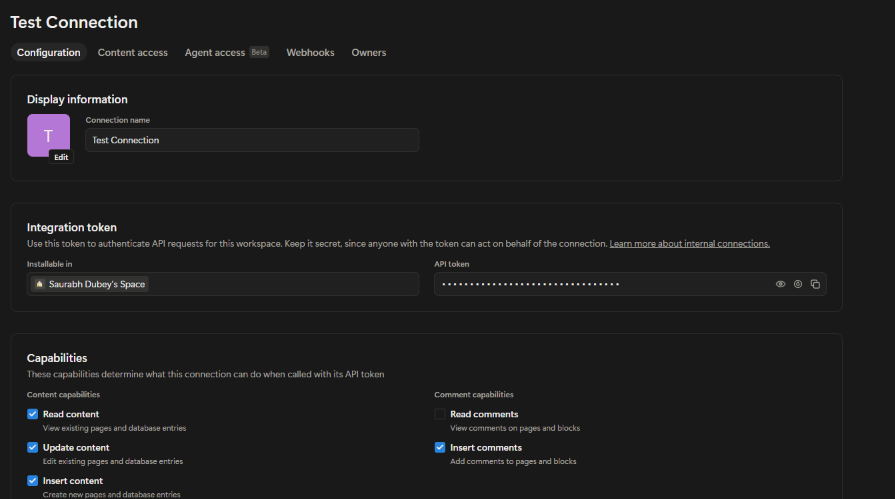
Create a Notion integration and generate an API token that the MCP server can use to communicate with the Notion API.
3.1 Create the Notion Integration
- Open the Notion integrations page.
- Create a new integration.
- Enter the integration name, such as Tape Guys Business Brain.
- Select the appropriate Notion workspace.
3.2 Add the Notion API Token
- Copy the API token provided by Notion after creating the integration.
- Store the token in the environment variables.
NOTION_TOKEN=your_notion_api_token
The application reads it using:
const notionToken = process.env.NOTION_TOKEN;
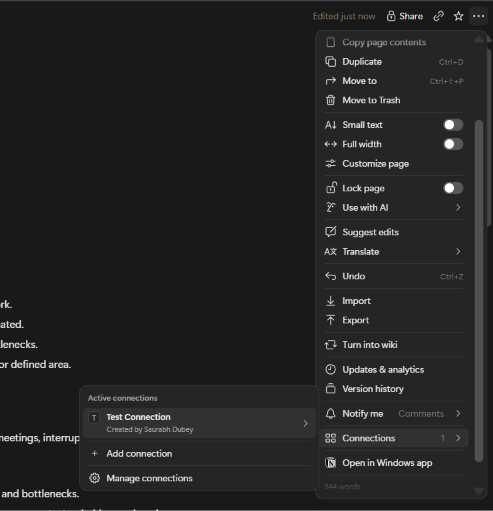
3.3 Share the Notion Content
- Open the required Notion page or database.
- Give the integration access to the content you want the MCP server to access.
- Use the Business Brain page or database for this example.
Step 4: Test the Notion MCP Server
Verify that the server and Notion API are working correctly before connecting the server to Claude.
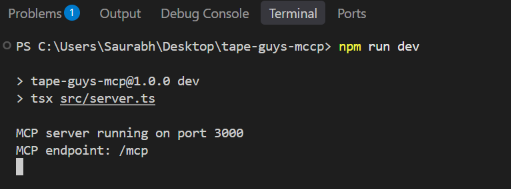
4.1 Start the Server
- Run the following command:
npm run dev
- Check that the server starts on the configured port.
MCP server running on port 3000
MCP endpoint: /mcp
4.2 Test the Health Endpoint
- Open the following URL: http://localhost:3000/health
Expected response:
{
“status”: “ok”,
“service”: “business-brain-mcp”
}
This confirms that the server is running correctly.
Step 5: Connect the Custom MCP to Claude
Once the MCP server is working, connect it to Claude using a custom connector. This is the main step in configuring the Claude Notion connector.
5.1 Open Claude Connectors
- In Claude, navigate to Customize > Connectors.
- Select Add custom connector.
- For Team or Enterprise organizations, have an Owner add the connector first if required.
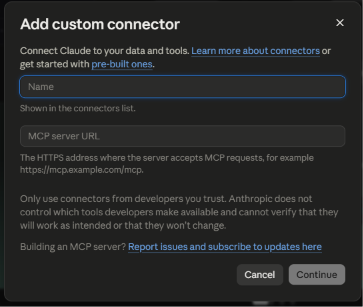
5.2 Add the MCP URL
- Enter the public MCP URL:
https://your-project.onrender.com/mcp - Use this URL to point Claude to the remote MCP server.
5.3 Connect the Connector
- Complete the connection process.
- Verify that the custom connector appears in Claude’s connector list.
5.4 Enable the Connector
- Open a Claude conversation.
- Navigate to + > Connectors.
- Enable the custom connector.
- Allow Claude to use the MCP tools exposed by the server.
Step 6: Test Claude with Notion
After configuring the connection, test whether Claude can search Notion through the custom connector.
The complete flow is:
⬇
Custom Connector
⬇
Remote MCP Server
⬇
Notion API
⬇
Notion Data
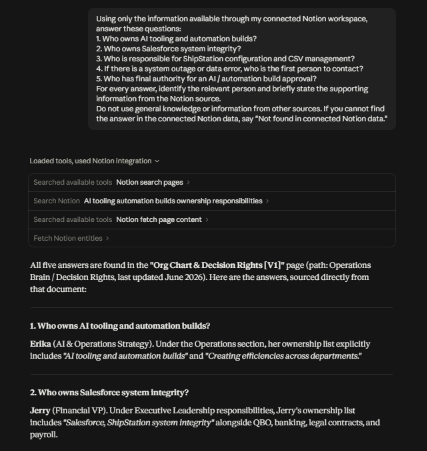
6.1 Search Notion from Claude
- In Claude, make sure the custom connector is enabled.
Ask:
Search the Notion Business Brain for information about onboarding.
Claude should use:
search_business_brain
to search Notion.
Step 7: Verify the Complete Connection
- At this point, we can verify the complete Claude > Notion connection.
- Try a real question based on information stored in your Notion Business Brain, for example:
Find the document related to Salesforce integration and summarize it.
Claude should:
- Search Notion using search_business_brain
- Identify the relevant page
- Retrieve its content using get_business_document
- Use that information to answer the question.
Final Result
If the test is successful, we have verified:
Notion API authentication
Custom MCP server
Remote MCP endpoint
Claude custom connector
Notion search
Notion document retrieval
Claude → Notion communication
The final architecture is:
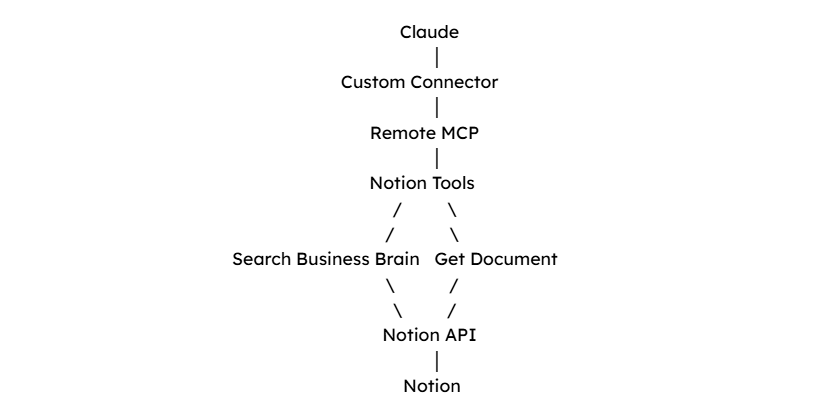
With this setup, Claude can access the Notion information exposed through the custom MCP server without manually uploading those documents into Claude. The same architecture can later be extended with additional MCP tools or other external systems.
Conclusion
A custom connector provides a structured way to connect Claude with Notion and retrieve information through a dedicated MCP server. Once configured, the workflow brings together Notion search, document retrieval, and Claude conversations without requiring manual document uploads.
For businesses looking to extend this setup or build similar integrations, HIC Global Solutions, a Salesforce partner, can help with custom solutions tailored to their existing systems and business requirements. If you face any issues while connecting Claude with Notion, contact our support team at Sales@hicglobalsolutions.com for assistance.
Additionally, businesses can expand their Claude Notion integration with more tools as their data access needs grow, making information retrieval easier across connected platforms.
Watch Demo Video
Frequently Asked Questions
Claude can search Notion pages, retrieve relevant document content, and use that information to answer questions. A custom MCP connector makes it easier to access business knowledge without manually uploading documents.
The Claude Notion integration uses a custom MCP server to connect Claude with the Notion API. Claude sends requests through the connector, and the server executes tools for searching Notion pages and retrieving their content.
The Model Context Protocol (MCP) provides a standardized way for Claude to communicate with external tools and data sources. In this setup, MCP connects Claude to a custom server that exposes Notion search and document retrieval capabilities.
Yes. A custom MCP server can retrieve page content using the Notion API’s block retrieval functionality. The get_business_document tool in this implementation fetches the content of a selected Notion page for Claude to process.
Notion integrations can only access content that has been shared with them and that their permissions allow. Granting access to the relevant pages or databases ensures the MCP server can retrieve the required business information.

 India
India  USA
USA UK
UK Canada