
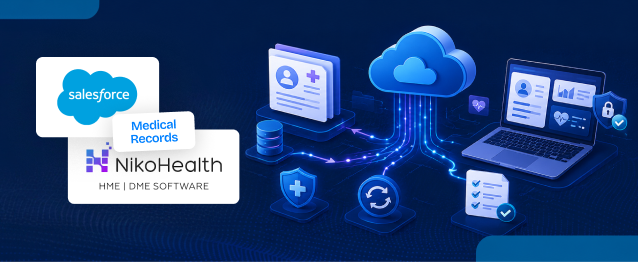
Medical Records contain important patient diagnosis information used by healthcare providers for treatment, billing, authorizations, prescriptions, and order processing.
With MultiSync Made Easy, organizations can simplify NikoHealth and Salesforce synchronization by automatically syncing Medical Records between both platforms while maintaining accurate Patient relationships.
In this guide, we will configure:
- NikoHealth → Salesforce Medical Record Synchronization
- Salesforce → NikoHealth Medical Record Synchronization
- Legacy Medical Record Import
- Real-Time Medical Record Synchronization
This complete Salesforce NikoHealth integration helps organizations keep healthcare data connected, accurate, and synchronized across systems.
Before configuring Medical Record synchronization, ensure Patient Synchronization is already completed, as Medical Records are directly associated with Patient records.
Related Guides
- How to Integrate NikoHealth with Salesforce Using MultiSync Made Easy
- How to Sync Patient Records Between NikoHealth and Salesforce Using MultiSync Made Easy
Step 1: Open MultiSync Made Easy
- Navigate to App Launcher → MultiSync Made Easy.
- Click Active Integrations.
- Locate the NikoHealth integration from the list.
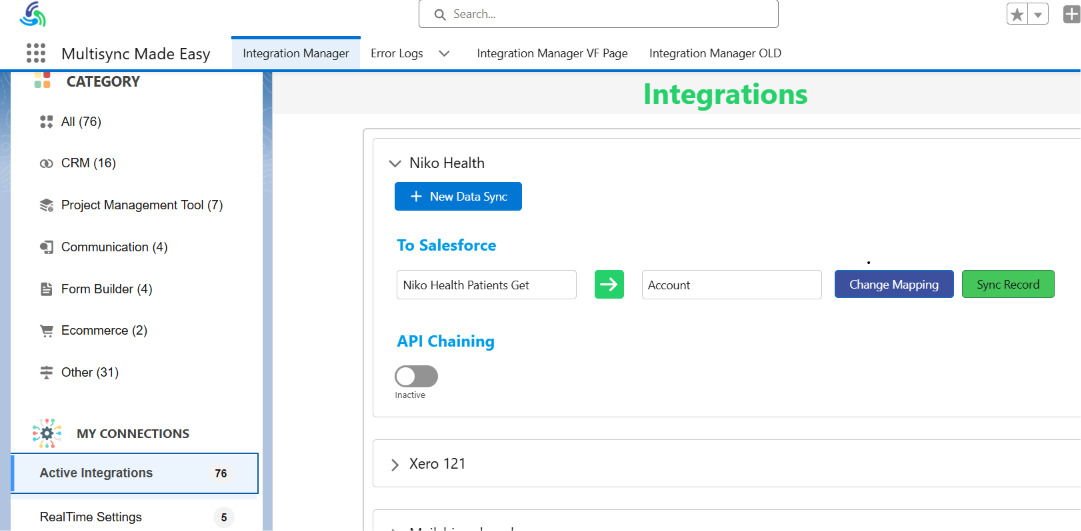
Step 2: Create a New Medical Record Synchronization
- Click + New Data Sync.
- The synchronization wizard will open.
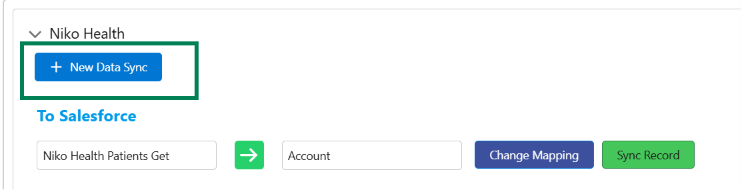
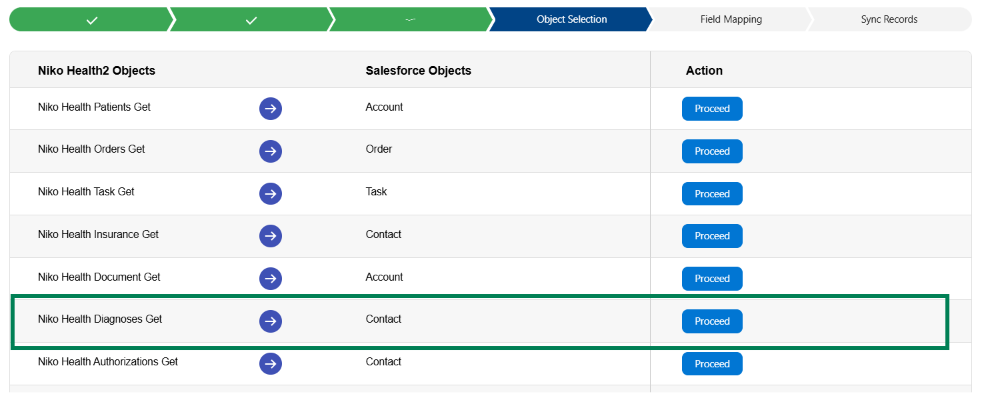
Step 3: Configure Object Mapping
- Select NikoHealth Object → NikoHealth Diagnoses Get.
- Select Salesforce Object → Contact.
- Click Proceed.
Step 4: Configure Field Mapping
- Map Medical Record fields from NikoHealth to Salesforce.
Example:
| NikoHealth Field | Salesforce Field |
|---|---|
| Diagnosis Id | Diagnosis_Name__c |
| Description | Description__c |
| AdditionDate | Addition_Date__c |
| Patient Id | Niko_Patient_Id__c |
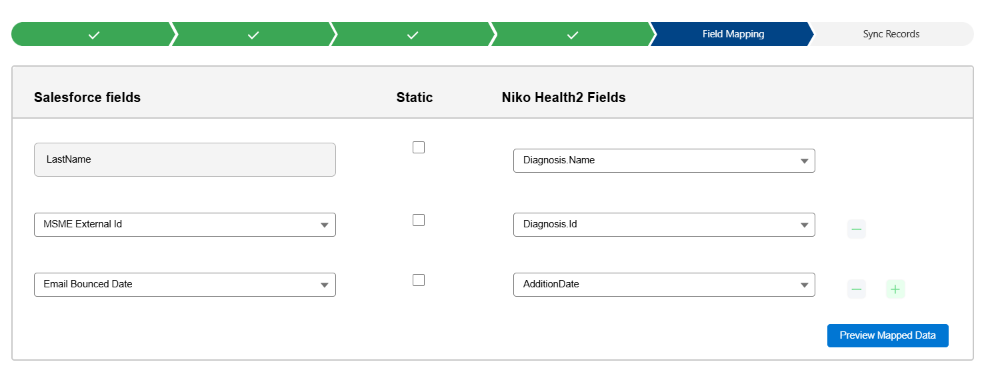
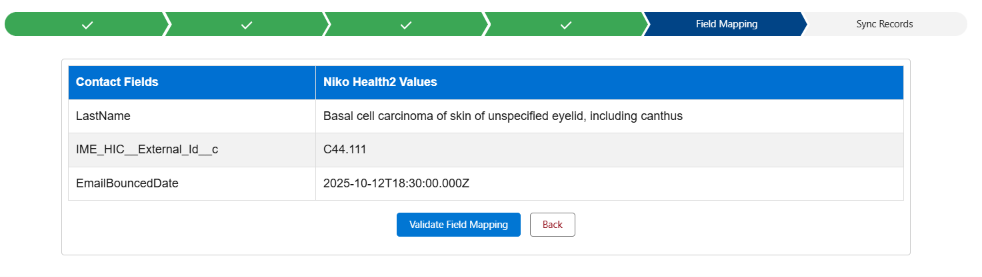
Step 5: Preview and Validate Mapping
- Click Preview Mapped Data.
- Review the sample Medical Record data retrieved from NikoHealth.
- Validate the mapping and save the configuration.
Step 6: Import Existing Medical Records
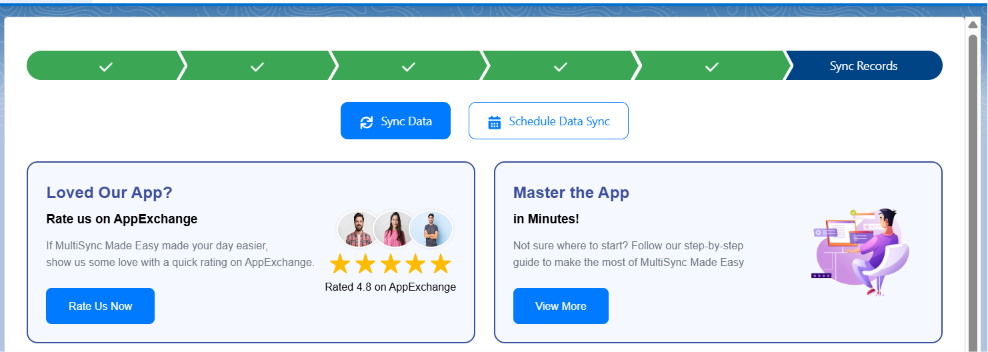
- Navigate to Sync Records.
- Select Sync Data or Schedule Data Sync.
- Import all existing Medical Records from NikoHealth.
Step 7: Complete Legacy Medical Record Synchronization
MultiSync Made Easy processes Medical Records in batches.
The platform automatically:
- Retrieves Medical Records from NikoHealth.
- Applies configured field mappings.
- Creates or updates records in Salesforce.
- Prevents duplicate record creation.
Patient Relationship Mapping
Medical Records are always linked with a Patient record.
During synchronization:
- MultiSync reads the Patient ID from NikoHealth.
- Searches Salesforce for the matching Patient record.
- Uses the stored Niko Patient ID to identify the correct Account.
- Automatically populates the Patient lookup field on the Medical Record.
Result: Medical Record → Patient Relationship Created.
Step 8: Verify Medical Record Synchronization
- Open a Patient record in Salesforce.
- Navigate to the Medical Records Related List.
- Verify the synchronized Medical Record details, including:
- Diagnosis Name
- Diagnosis Code
- Description
- Addition Date
The Medical Records are now successfully associated with the Patient record.
Real-Time Medical Record Synchronization
After importing historical records, enable real-time synchronization.
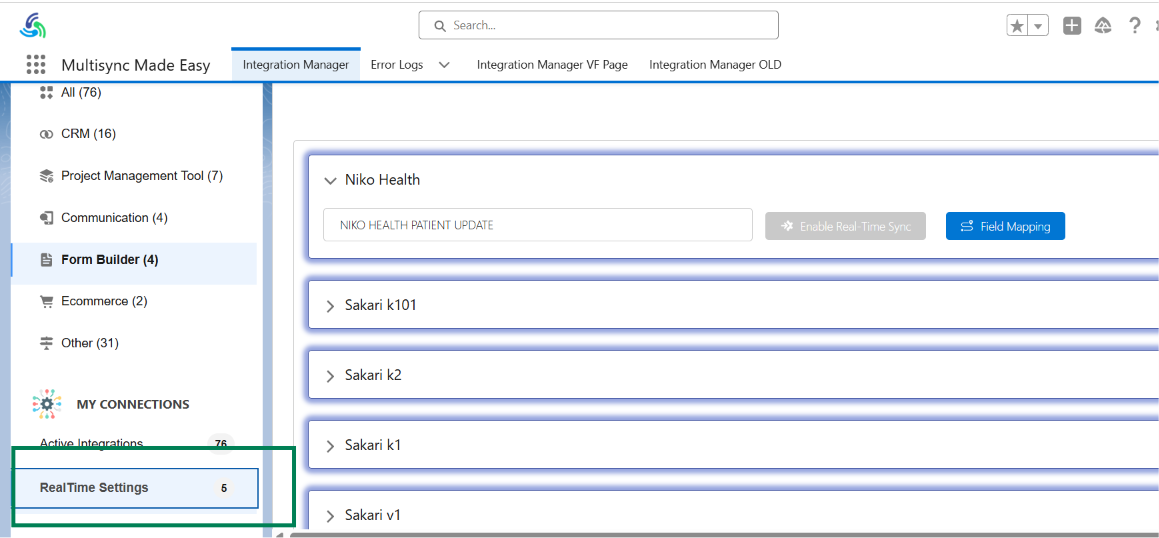
Step 9: Open Real-Time Settings
- Navigate to RealTime Settings.
- Locate the NikoHealth Medical Records integration.
Step 10: Configure Medical Record Events
- Enable the following events:
- Medical Record Created
- Medical Record Updated
- These events automatically trigger synchronization whenever diagnosis information changes in NikoHealth.
Step 11: Enable Real-Time Sync
- Click Enable Real-Time Sync.
- Medical Records will now synchronize automatically into Salesforce.

Salesforce to NikoHealth Medical Record Synchronization
MultiSync also supports synchronization from Salesforce back to NikoHealth.
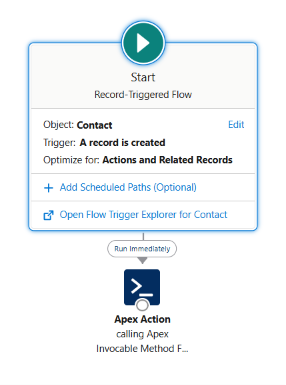
Step 12: Configure Salesforce Automation
-
- A Salesforce Flow is configured on: Contact
- The Flow triggers whenever a Medical Record is:
- Created
- Updated
- The Flow invokes an Apex Action.
- The Apex Action sends the updated diagnosis information back to NikoHealth.
Step 13: Send Diagnosis Information to NikoHealth
- The integration builds the Medical Record payload with details such as:
- Diagnosis Code
- Diagnosis Name
- Description
- Addition Date
- Patient Information
- The payload is sent securely to NikoHealth.
Step 14: Verify Bidirectional Synchronization
NikoHealth → Salesforce
- Create or update a Medical Record in NikoHealth.
- Verify that the changes are automatically reflected in Salesforce.
Salesforce → NikoHealth
- Create or update a Medical Record in Salesforce.
- Verify that the changes are synchronized back to NikoHealth.
Result
After implementing this configuration:
- Historical Medical Records are synchronized.
- Diagnosis updates are synchronized automatically.
- Medical Records remain linked to the correct Patient.
- Real-time synchronization is enabled.
- Salesforce can update NikoHealth.
- NikoHealth can update Salesforce.
- Duplicate Medical Records are prevented.
Conclusion
By implementing MultiSync Made Easy, organizations can create a reliable connection between NikoHealth and Salesforce, ensuring Medical Records remain accurate, synchronized, and properly linked with the corresponding Patient records.
The solution combines historical data import, real-time synchronization, automated workflows, and duplicate prevention to simplify Medical Record management while reducing manual data handling. With seamless bidirectional synchronization, organizations can maintain consistent healthcare data across both platforms.
HIC Global Solutions is a trusted Salesforce partner helping businesses build scalable and reliable Salesforce solutions. With expertise in Salesforce integration services, we enable organizations to connect their critical systems, automate complex workflows, and improve overall business efficiency.
Our team delivers customized Salesforce solutions designed to meet unique business requirements and support long-term growth.
Watch Demo Video
No Data Found.


 India
India  USA
USA UK
UK Canada