
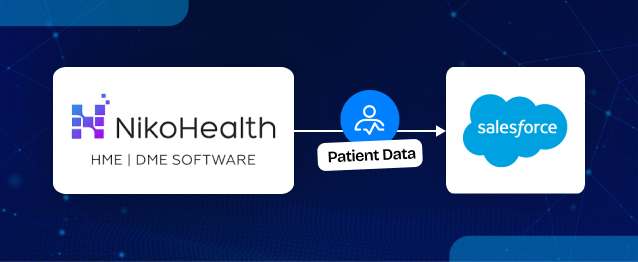
Managing patient data across systems often becomes complex for healthcare teams who need real-time accuracy and seamless updates. This guide helps you solve that by showing how to integrate and synchronize Patient records between NikoHealth and Salesforce using MultiSync Made Easy.
Related Guide:
How to Integrate NikoHealth with Salesforce Using MultiSync Made Easy
In this blog, we will configure:
- NikoHealth → Salesforce Patient Synchronization
- Salesforce → NikoHealth Patient Synchronization
- Legacy Data Import
- Real-Time Synchronization
Step 1: Open MultiSync Made Easy
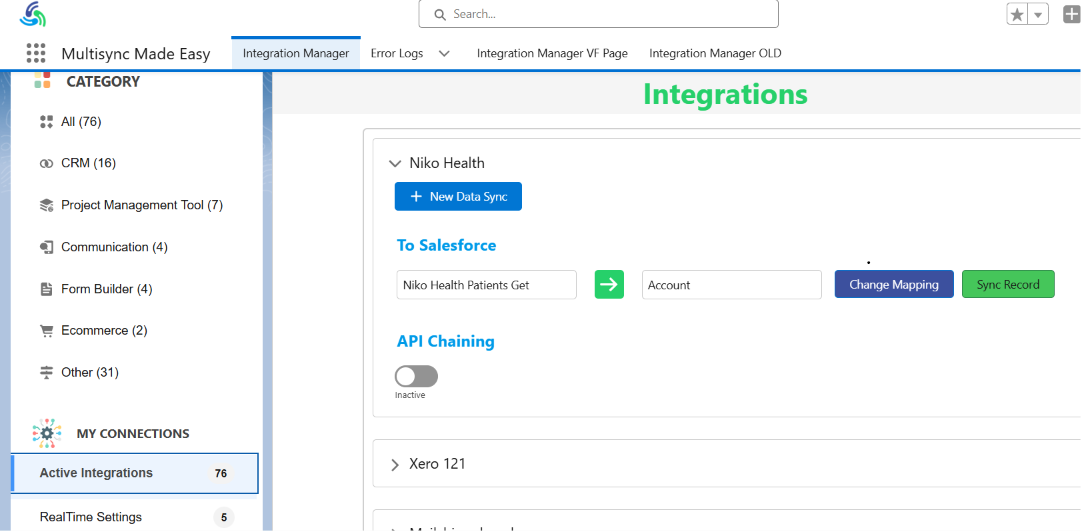
- Navigate to App Launcher -> MultiSync Made Easy.
- From the left navigation menu, click Active Integrations.
Step 2: Open the NikoHealth Integration
- Open the active integration to manage NikoHealth with Salesforce patient workflows.
- If NikoHealth has already been authorized, it will appear under Active Integrations.
- Open the NikoHealth integration. You will see all configured object synchronizations.
Examples:
- Patients
- Orders
- Insurance
- Tasks
For each object, MultiSync provides options to:
- Change Mapping
- Sync Existing Records
Step 3: Review Existing Object Mappings
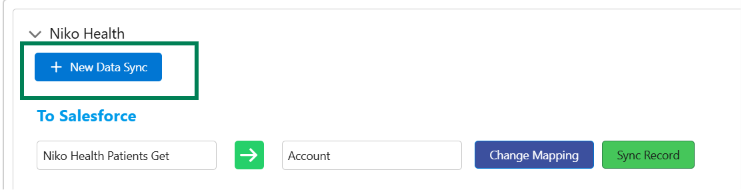
- Inside the integration screen, you can view all previously configured object mappings. For each object you can:
Change Mapping
Modify field mappings if business requirements change.
Sync Records
Run a synchronization job to import existing records from NikoHealth. This is useful when onboarding historical data.
Step 4: Create a New Patient Synchronization
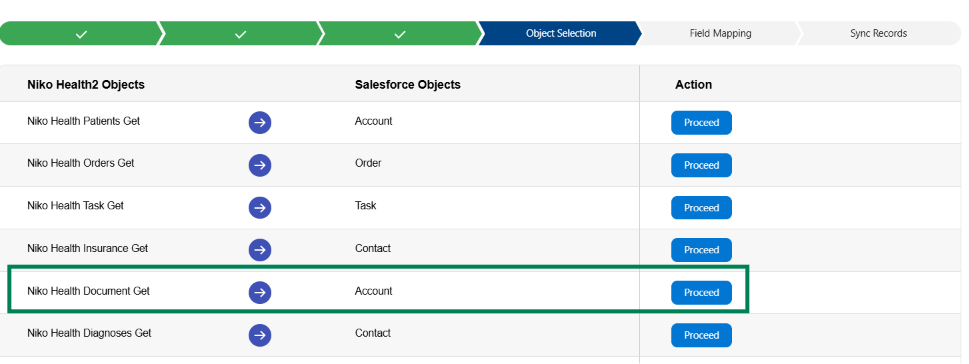
- To configure a new Patient sync, click + New Data Sync. This launches the synchronization wizard.
Step 5: Configure Object Mapping
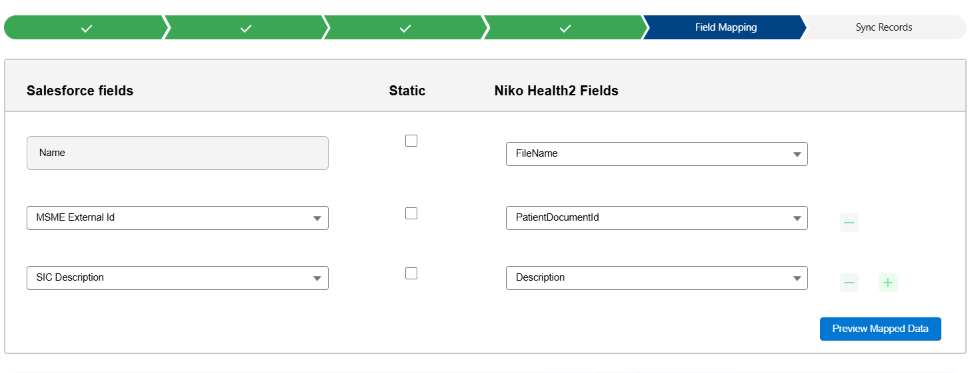
- Select Niko Health Patients Get as the NikoHealth object and Account as the Salesforce object.
- Set up the mapping to define where patient records from NikoHealth will be stored in Salesforce.
- Click Proceed to complete the configuration.
Step 6: Configure Field Mapping
- Next, map the NikoHealth Patient fields to Salesforce fields.
Example:
| NikoHealth Field | Salesforce Field |
|---|---|
| First Name | FirstName |
| Last Name | LastName |
| Patient ID | Niko_Patient_Id__c |
| Date of Birth | Date_of_Birth__c |
| State | BillingState |
- MultiSync Made Easy allows administrators to configure these mappings without writing code.
This step supports clean Salesforce API integration without coding.
Step 7: Preview Mapped Data
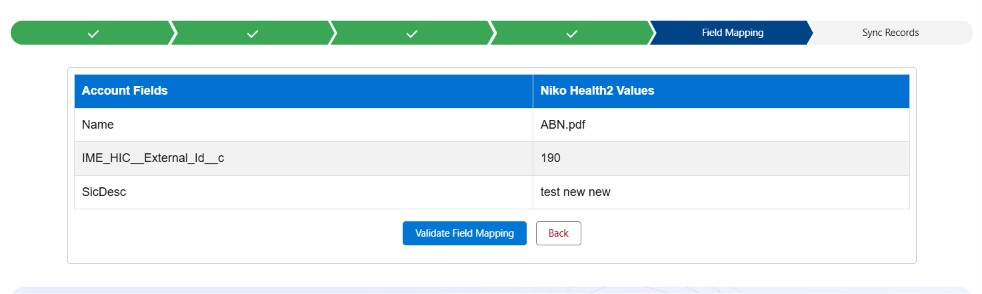
- Click Preview Mapped Data before proceeding.
- The system fetches a sample patient record from NikoHealth and shows how it will appear in Salesforce fields.
- This step helps verify that the mapping is correct before starting data synchronization.
Step 8: Validate and Save the Mapping
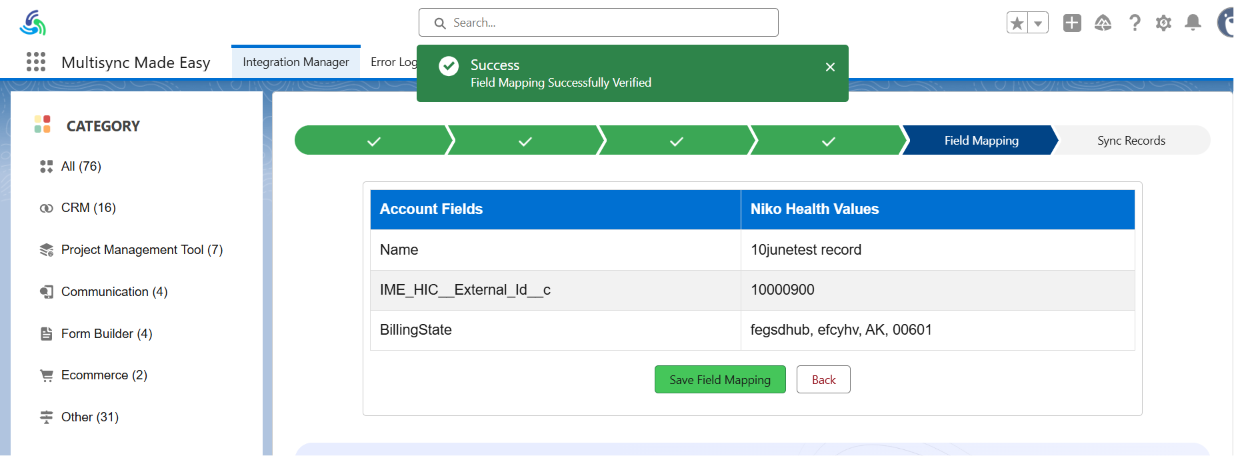
- Click Validate Field Mapping.
- If validation is successful, save the mapping.
- MultiSync Made Easy stores the configuration and prepares it for synchronization.
Step 9: Import Existing Patient Records
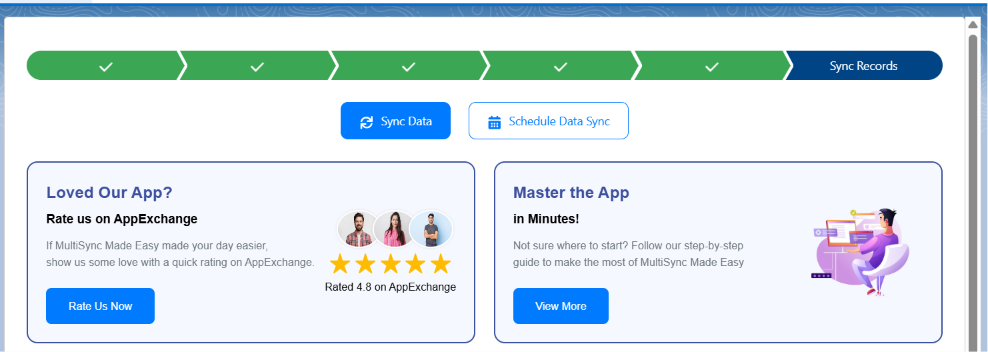
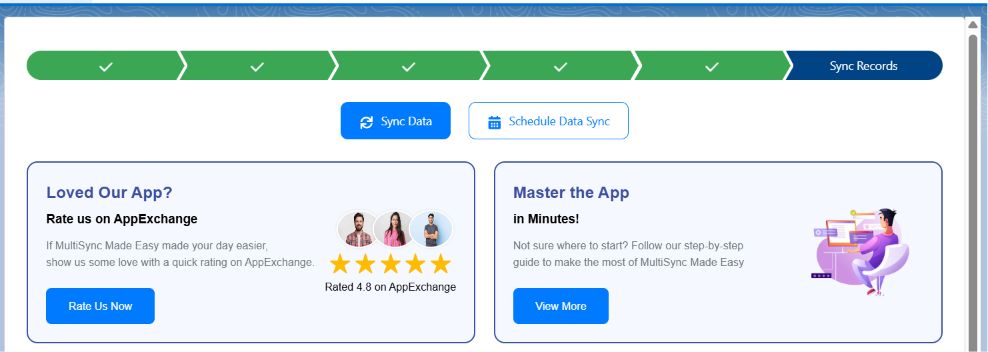
- After saving the mapping, the Sync Records page becomes available.
- Administrators can choose:
Sync Data
Imports all existing Patient records immediately.
Schedule Data Sync
Creates a scheduled synchronization job. This option is useful when importing large volumes of historical Patient records.
This helps manage large datasets in Salesforce document management workflows.
Step 10: Complete Legacy Patient Synchronization
- Once synchronization begins, MultiSync Made Easy processes Patient records in batches.
The platform automatically:
- Retrieves Patients from NikoHealth
- Applies field mappings
- Creates or updates Salesforce Accounts
- Prevents duplicate records
- This completes the legacy data migration process.
Real-Time Patient Synchronization
After legacy records have been synchronized, real-time synchronization can be enabled.
This ensures that future Patient changes are automatically synchronized without manual intervention.
Step 11: Open Real-Time Settings
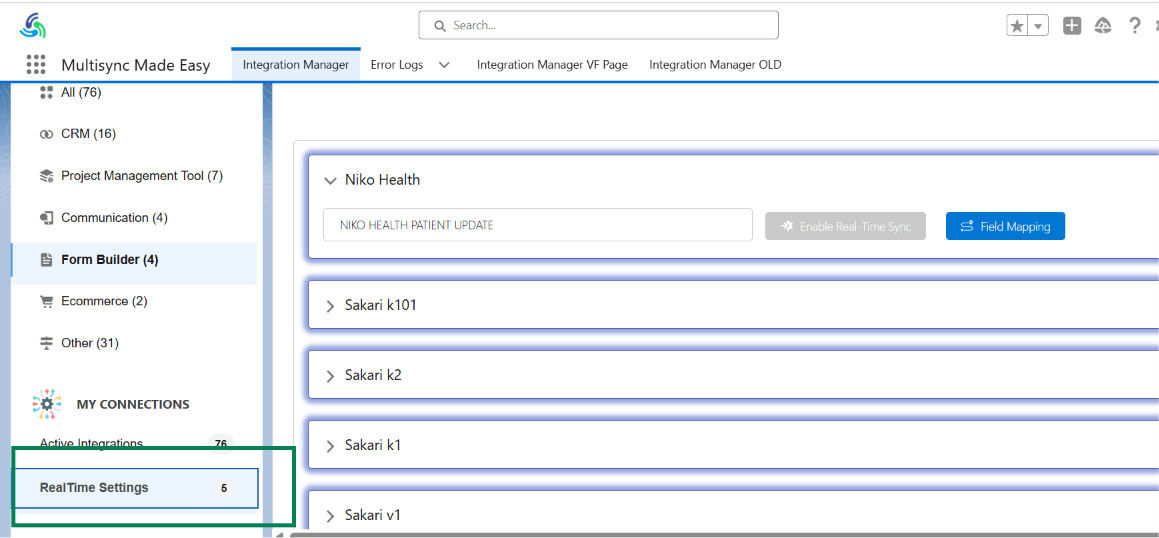
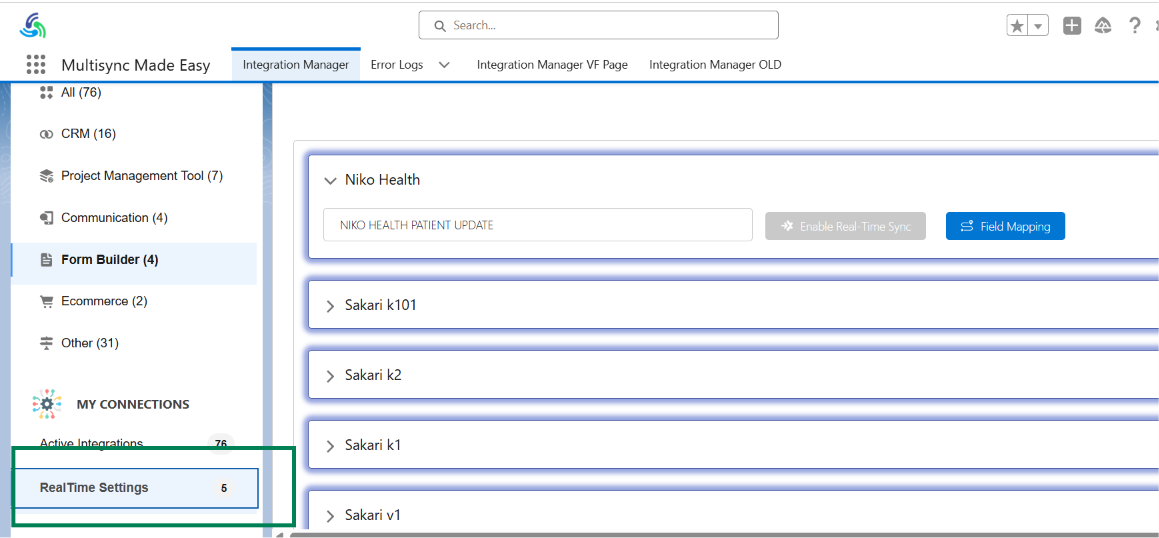
- From the left menu, navigate to RealTime Settings.
- Locate the NikoHealth integration in the list.
Step 12: Configure Patient Webhooks
- Open the NikoHealth Real-Time configuration.
You will see available webhook events such as:
- NIKO HEALTH PATIENT CREATE
- NIKO HEALTH PATIENT UPDATE
- NIKO HEALTH PATIENT DELETE
Select the Patient events that should trigger synchronization.
Step 13: Configure Real-Time Field Mapping
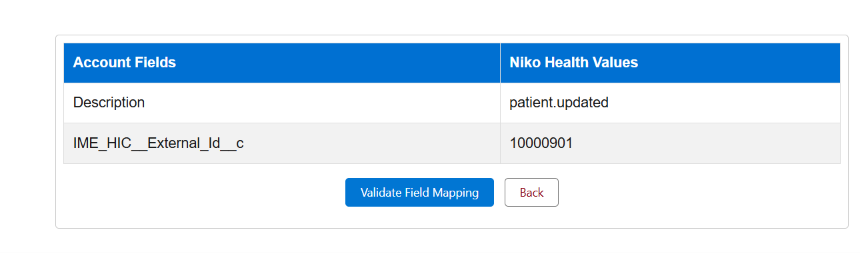
- Configure the field mapping used during real-time processing.
- In most implementations, the same mapping created during batch synchronization can be reused. This ensures that webhook events follow the same mapping rules.

Step 14: Enable Real-Time Synchronization
- Click Enable Real-Time Sync to activate live synchronization for NikoHealth integration.
- Once enabled, MultiSync Made Easy monitors for Patient webhook events from NikoHealth in real time.
- Whenever a Patient is created or updated, Salesforce automatically receives and processes the changes.
This enables Salesforce Niko Health integration for live updates and automation.

How to Integrate Patient from Salesforce to NikoHealth
The integration also supports synchronization from Salesforce back to NikoHealth.
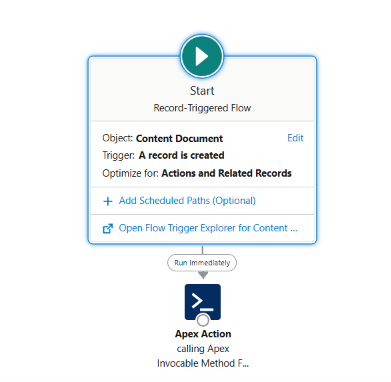
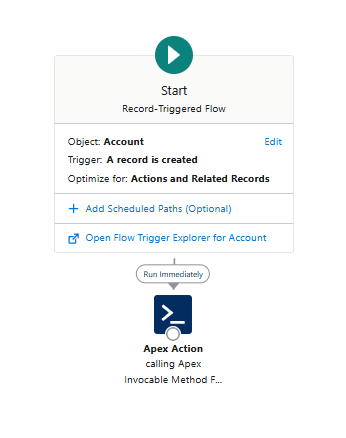
Step 15: Configure Salesforce Automation
A Salesforce Flow is configured to monitor Patient records. Whenever a Patient record is:
- Created
- Updated
- The Flow automatically invokes an Apex Action.
- The Apex Action sends the Patient data to NikoHealth through the configured API.
Step 16: Verify Bidirectional Synchronization
- Test both directions:
NikoHealth → Salesforce
- Create or update a Patient in NikoHealth.
- Verify that Salesforce updates automatically.
Salesforce → NikoHealth
- Create or update a Patient in Salesforce.
- Verify that NikoHealth updates automatically.
This confirms that bidirectional synchronization is active.
Result
After implementing this configuration:
- Historical Patient records are synchronized.
- New Patients are synchronized automatically.
- Patient updates are synchronized automatically.
- Real-time synchronization is enabled.
- Salesforce can update NikoHealth.
- NikoHealth can update Salesforce.
- Duplicate records are prevented.
- Data remains consistent across both systems.
Conclusion
Managing patient data across disconnected systems often leads to delays, duplication, and inconsistent records, especially in healthcare environments that require real-time accuracy.
A unified integration approach enables seamless synchronization between NikoHealth and Salesforce, allowing organizations to maintain accurate and up-to-date patient information across both platforms.
Using this setup, a complete Patient synchronization framework can be achieved with object mappings, field mappings, batch imports, and real-time synchronization without custom development. By combining legacy data sync, webhook-based real-time processing, and Salesforce automation, patient data stays continuously aligned in both directions, ensuring a single source of truth across systems.
For seamless NikoHealth Salesforce integration, HIC Global Solutions delivers reliable solutions backed by Salesforce integration services and Salesforce implementation services, helping enterprises achieve secure, scalable, and real-time data management.
For further support or assistance, please contact at Sales@hicglobalsolutions.com.
Watch Demo Video:
No Data Found.

 India
India  USA
USA UK
UK Canada