
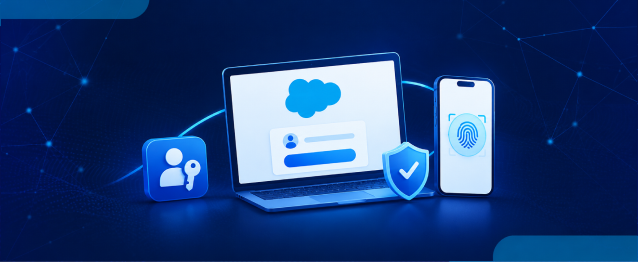
Passwordless login with passkeys gives Salesforce users another way to authenticate without entering a traditional password every time. Instead, users can verify their identity through a device, browser, or supported passkey manager.
For Salesforce admins and consultants, setting up passkeys requires a little planning. Each user needs access to their own registered passkey, and backup access should be considered before enabling the feature across an organization.
This guide covers the complete setup process, including registration, backup access, temporary verification codes, and real-time login scenarios. It also explains how Salesforce support can help when access to a passkey is no longer available.
Setting It Up: Step by Step
Step 1: Enable the Verification Methods
- Go to Setup → Quick Find → Identity Verification.
- Enable “Let users verify their identity with a built-in authenticator such as Touch ID or Windows Hello.”
- Enable “Let users verify their identity with a physical security key (U2F/WebAuthn).”
- Click Save.
If your org was created after Summer ’25, these options may already be enabled.
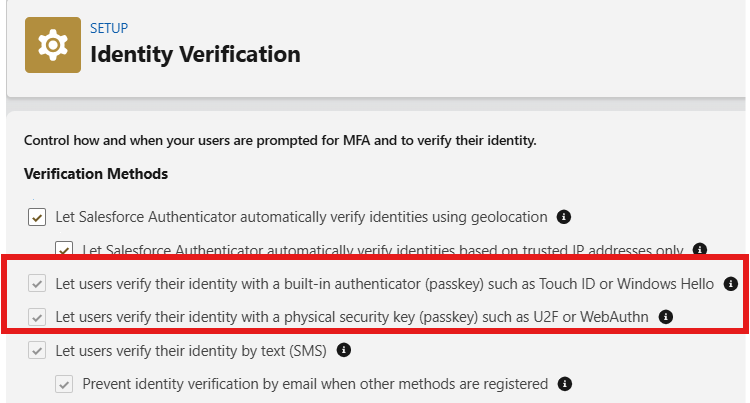
Step 2: Turn On Passwordless Login
- Stay on the Identity Verification page.
- Check “Allow passwordless login with passkeys.”
- Click Save.
This changes the login experience for internal users across the org.
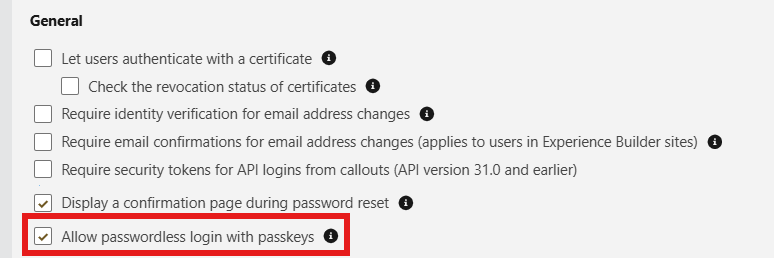
Remember, enabling this setting does not register a passkey for users. Each user must still register their own passkey.
Step 3: Make Sure Each User Has a Passkey Registered
- Log in normally if the user has not registered a passkey yet.
- Go to Avatar → Settings → Advanced User Details.
- Select the option to register a Built-in Authenticator or Security Key.
- Follow the device’s native prompt to complete registration.
If a user already has a passkey registered, they do not need to register another one just because passwordless login was enabled.
Step 4: Register a Backup
- Open Advanced User Details.
- Register a second passkey.
- Use a different device or account for the backup where possible.
This provides another authentication option if the primary passkey becomes unavailable.
The Real Risk: What If You Can’t Access the Passkey Account?
A passkey only helps when the user can access the device, browser profile, or account manager where that passkey is available. If a client has registered the passkey using their personal Google, Apple, or Microsoft account, another consultant may not be able to use it.
This can become a problem when:
- A client has registered the only passkey.
- The consultant does not have their own Salesforce user.
- The passkey is connected to a device or account the consultant cannot access.
- The same setup is used for a sandbox.
To avoid this situation, consultants should have their own dedicated user access in both production and sandbox environments.
Step 5: Reset the Passkey Through Another Active Admin
If another admin is available:
- Go to Setup → Users.
- Open the affected user’s record.
- Go to Built-in Authenticators.
- Reset the user’s passkey.
The admin needs the “Manage Multi-Factor Authentication in User Interface” permission.
Step 6: Contact Salesforce Support If No Admin Exists
If there is no active admin who can reset the passkey:
- Contact Salesforce Support.
- Provide the required account and access details.
- Follow the recovery instructions provided by Salesforce.
Step 7: Use the Temporary Verification Code
When another admin can assist with the reset:
- Open the locked-out user’s page in Setup.
- Generate a temporary verification code.
- Log in using the user’s normal username and password.
- Enter the temporary verification code when prompted.
- Register a working passkey after access is restored.
The temporary code is a one-time unlock and is not a replacement for a permanent authentication method.
Step 8: Understand Why a Password Does Not Fully Bypass the Passkey
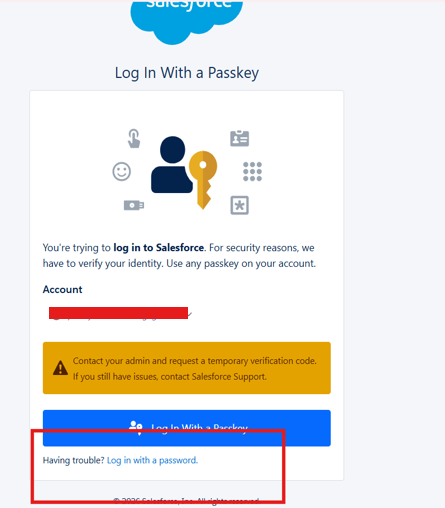
If Salesforce allows the user to select “Log in with a password,” the password may only complete the first authentication factor.
- Enter the username and password.
- Complete the first authentication factor.
- Check whether Salesforce asks for another verification method.
- Use the available registered verification method.
If the only registered verification method is the passkey, Salesforce can still request that passkey afterward.
Step 9: Consider the Same Risk in Sandboxes
The same access issue can occur in a Salesforce sandbox.
- Check whether you have your own Salesforce user in the sandbox.
- Confirm that you can access the registered authentication method.
- Avoid relying on one shared user.
- Confirm access before beginning sandbox work.
Step 10: Create Dedicated Admin Access Before Client Engagements
Before beginning a client engagement:
- Confirm that you have your own Salesforce user.
- Make sure you control the login credentials.
- Confirm access to the production org.
- Confirm access to every sandbox you need to support.
- Confirm that another active admin is available for recovery.
This helps Salesforce support teams and consultants avoid unnecessary access issues later.
Three Screens You Need to Tell Apart
Screen 1: “Create a Passkey”
This screen appears when no passkey has been registered for the account on the device.
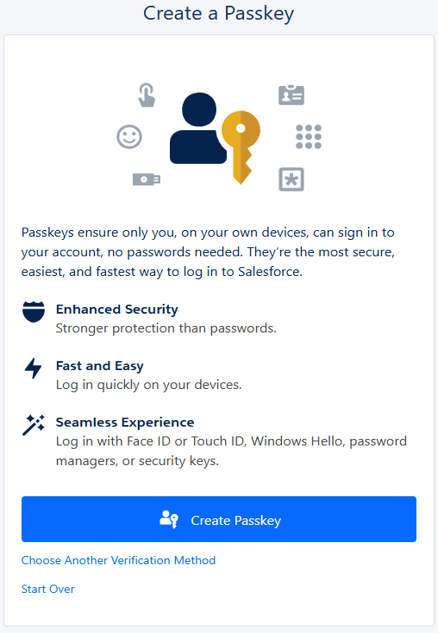
Screen 2: “Log In With a Passkey”
This screen appears when a passkey is already registered and Salesforce is requesting it.
Screen 3: “Verify Your Identity”
This screen can appear after the user successfully completes the password step when Salesforce requires another verification method.
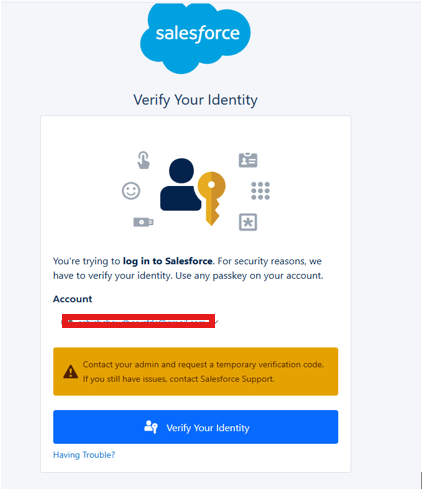
The “Having Trouble?” option can direct the user toward obtaining a temporary verification code from an admin.
Conclusion
Passwordless login with passkeys can make Salesforce authentication simpler, faster, and more secure when it is planned properly. Before enabling it, make sure every user has their own registered passkey, a backup authentication method is available, and another admin can help with recovery if access is lost.
For businesses working extensively with Salesforce, proper access planning is equally important when managing connected systems and workflows. With the right Salesforce support and guidance from an experienced Salesforce partner, teams can adopt passwordless authentication while keeping user access, security, and recovery requirements in place.
Watch Demo Video
No Data Found.




 India
India  USA
USA UK
UK Canada