
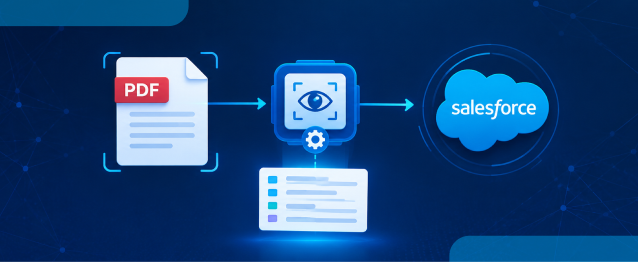
Salesforce OCR leverages Optical Character Recognition to convert text from images and scanned documents into machine-readable text, facilitating the update of Salesforce records. This guide details the OCR process, specifically using OCR.space, including how to send PDFs to its API and process responses using Apex. A practical example illustrates how to extract a credit score from a PDF and update an Account field. Key steps include storing API credentials securely, implementing the integration, and considering security and data handling practices.
Many times it’s crucial to extract information from documents such as loan statements, invoices, applications, identity documents, and scanned forms. When the information is stored as an image or scanned PDF, it cannot be directly read and used as regular text.
This is where Salesforce OCR becomes useful. Optical Character Recognition can convert text from images and scanned documents into machine-readable text, allowing businesses to process the information and use it to update Salesforce records.
For example, a lender may receive a credit report as a Salesforce PDF document. Instead of opening the file and manually searching for information, OCR can extract the required text and help move that information into the appropriate Salesforce field.
In this guide, we will explain what OCR is, how OCR.space works, how to send a PDF to its API, process the response, and use Apex to extract specific information and update Salesforce records.
What Is OCR?
OCR stands for Optical Character Recognition. It is a technology that reads text from images or scanned documents and converts it into machine-readable text. This makes the extracted information easier to search, process, and use in applications.
For example:
PDF/Image → OCR → Extracted Text → Salesforce Field Update
What Is OCR.space?
OCR.space is an OCR service that provides an API for processing images and PDF documents. It processes the submitted document and returns the OCR results in JSON format.
OCR.space supports different ways of submitting documents, including file uploads, URLs, and Base64-encoded data. The API can also be connected with Salesforce through an Apex HTTP callout.
How Salesforce Sends Documents to OCR.space
A typical Salesforce integration with OCR.space follows this flow:
- PDF Document
- Salesforce
- Apex HTTP Callout
- OCR.space API
- OCR Processing
- JSON Response
- Extracted Text
- Parse Required Information
- Update Salesforce Fields
Common API parameters may include:
- apikey — API authentication key.
- file — File submitted for OCR processing.
- base64Image — Base64-encoded image or document data.
- url — URL of the document.
- language — Language of the document.
- filetype — File type such as PDF.
- OCREngine — OCR engine to use.
- isCreateSearchablePdf — Option related to searchable PDF output.
Scenario: Extracting a Credit Score from a PDF
To understand the process, consider a lender that uploads a credit report PDF to an Account. The document contains a line such as “SCORE: 658,” and the goal is to automatically save that number in a custom Account field.
The same process can also capture the complete text returned by OCR.space through the ParsedText value when the entire document needs to be stored.
The flow works like this:
- A PDF is attached to an Account. This inserts a ContentDocumentLink record, which is what kicks off the automation — a trigger on ContentDocumentLink hands off to an Apex class.
- The Apex class checks for PDF attachments that are linked to an Account. It then sends the work to an @future(callout=true) method because a trigger cannot make an HTTP callout directly. This allows the process to run asynchronously.
- The future method gets the actual PDF file from the ContentVersion record, converts the PDF into Base64 format, and sends it to the OCR.space API.
- The OCR.space API returns a JSON response containing the extracted text. A regular expression is then used to find the credit score from that text.
- The Account record is then found and updated with the extracted credit score.

How to Integrate OCR.space with Salesforce
Now that the OCR.space process is clear, the next step is connecting it with Salesforce using Apex. The implementation below follows the credit-score scenario and covers the API credentials and the complete Apex implementation.
Step 1 — Store the API Credentials
Before making the callout, the OCR.space endpoint and API key need to be stored outside Apex rather than hardcoded.
- Create a Custom Metadata Type named IntegrationMetadata__mdt.
- Create a record with the Developer Name OCRSpaceAPI.
- Store the API endpoint in the End_point__c field.
- Store the API key in the API_Key__c field.
- Apex queries this metadata at runtime when making the API call.

Step 2 — The Complete Implementation
This is the complete implementation for the scenario. It includes a trigger that runs when a file is linked to a record and a controller class that handles the callout, parsing, and field update.
Trigger:
Controller:
Security and Data Considerations
When integrating an external OCR service with Salesforce, document security and data handling should be considered carefully.
- When integrating an external OCR service with Salesforce, document security and data handling should be considered carefully.
- Review the OCR provider’s privacy policy and data-processing terms.
- Understand how submitted documents are handled and retained.
- Avoid sending sensitive documents unless the organization’s requirements allow the external processing.
- Store API credentials securely and do not hardcode API keys in Apex — Custom Metadata Types and Named Credentials are both valid approaches; Named Credentials keeps the key out of Apex entirely, while Custom Metadata is simpler to set up and still keeps it out of source code.
- Validate OCR output before updating important Salesforce fields.
Conclusion
With the right Apex setup, Salesforce OCR can become part of a practical document-processing workflow. The approach shown here helps turn information inside uploaded files into usable Salesforce data without requiring users to manually read and enter every value.
The OCR.space API provides a straightforward way to process documents and return extracted text that Apex can work with. A Salesforce PDF can therefore become a usable source for specific values that need to be identified, processed, and saved.
This Salesforce API integration can be extended around the same approach for different document-based requirements. By combining the callout, text parsing, and record update steps, teams can build workflows that handle extracted information more efficiently.
Watch Demo Video
No Data Found.






 India
India  USA
USA UK
UK Canada