
Managing customer information manually is inefficient, but AI-powered automation through Salesforce Prompt Builder can streamline this process. By creating AI-powered templates that utilize existing CRM data, users can generate content quickly and accurately. This blog outlines the steps to create a Field Generation template, including activating Einstein, setting up prompts, and generating account summaries. With the right setup, businesses can enhance productivity and reduce manual work. HIC Global Solutions offers expert guidance for implementing AI automation and optimizing Salesforce workflows.
Managing customer information manually can be time-consuming, especially when sales teams need quick access to accurate account insights. This is where AI-powered automation can make a real difference.
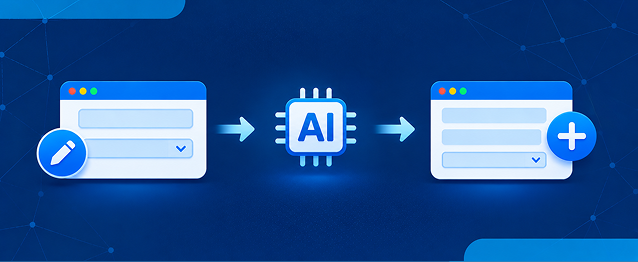
Salesforce Prompt Builder makes this possible by allowing users to create AI-powered templates that generate content using existing CRM data. Its Field Generation capability takes this a step further by letting Einstein automatically populate text fields with relevant information.
In this blog, we will explore how to create a Field Generation template in Salesforce Prompt Builder, connect it with account data, and use Einstein to generate account summaries with just a click.
Before You Start
You will need:
- A Developer Edition org with Einstein. The free Developer Edition with Agentforce and Data Cloud works fine.
- The Prompt Template Manager and Prompt Template User permission sets on your user.
- A Long Text Area field on Account. I made one called AI Account Summary. Field Generation only works with text area fields.
Steps to Create a Field Generation Template
Step 1: Turn on Einstein
Go to Setup and search for Einstein Setup. Turn on the Turn on Einstein toggle. Wait a minute and refresh the page.

Step 2: Open Prompt Builder
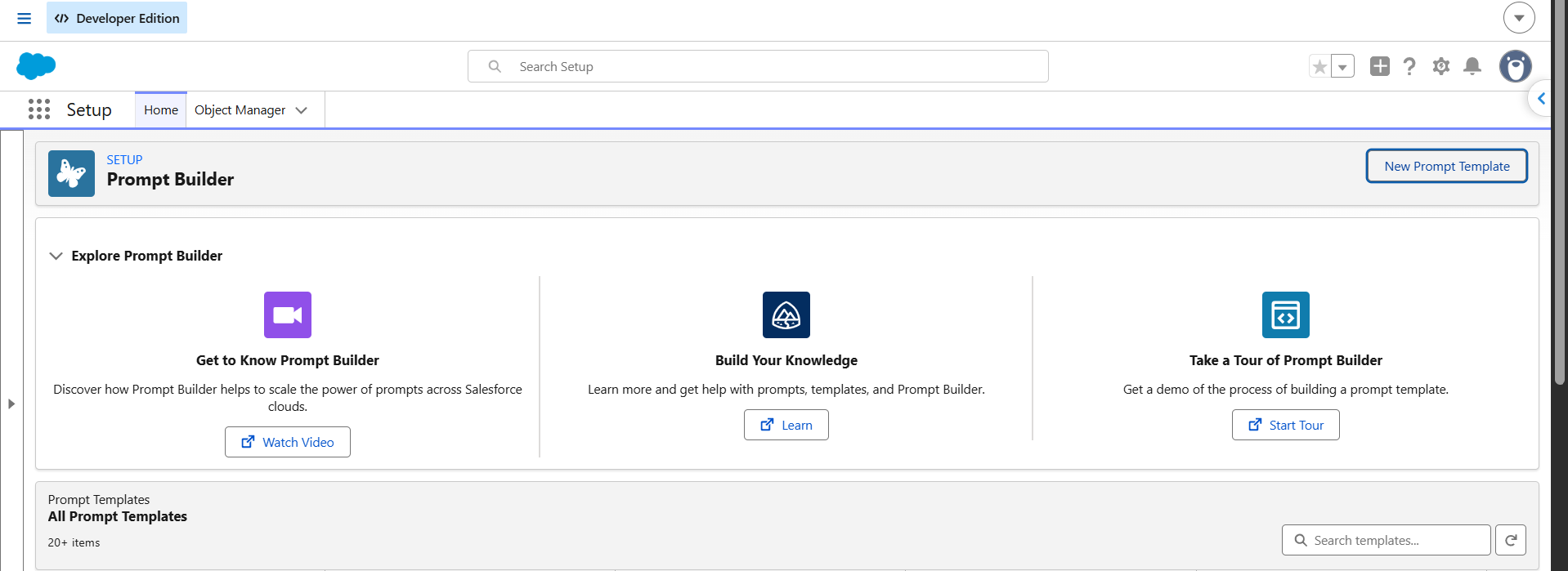
In Setup, search for Prompt Builder and open it. You will see a list of all your templates. Click New Prompt Template at the top right.
Step 3: Pick Field Generation
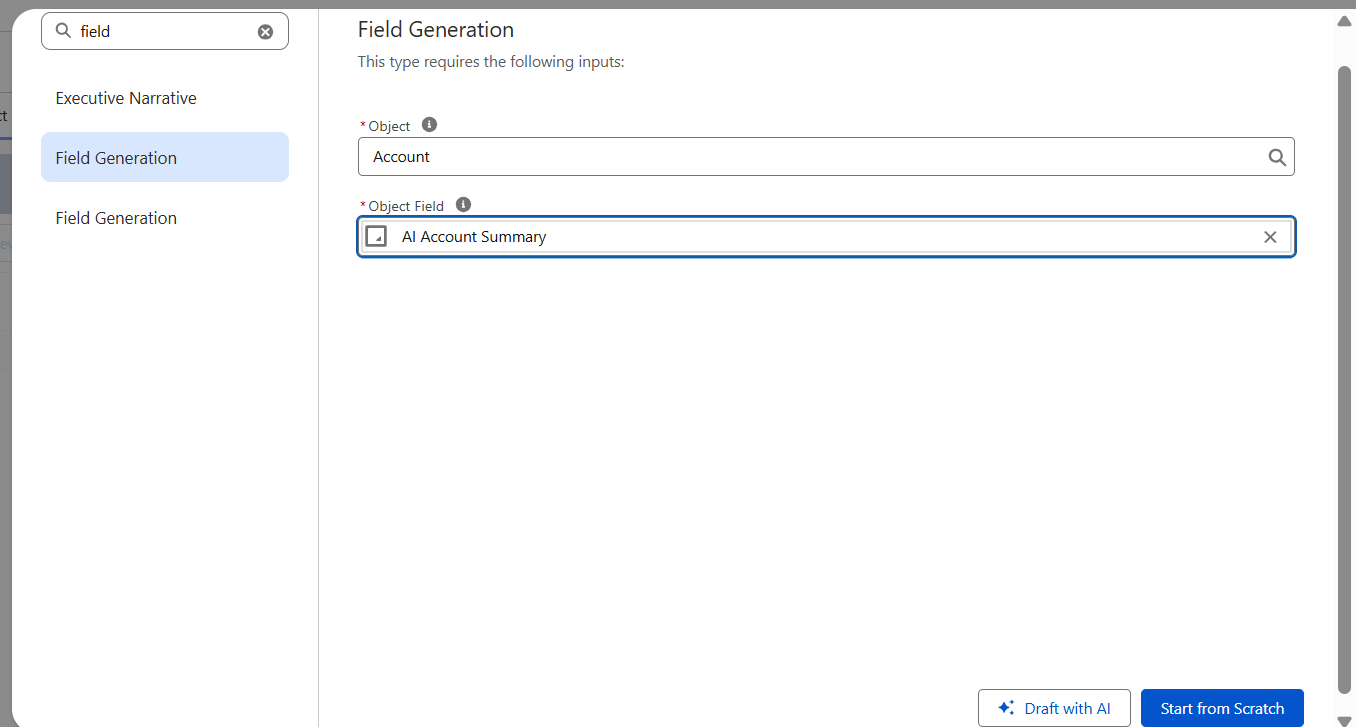
Search for the field and click Field Generation. Then fill in two things:
- Object: Account
- Object Field: AI Account Summary
Give your template a name. I named mine Field Generations. Then click Start from Scratch.
Step 4: Write Your Prompt
Now tell Einstein what you want, the same way you would explain it to a teammate. Say how long it should be and what tone to use.
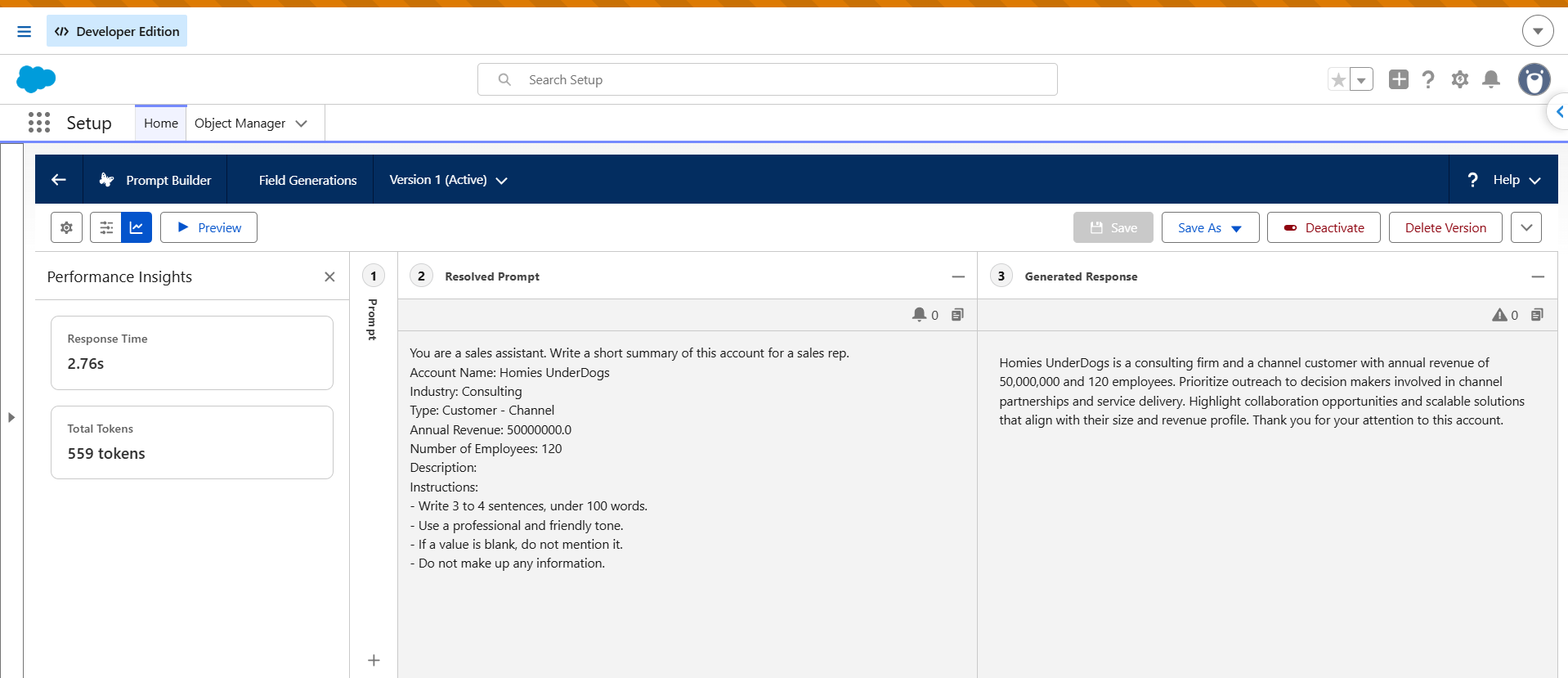
To add data from the record, click Insert Resource and pick the fields you need. This is better than typing them, because one small typo can break the field. Here is the prompt I used:
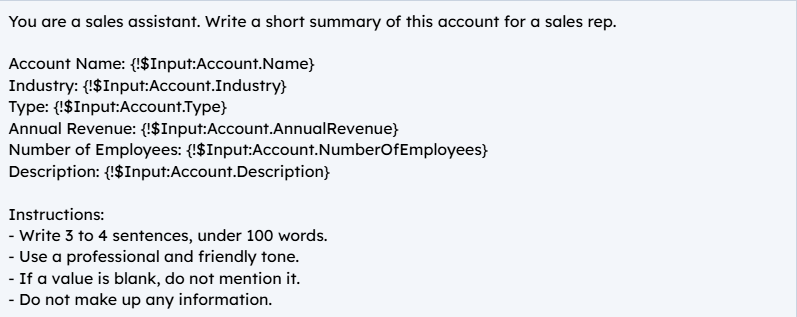
The last two lines are important. They stop Einstein from making things up.
Step 5: Preview, Save, and Activate
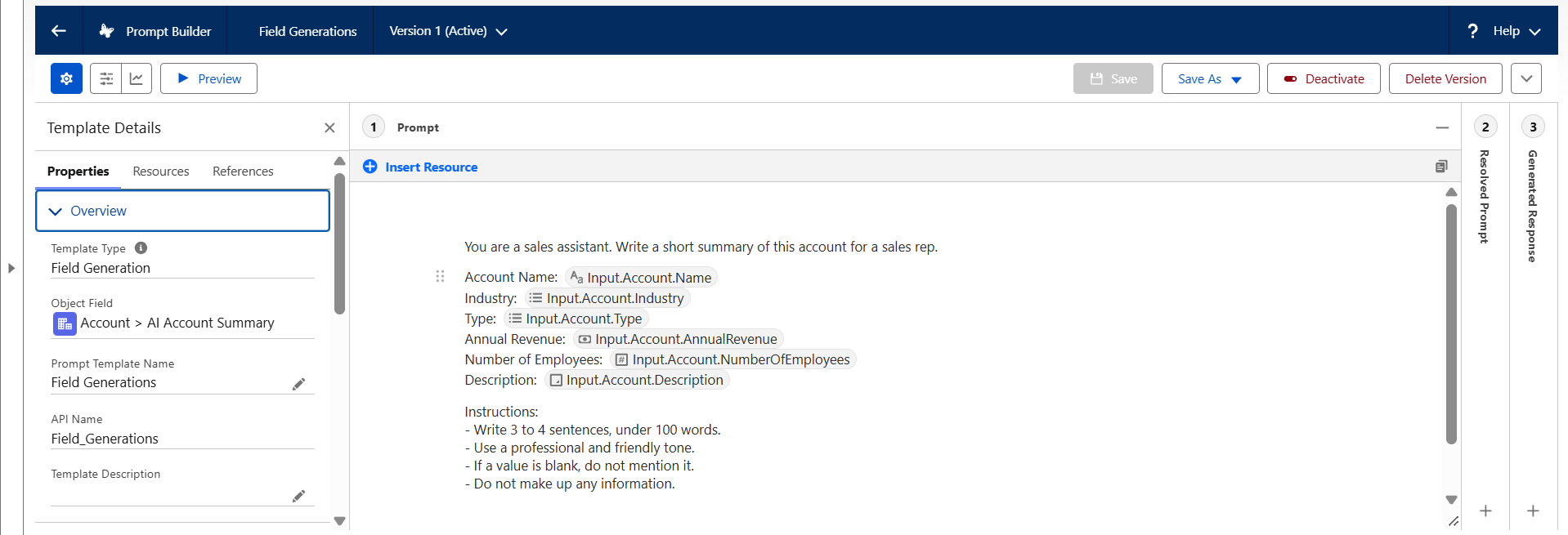
Click Preview and pick an Account that has some data. You will see:
- Resolved Prompt: Your prompt with real values from the record.
- Generated Response: The text Einstein wrote.
If you don’t like the result, change your prompt and try again. When it looks good, click Save and then Activate.
Step 6: Try It on an Account
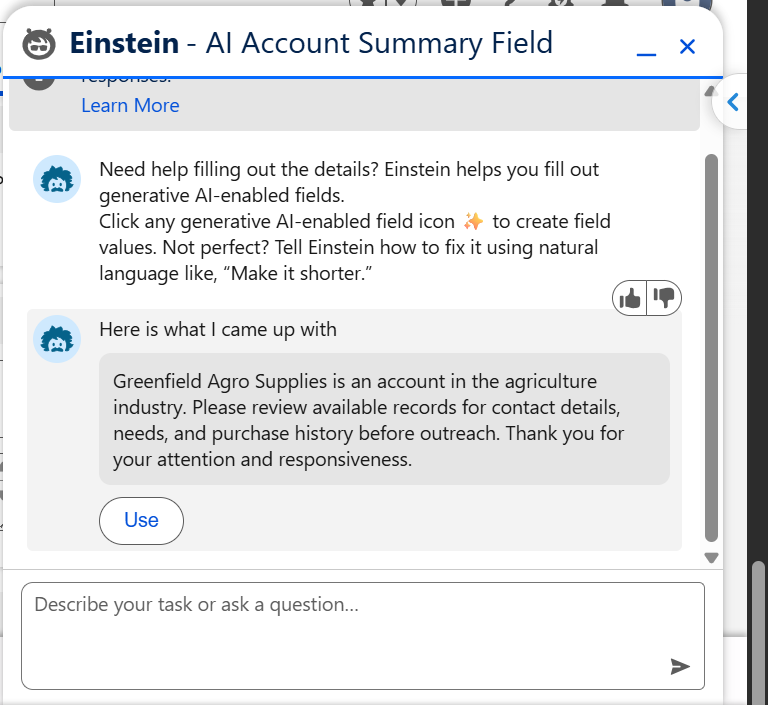
Open any Account and edit the AI Account Summary field. Click the small Einstein icon. A panel opens with a summary for that account.
Want changes? Just type something like “Make it shorter” in the panel. When you’re happy, click Use.
Step 7: Save the Record
The summary now shows in the field. Read it once, change anything you want, and click Save. Done!

Conclusion
Field Generation makes working with Salesforce AI more practical by turning simple instructions and existing CRM data into useful content. Whether you are creating account summaries, case notes, or deal descriptions, it can help reduce repetitive manual work and improve productivity.
Getting the setup right is essential to making the most of this capability. From creating effective prompts to testing generated responses, every step contributes to better results.
If you need expert guidance to implement AI-powered automation, optimize your Salesforce email template workflows, or build scalable CRM solutions, HIC Global Solutions can help. As an experienced Salesforce partner, we offer reliable Salesforce services to help your business get more value from Salesforce.
For any queries or assistance with Salesforce implementation, customization, or AI-powered solutions, contact us at Sales@hicglobalsolutions.com.
Frequently Asked Questions
Field Generation uses Einstein AI to generate content for Salesforce text fields based on predefined prompts and existing record information.
Users need the Prompt Template Manager and Prompt Template User permission sets to create, manage, and use prompt templates.
Yes. It can use account details such as industry, revenue, employee count, and description to generate concise account summaries.
An experienced Salesforce partner like HIC Global Solutions can help configure Prompt Builder, customize AI workflows, and integrate AI capabilities into existing Salesforce processes.
Use relevant CRM fields, provide clear instructions, specify the desired tone, and instruct Einstein not to generate information when values are missing.


 India
 USA
 UK
 Canada