
Before building a Salesforce integration with NikoHealth, it is often useful to test APIs directly from Postman. This helps verify authentication, understand API responses, and test create/update operations before writing any code.
In this guide, we will:
- Generate an Access Token using Client Credentials.
- Authorize NikoHealth APIs in Postman.
- Retrieve Patient information from NikoHealth.
- Create a new Patient in NikoHealth.
Before starting, ensure you have:
- NikoHealth API Base URL
- Client ID
- Client Secret
- Token Endpoint URL
- Postman Installed
You can obtain the Client ID and Client Secret from your NikoHealth API configuration.
Step 1: Open Postman
Launch Postman and create a new request.
- Click on New → HTTP Request.
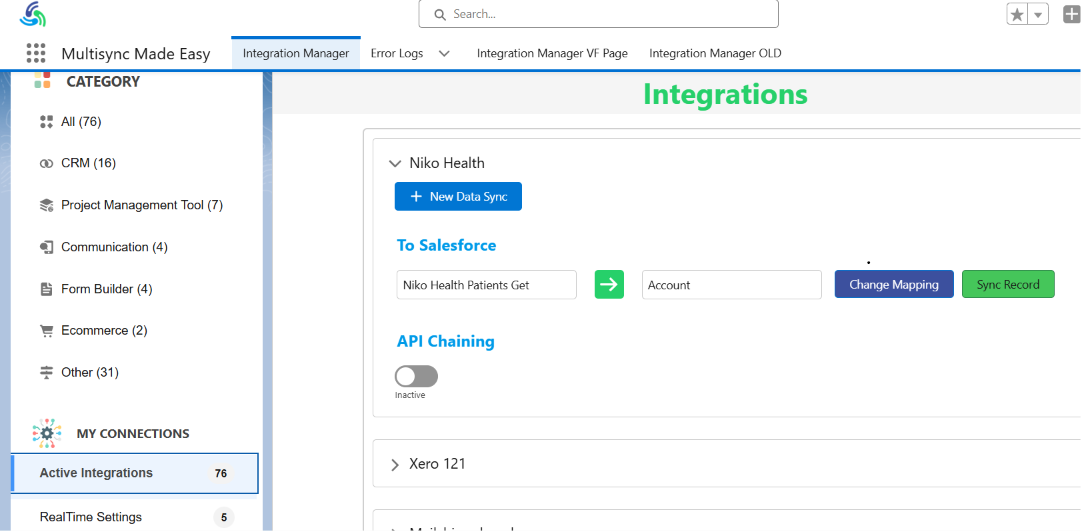
Step 2: Configure OAuth 2.0 Settings
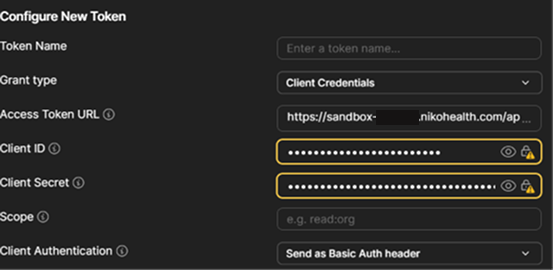
Enter the following values:
- Grant Type: Client Credentials
- Client ID: Your NikoHealth Client ID
- Client Secret: Your NikoHealth Client Secret
- Access Token URL: https://your-niko-domain.com/connect/token
Example:
Grant Type: Client Credentials
Client ID: xxxxxxxxxxxxxxxx
Client Secret: xxxxxxxxxxxxxxxx
Access Token URL: https://sandbox.yourcompany.nikohealth.com/connect/token
Step 3: Configure Authorization
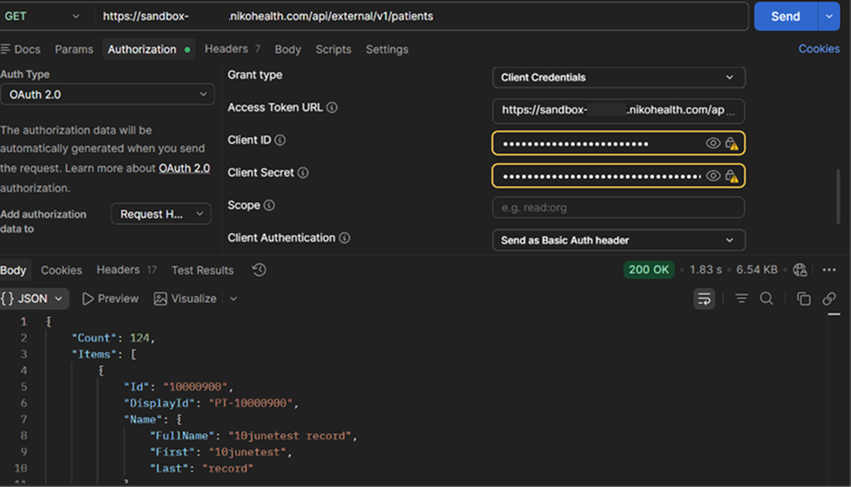
Navigate to the Authorization tab, select: Type = OAuth 2.0, and click Get New Access Token.
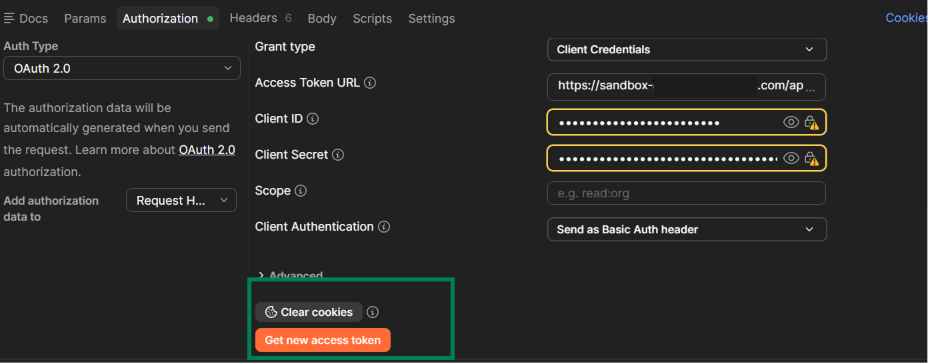
Step 4: Generate Access Token
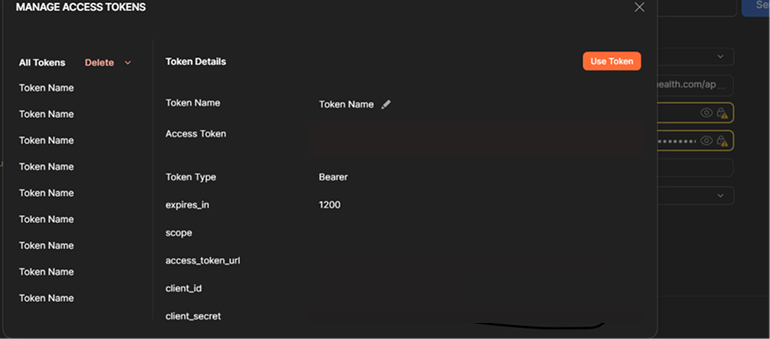
- After clicking on Get New Access Token, Postman sends the authentication request to NikoHealth.
- If authentication succeeds, an Access Token is returned.
Example:
{
“access_token”:”eyJhbGciOi…”,
“token_type”:”Bearer”,
“expires_in”:3600
}
Then, click Use Token, and Postman automatically adds Authorization: Bearer <token> to future requests.
Step 5: Retrieve a Patient from NikoHealth
- Create a new GET request.
Example Endpoint:
GET /api/external/v1/patients/{patientId}
Example:
https://your-niko-domain.com/api/external/v1/patients/10000001
Method:
GET
- Now, click Send.

Step 6: Review the Patient Response
- If the patient exists, NikoHealth returns patient information.
Example Response:
{
“Id”:”10000001″,
“FirstName”:”John”,
“LastName”:”Smith”,
“DateOfBirth”:”1990-01-01″,
“Gender”:”Male”
}
- This confirms that authentication and API connectivity are working correctly.
Step 7: Create a New Patient in NikoHealth
- Create a new request.
Method:
POST
Endpoint:
https://your-niko-domain.com/api/external/v1/patients
- Then, navigate to Body → Raw → JSON.

Step 8: Build the Patient Request Body
Example Patient Payload:
{
“FirstName”:”John”,
“LastName”:”Smith”,
“DateOfBirth”:”1990-01-01″,
“Gender”:”Male”,
“Contacts”:{
“Phone”:”1234567890″,
“Email”:”johnsmith@test.com”
}
}
- This payload contains the patient information that will be created in NikoHealth.
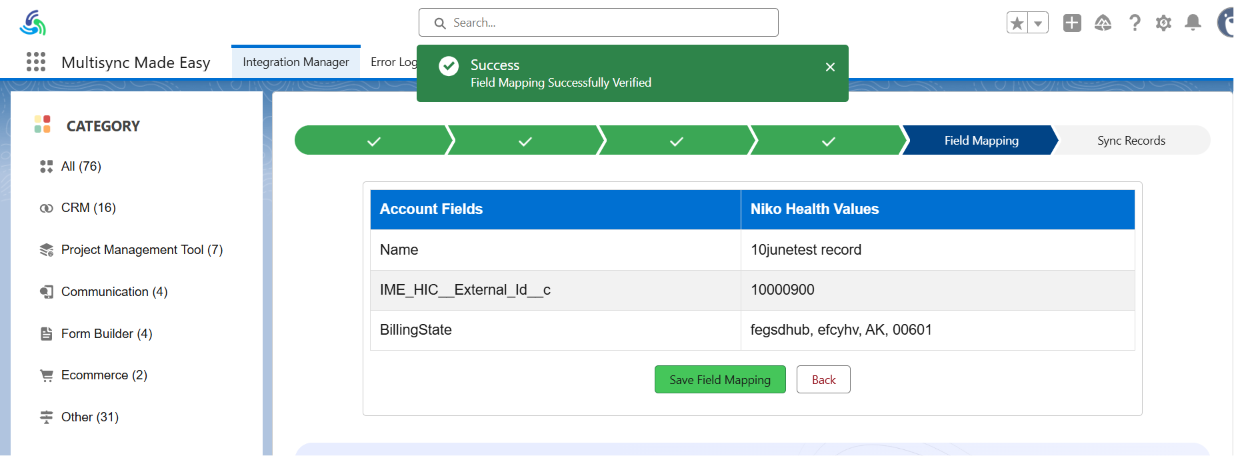
Step 9: Send the Request
- Here, click on Send.
- Postman submits the patient data to NikoHealth.
- If the request is successful, NikoHealth returns the newly created Patient ID.
Example:
{
“Id”:”10000125″
}
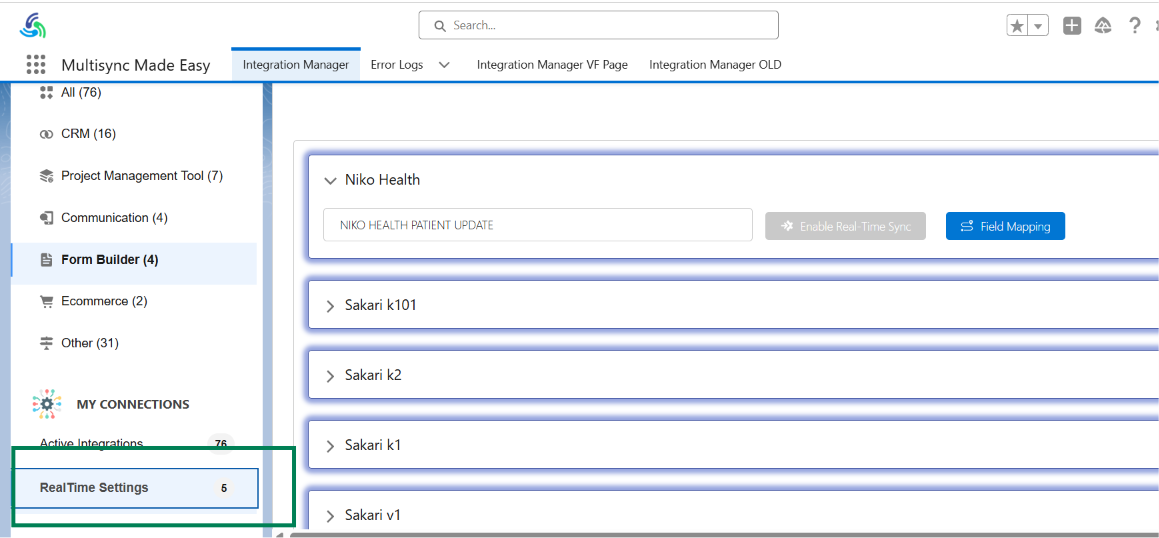
Step 10: Verify the Patient in NikoHealth
Open NikoHealth and search for the newly created patient, and verify:
- Patient Name
- Date of Birth
- Contact Information
- Generated Patient ID
This confirms the API request was successful.
Result
After completing these steps:
- OAuth 2.0 authentication is configured in Postman.
- Access Tokens can be generated using Client Credentials.
- Patient records can be retrieved from NikoHealth.
- New Patient records can be created in NikoHealth.
- API connectivity is verified before Salesforce development begins.
Conclusion
Using Postman is the fastest way to test and validate NikoHealth APIs before building healthcare CRM integrations. By configuring OAuth 2.0 Client Credentials authentication, generating an Access Token, and testing GET and POST Patient APIs, developers can quickly verify connectivity and understand the request and response structure required for Salesforce integrations.
The same authentication process can be used for other NikoHealth modules such as Orders, Prescriptions, Insurance, Authorizations, Documents, Invoices, Payments, and Purchase Orders. With Salesforce partners like HIC Global Solutions, businesses can easily integrate NikoHealth with Salesforce. Thus, if you need further assistance please contact Sales@hicglobalsolutions.com.
Watch Demo Video:
No Data Found.
 India
India  USA
USA UK
UK Canada