




Loading...

Connecting Stripe with Salesforce usually means dealing with a lot of coding, handling APIs, and fixing tricky errors. But what if you didn’t have to write a single line of code? In this blog, we’ll show you how to easily set up a secure and real-time integration between Stripe and Salesforce using a simple tool called MultiSync Made Easy.

What You’ll Need Before We Start

  • Access to a Salesforce org.
  • A Stripe account to connect and test the integration

Step-by-Step Guide: Set Up Secure, Real-Time Stripe-Salesforce Integration with MultiSync Made Easy

Step 1: Install the MultiSync Made Easy app. 

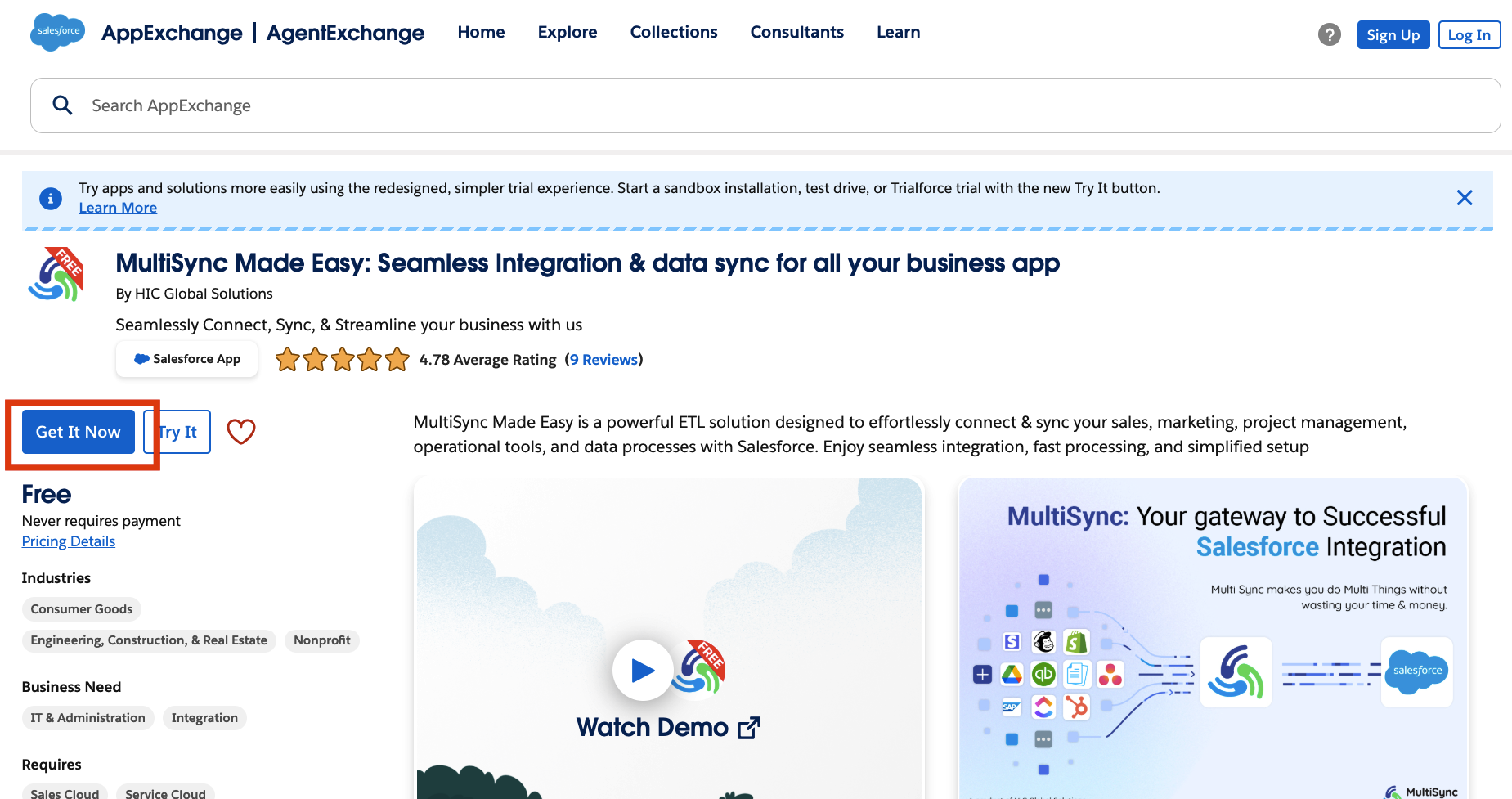
First things first, head over to the Salesforce AppExchange and search for MultiSync Made Easy. Then, click on “Get It Now”.

image9

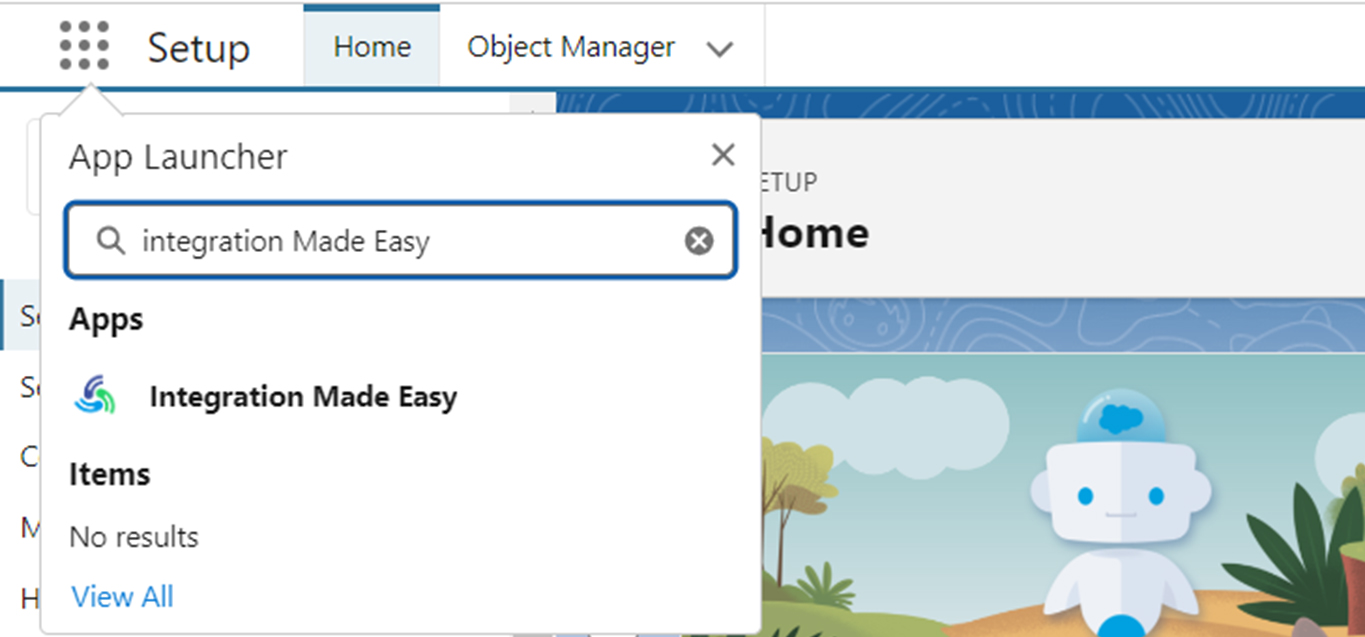
Step 2: Follow the steps to install the app into your Salesforce org. After installation, open the App Launcher (that grid icon in the top left) and search for “MultiSync Made Easy” to access the app.

search application

Step 3: Connect Stripe with MultiSync Made Easy.

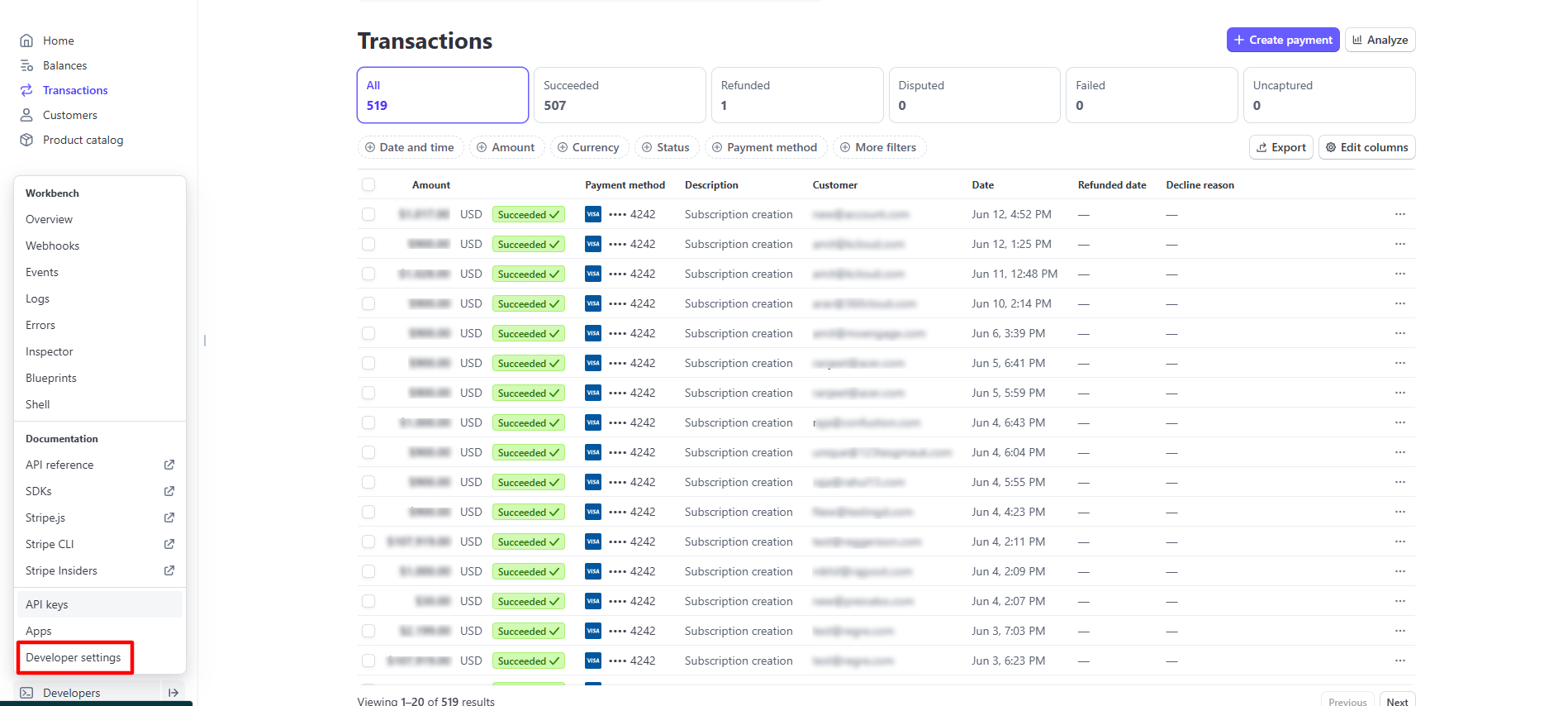
Go to your Stripe account, and on the bottom left, you will find a button labelled ‘Developer Settings’.

image12

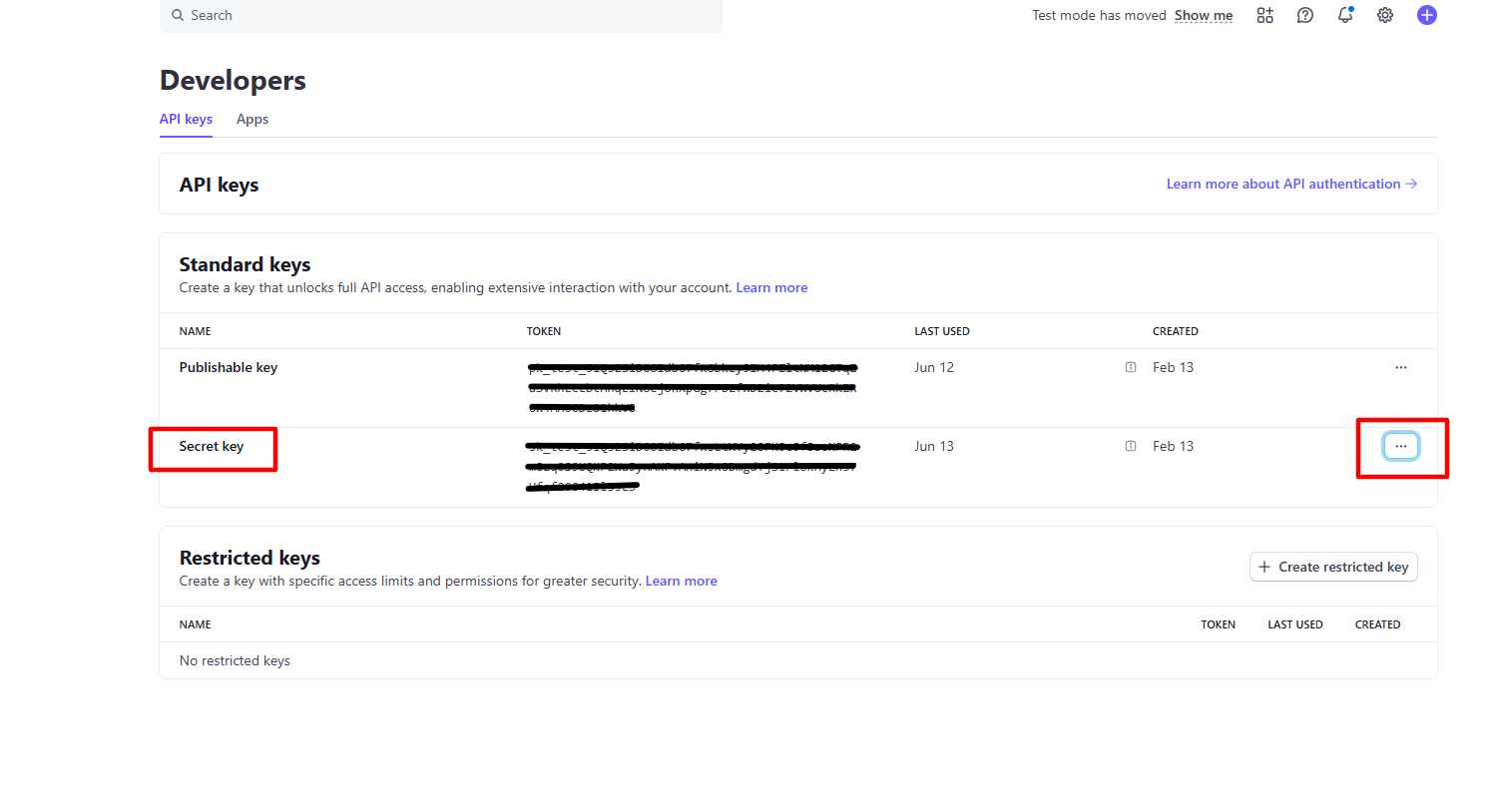
Step 4: After clicking the button, you will see the “Api Keys” button in the dropdown. Click on the API keys and copy the ‘Secret Key’.

image6

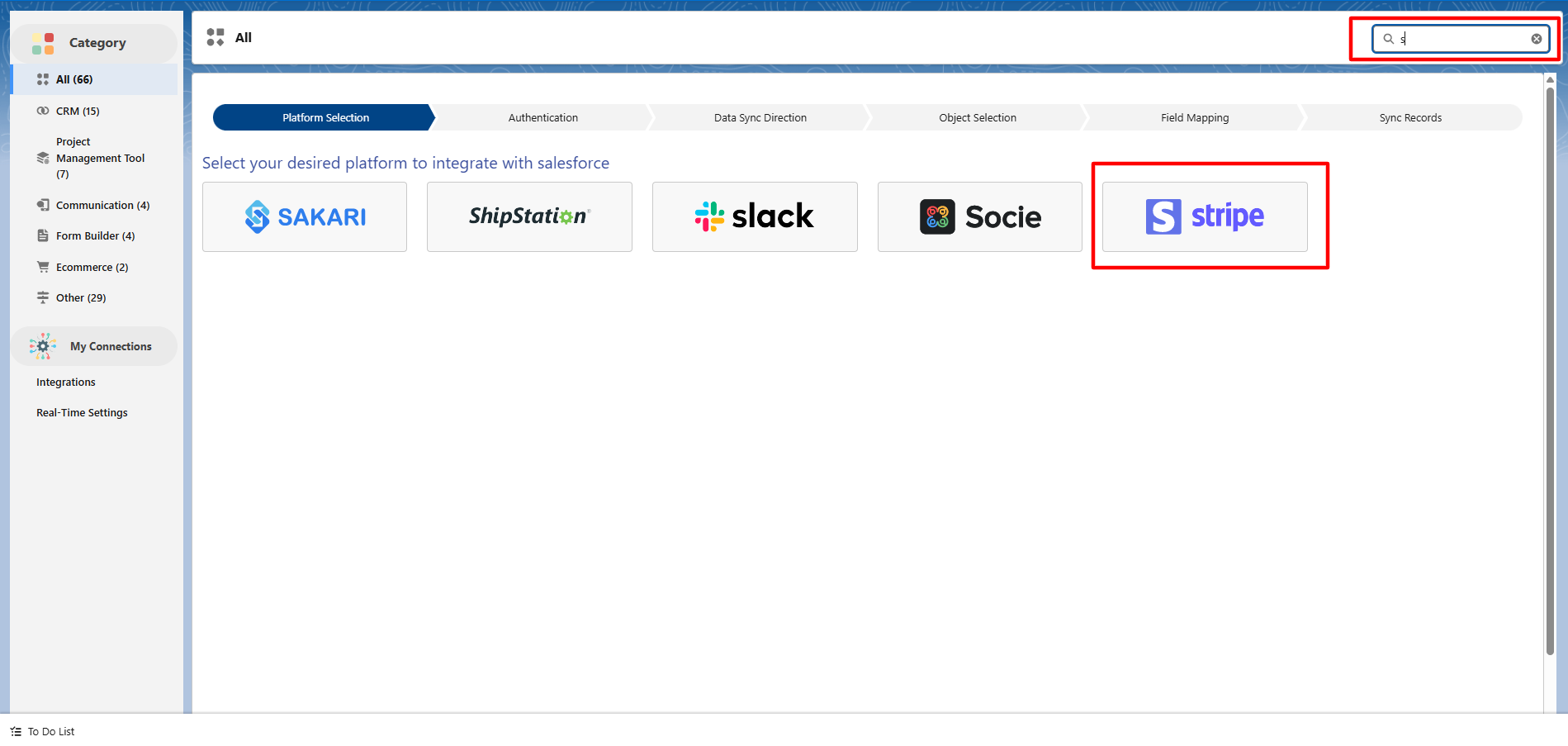
Step 5: Go to the MultiSync Home Page, click on ‘All’, then search for ‘Stripe’ in the ‘Platform Selection’ section.

image5

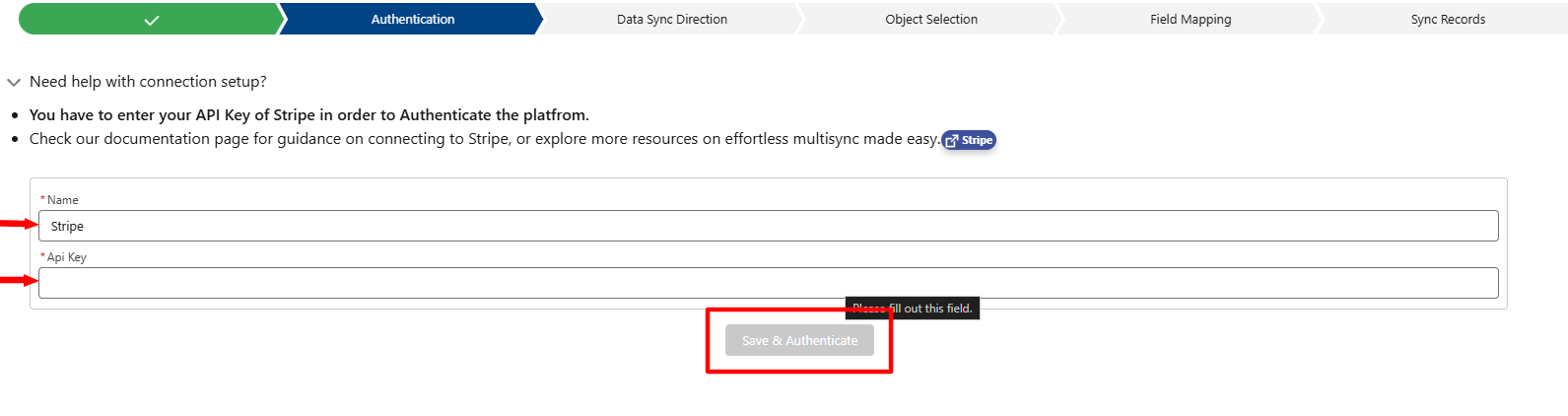
Step 6: Now, paste your ‘Api’ key and name your integration, and then click on the ‘Save and Authenticate’ button.

image7

Step 7: Map Salesforce Objects with Stripe.

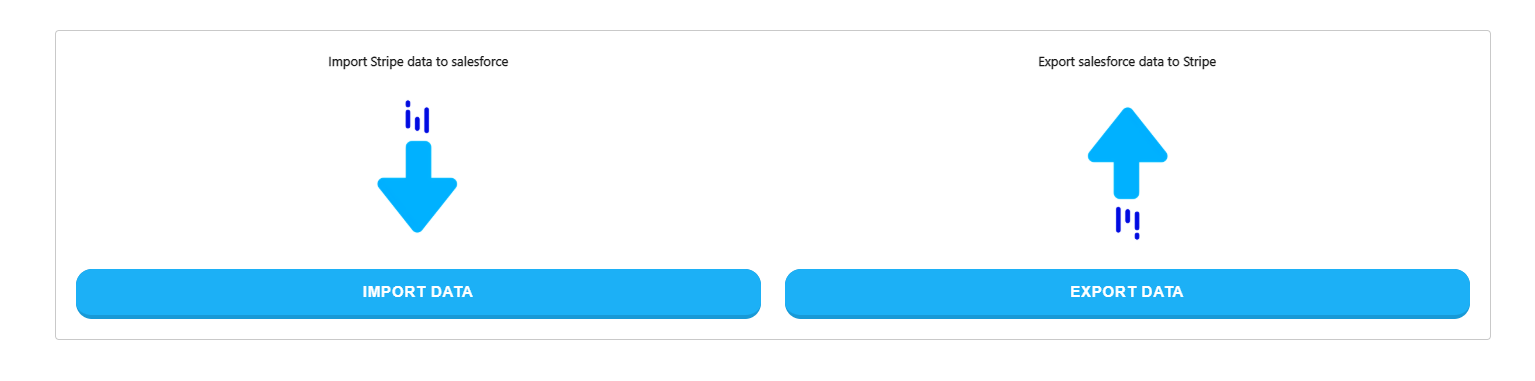
Then, choose whether you want to import data or export data.

image2

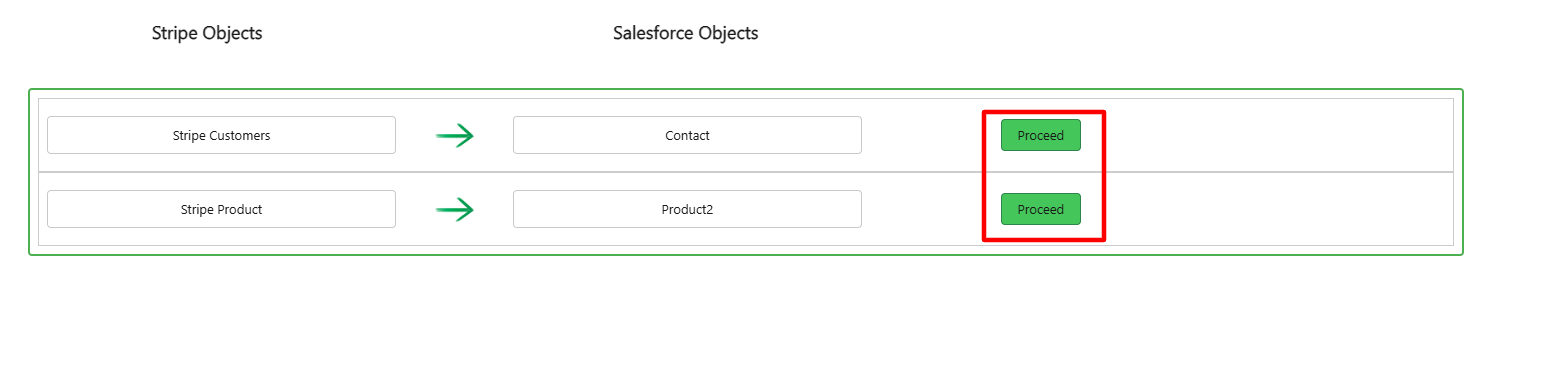
Step 8: After that, select the object you want to import.

image10

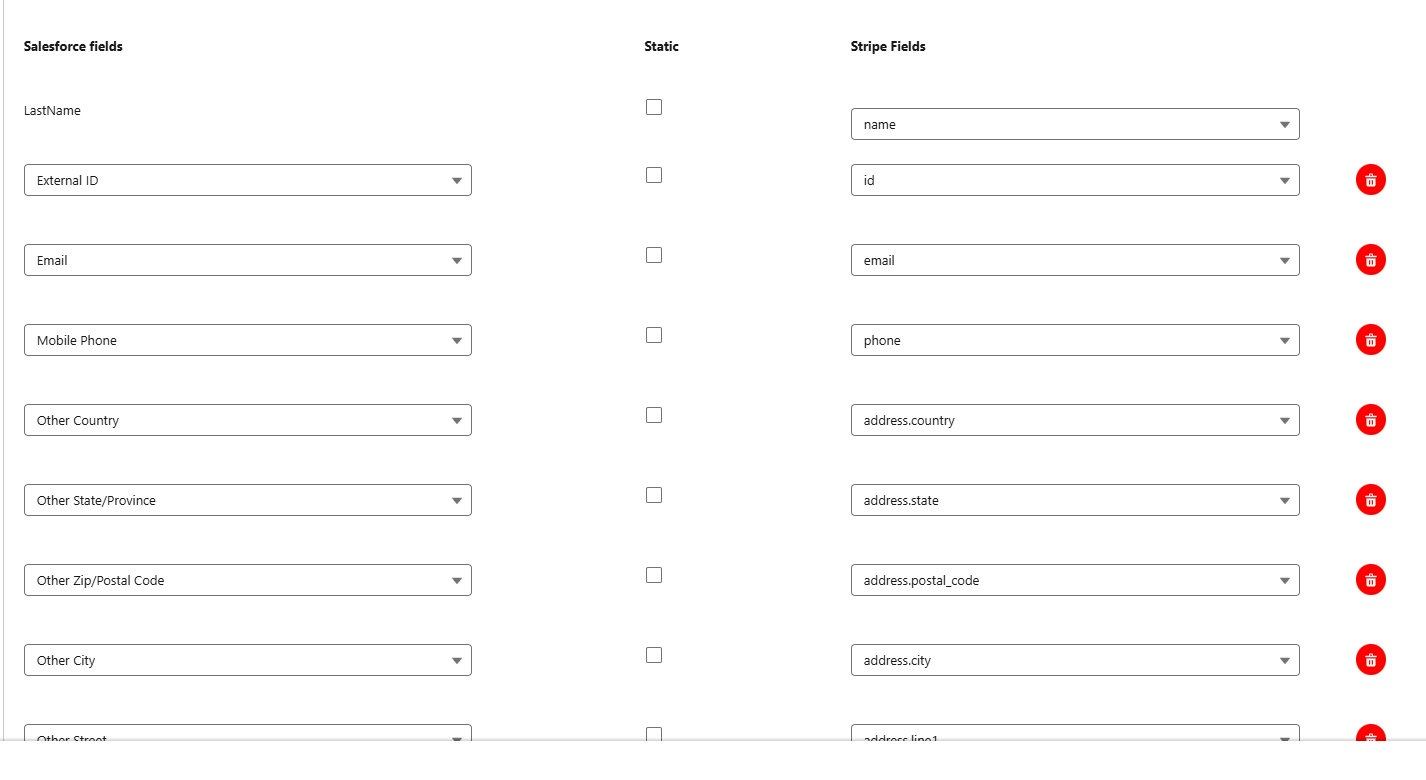
Step 9: You can change the field mapping or go with the default one.

image8

Step 10: Sync Data.

We can ‘Schedule Data Sync’ for a specific time, or we can sync it instantly with the help of ‘Sync Data’ button.

image4

After that, all the data with the selected object is inserted into Salesforce, and you can monitor it with real-time progress.

image3

Live Demo

Conclusion

Connecting Stripe with Salesforce doesn’t have to be complicated, and with MultiSync Made Easy, it isn’t. You can sync data between different objects, send info to Stripe, and even keep things up to date in real time using webhooks, all without writing a single line of code.

If you’re looking for a simple, no-stress way to integrate Stripe with Salesforce, this tool is worth checking out.

Frequently Asked Questions
What is no-code Stripe to Salesforce integration?
It's a way to connect your Stripe payment data directly with Salesforce without writing any code, using automation tools like MultiSync.
Why should I integrate Stripe with Salesforce?
To streamline your workflows, sync customer/payment data in real-time, and gain better insights for sales, finance, and support teams.
Do I need a developer to set this up?
No! With no-code tools like MultiSync, you can set it up using a user-friendly interface — no technical skills required.
Is the integration secure?
Yes. Platforms like MultiSync follow industry-standard security protocols to ensure your Stripe and Salesforce data stays safe.
Can I customize what data is synced?
Absolutely Yes. You can choose which data fields (like payments, customer info, invoices) to sync based on your business needs.

No Data Found.

Related Articles
How to Integrate NikoHealth to Salesforce

Healthcare organizations using NikoHealth often need patient, insurance, order, invoice, and prescription data available inside Salesforce. As data grows, manually updating records across systems becomes difficult and can lead to delays, duplicate work, and data inconsistencies. NikoHealth to Salesforce integration helps solve this challenge by automatically synchronizing data between both platforms. Instead of building custom […]

Read More

Orchestrator vs. Traditional Flows

Businesses use Salesforce automation to reduce manual work, improve efficiency, and automate repetitive business processes. Two commonly used automation approaches inside Salesforce are Traditional Flows and Flow Orchestrator. Traditional Flows are mainly used for simple automation tasks such as updating records, sending notifications, creating tasks, and automating business logic. Flow Orchestrator is designed for more […]

Read More

The Rise of Agentic Government_ What Salesforce’s 2026 Insights Mean for the Future of Public Sector AI

Government technology has often been seen as slower to evolve than the private sector. But Salesforce’s latest research challenges that idea in a big way. In fact, the new findings suggest that public sector organizations may now be moving faster than many businesses when it comes to adopting AI agents and preparing for a more […]

Read More

How To Use Email Service in APEX

Managing approvals, updates, and record changes directly from email can significantly improve efficiency within Salesforce workflows. Instead of logging in, navigating records, and manually updating fields, users can simply respond to emails and trigger automated updates using Email Service in APEX. This approach is especially useful for businesses leveraging Salesforce automation and looking to enhance […]

Read More

Design and Implementation of Salesforce Jira Task Integration 1 1

Businesses have been using Salesforce for CRM operations and Jira for Agile project tracking. However, without integration, teams manually update both systems, leading to data inconsistency and inefficiency.This mechanism establishes a real-time integration between Salesforce and Jira, allowing seamless synchronization of tasks and agile board statuses.  A custom Salesforce dashboard was developed that replicates Jira-style […]

Read More

Dark Mode in Salesforce Enabling It and Creating Theme Ready Lightning Web Components with SLDS 2.0 1 1

With the Winter ’26 release, Salesforce introduced Dark Mode in Lightning Experience. Dark Mode has been introduced as a beta feature in Winter ’26, and at first it was available only for Starter Edition orgs. It is now rolling out further with Spring ’26 to Professional, Enterprise, and Developer editions. To use Dark Mode, Salesforce […]

Read More
Our Location worldwide
Indian Flag India
3rd Floor, A-10, Pegasus Tower, Sector 68, Noida, Uttar Pradesh 201301 +91-1203239658
United States of America Flag USA
333 West Brown Deer Road Unit G – 366 Milwaukee WI, USA 53217 +1(262) 310-7818
United Kingdom Flag UK
7 Bell Yard, London, WC2A 2JR +44 20 3239 9428
Canada Canada
HIC Global Solutions INC
6D - 7398 Yonge St #1124 Thornhill, ON L4J 8J2 Canada +1(262) 310-7818