
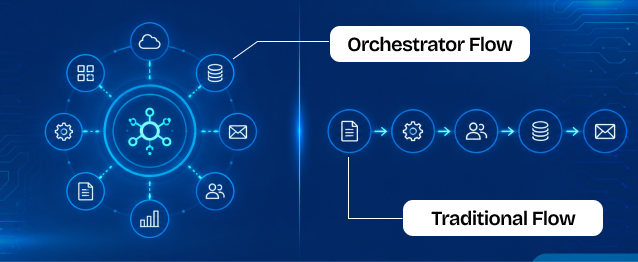
Businesses use Salesforce automation to reduce manual work, improve efficiency, and automate repetitive business processes. Two commonly used automation approaches inside Salesforce are Traditional Flows and Flow Orchestrator.
Traditional Flows are mainly used for simple automation tasks such as updating records, sending notifications, creating tasks, and automating business logic. Flow Orchestrator is designed for more advanced processes that involve multiple users, approvals, stages, and coordinated workflow steps.
Both tools are built using Salesforce Flow Builder, but they are used for different levels of process complexity.
This document explains the key differences between Traditional Flows and Flow Orchestrator, including their functionality, use cases, workflow structure, and step-by-step implementation examples for Salesforce services and business automation.
Traditional Flow:
Traditional Flows are standard Salesforce automation tools built in Flow Builder. They are commonly used for updating records, sending notifications, creating tasks, and automating repetitive business logic.
When to Use Traditional Flows
Traditional Flows are best for simple and fast automation processes that do not require multiple users or workflow stages.
| Use Case | Example |
|---|---|
| Field Updates | Automatically update Case Priority |
| Notifications | Send email alerts |
| Task Creation | Create follow-up tasks |
| Simple Automation | Update records instantly |
Traditional Flow Example
Scenario: When a Technical Case is created with Low Priority, Salesforce automatically creates a task with Subject – Follow up in 2 days
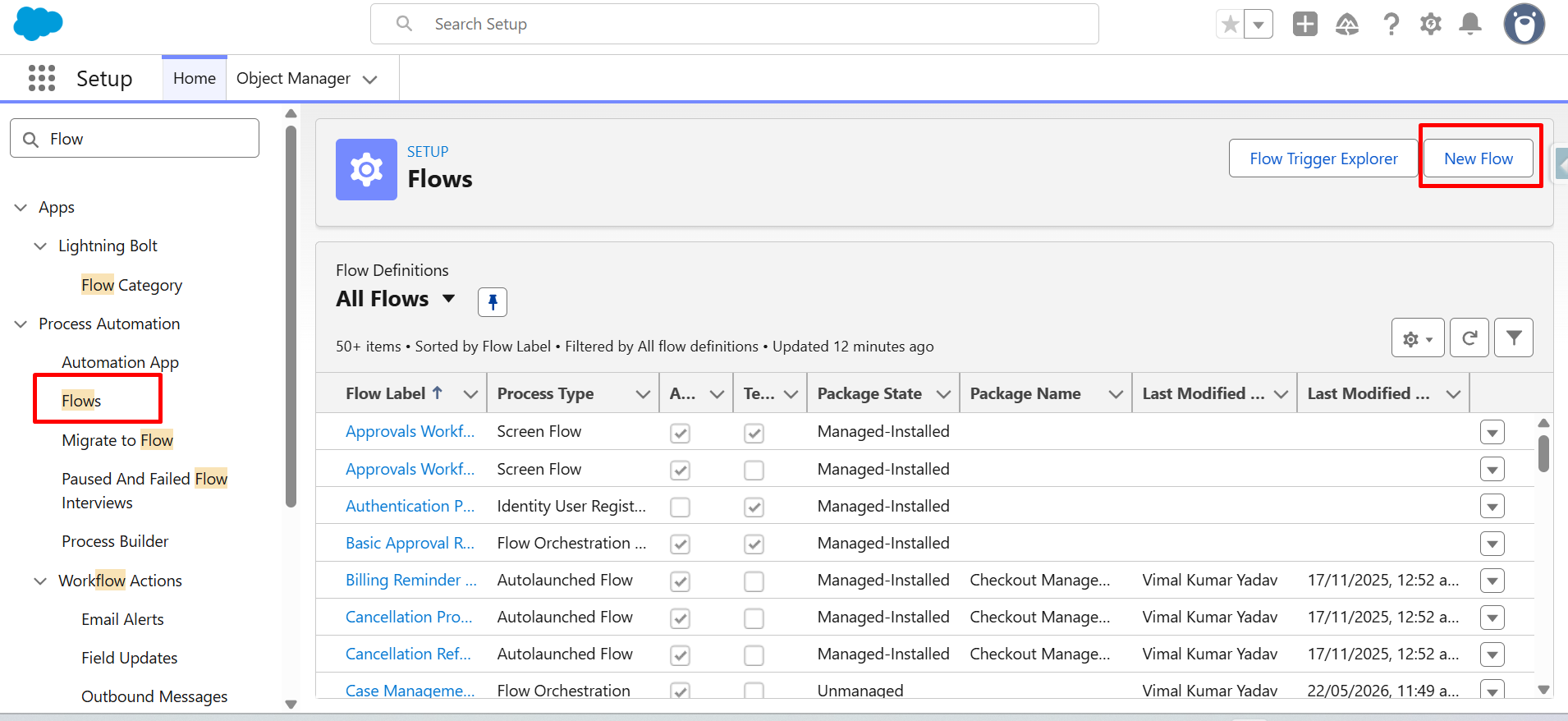
Step 1: Open your Salesforce org. From Setup, enter Flows in the Quick Find box, then click New Flow.
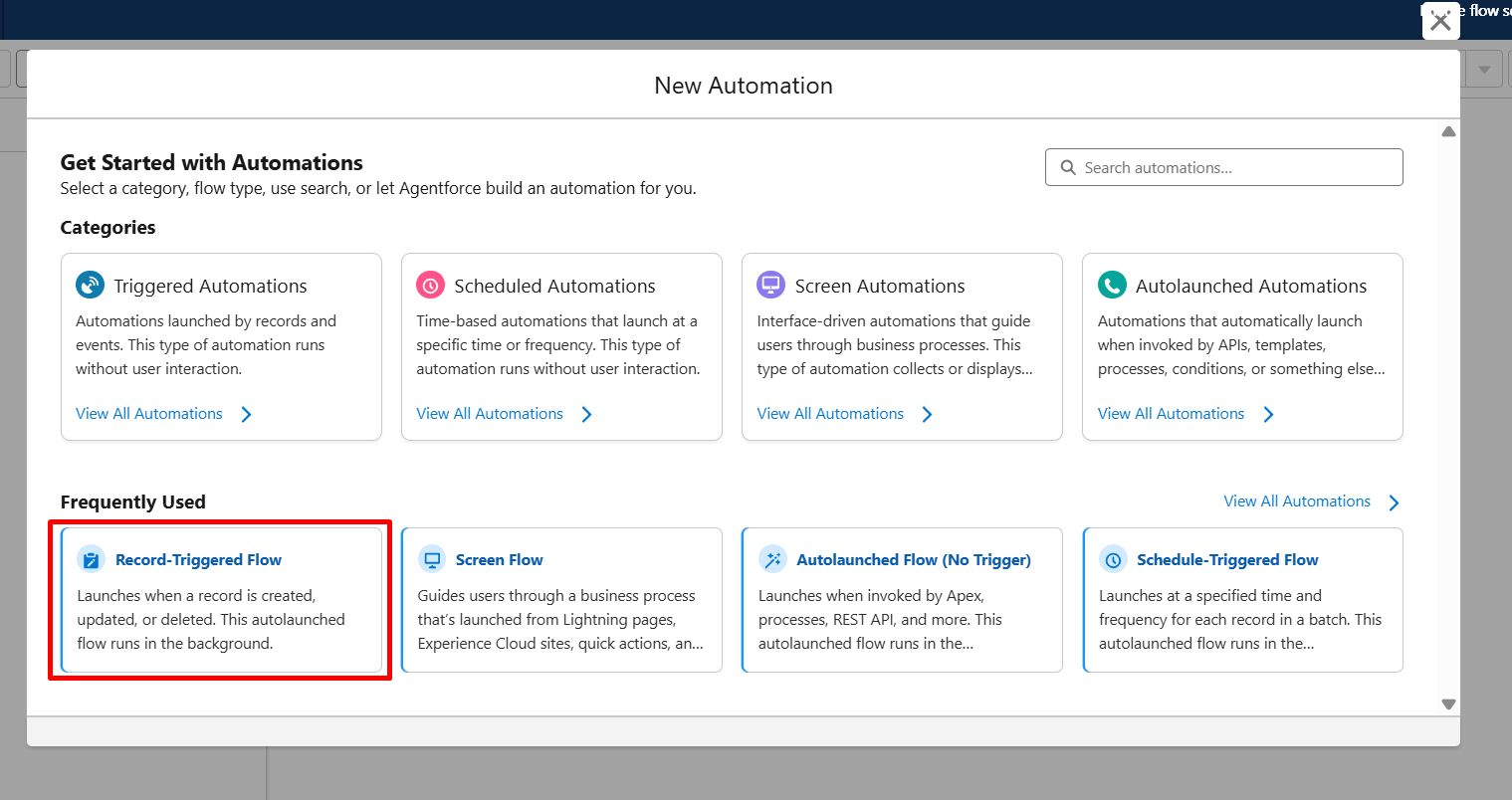
Step 2: From the Flow Builder, select Record-Triggered Flow.
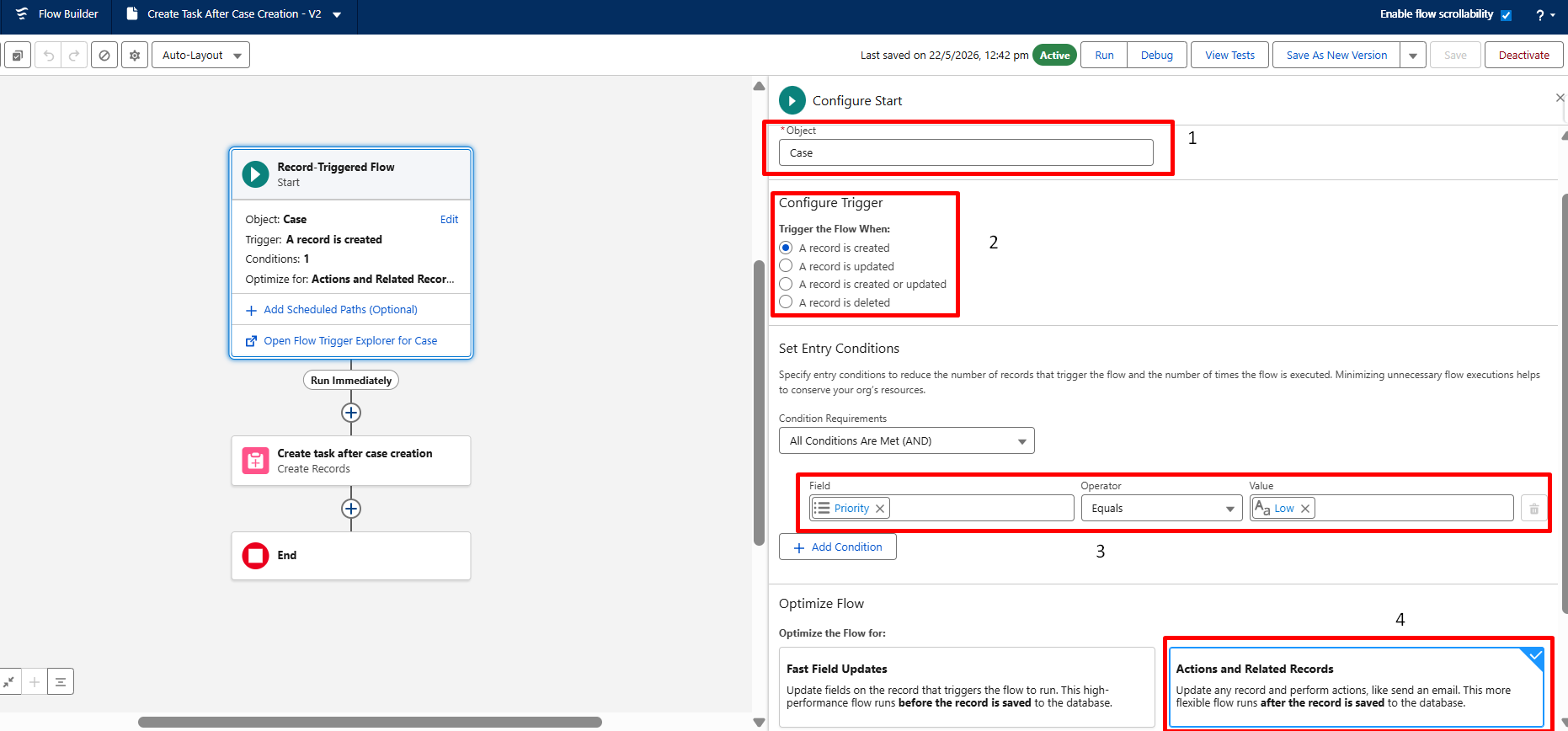
Step 3: Configure the Record-Triggered Flow
- Choose Object – Case
- Set Trigger – When a record is created
- Set Condition – Priority Equals Low
Optimize the Flow For – Actions and Related Records
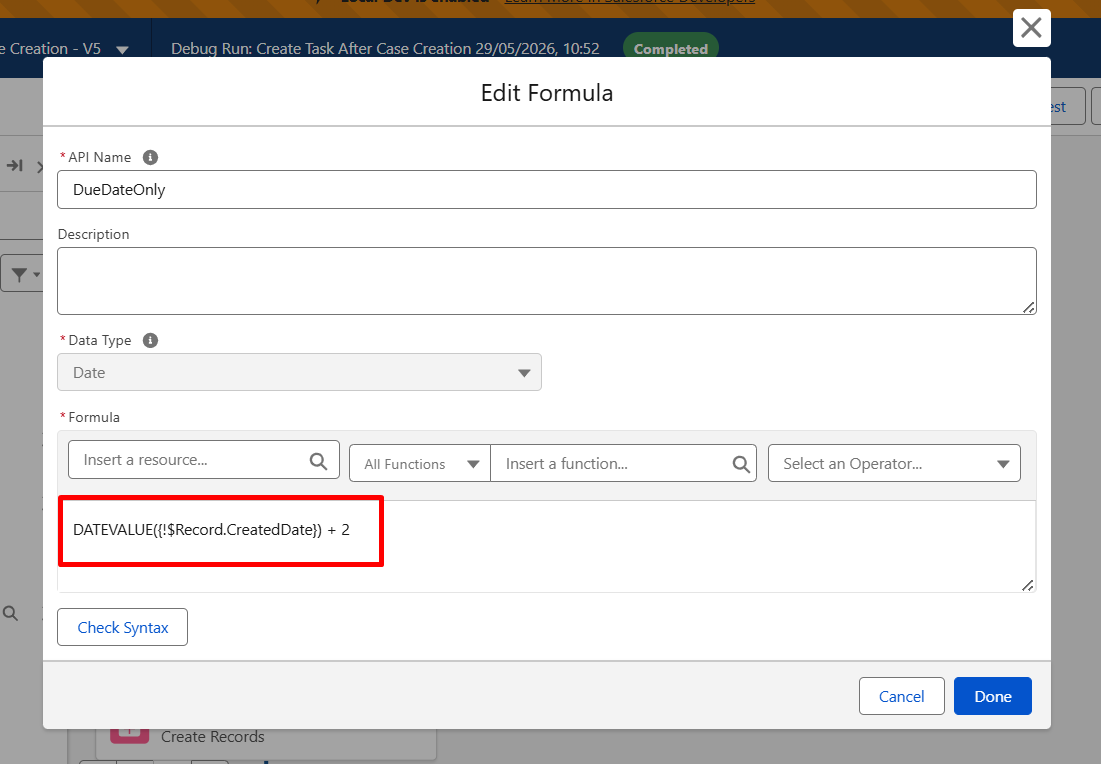
Step 4: Create Formula Resource for Due Date
- Create Resource
- Resource Type – Formula
- Data Type – Date
- API Name – DueDateOnly
- Formula – DATEVALUE({!$Record.CreatedDate}) + 2
Step 5: Add the Create Records element.
Step 6: Configure Task Creation
- Label – Create task after case creation
- Object – Task
Task Field Values:
- Subject – Follow Up
- Status – Not Started
- Related To ID – {!$Record.Id}
- Due Date Only – {!DueDateOnly}
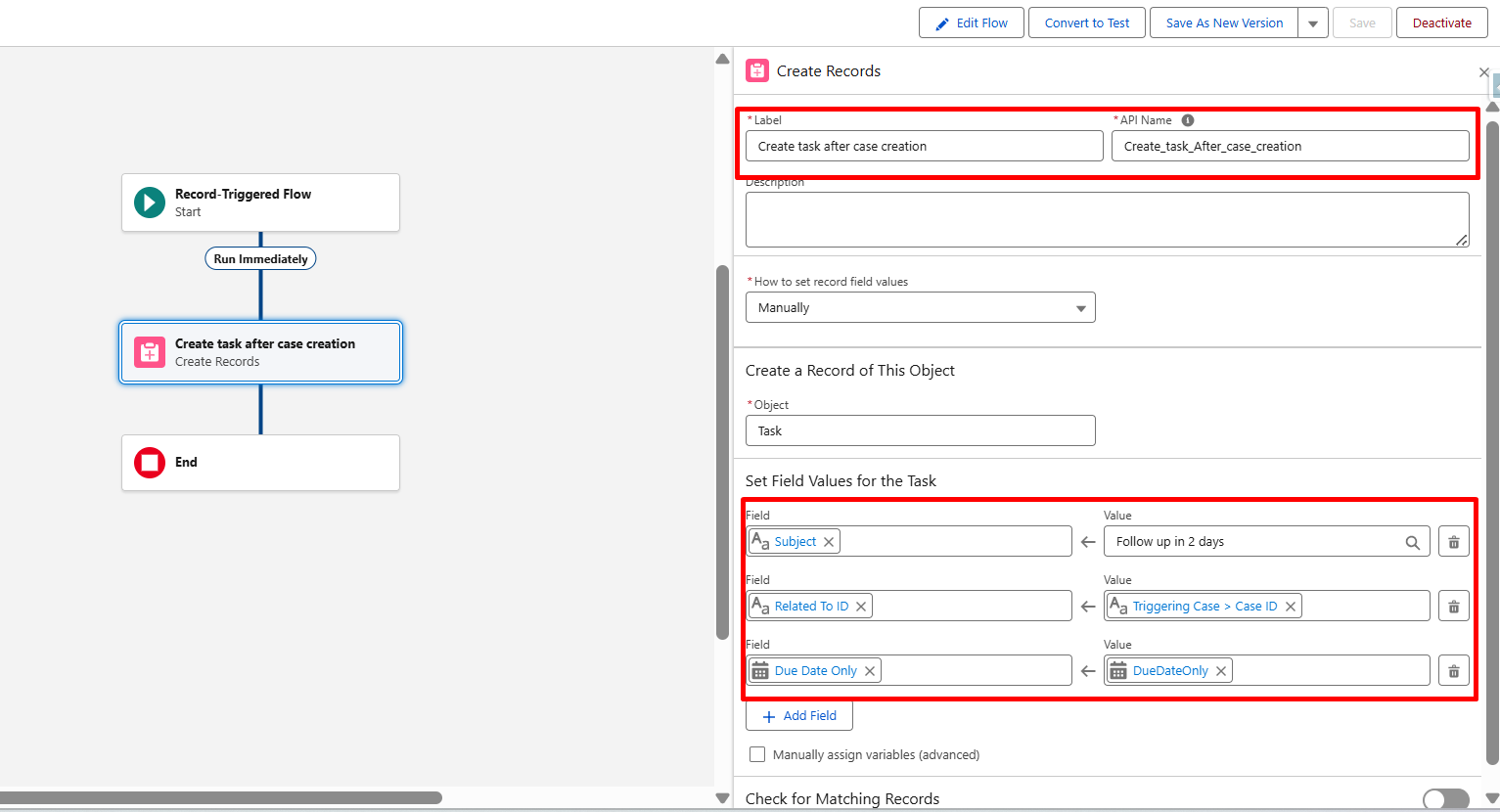
Step 7: Save the flow
Flow Label- Create Task After Case Creation
Step 8: Activate the flow
Flow Orchestrator:
Flow Orchestrator in Salesforce is an advanced extension of Flow that enables end-to-end automation of complex business processes by coordinating work across multiple users, systems, and flows. It combines Screen Flows, Autolaunched Flows, and multi-user approval processes into a structured orchestration model, allowing processes to be broken into stages and steps that can run in sequence or in parallel. It supports multi-user workflows with task assignments, conditional branching, and progress tracking, while managing orchestration instances that track the full lifecycle of a business process from start to completion.
When to Use Flow Orchestrator
| Use Case | Purpose |
|---|---|
| Multiple Users/Teams | Work is handled by different users |
| Multi-Stage Process | Business workflows run in stages |
| Sequential or Parallel Work | Steps run one after another or simultaneously |
| Sequential or Parallel Work | Steps run one after another or simultaneously |
| Complex Automation | Used when one flow is not enough |
| Task Assignment | Assign work to users or queues |
Scenario: When a Case is created with low priority, a Support Agent reviews it, a Manager verifies the priority, and Salesforce automatically updates the case details (Update the Priority to High).
Step 1: Open your Salesforce org. From Setup, enter Flows in the Quick Find box, then click New Flow.
Step 2: From the Flow builder, search Orchestration, and select Record-Triggered Orchestration.
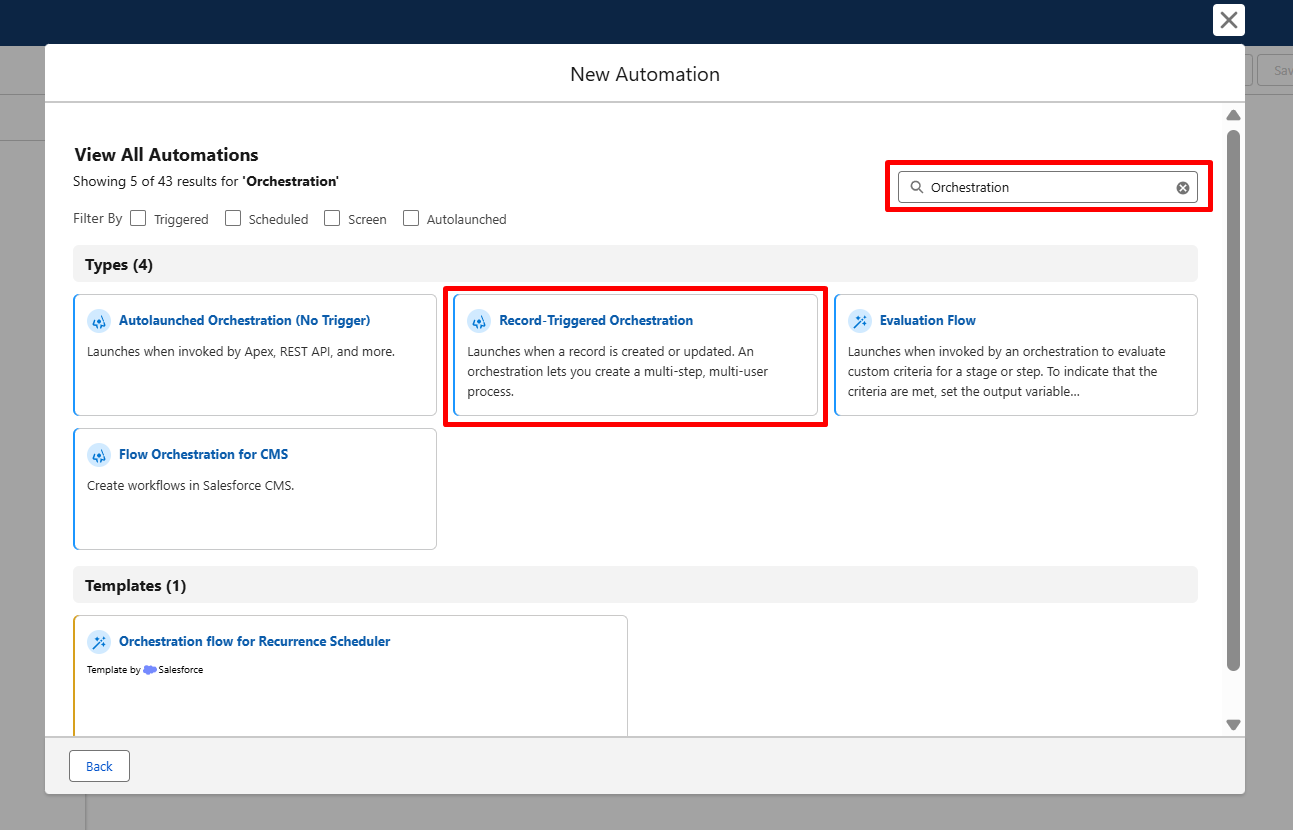
Step 3: Configure the Record-Triggered Orchestration
- Choose Object – Case
- Set Trigger – When a record is created
- Set Condition – Priority Equals Low
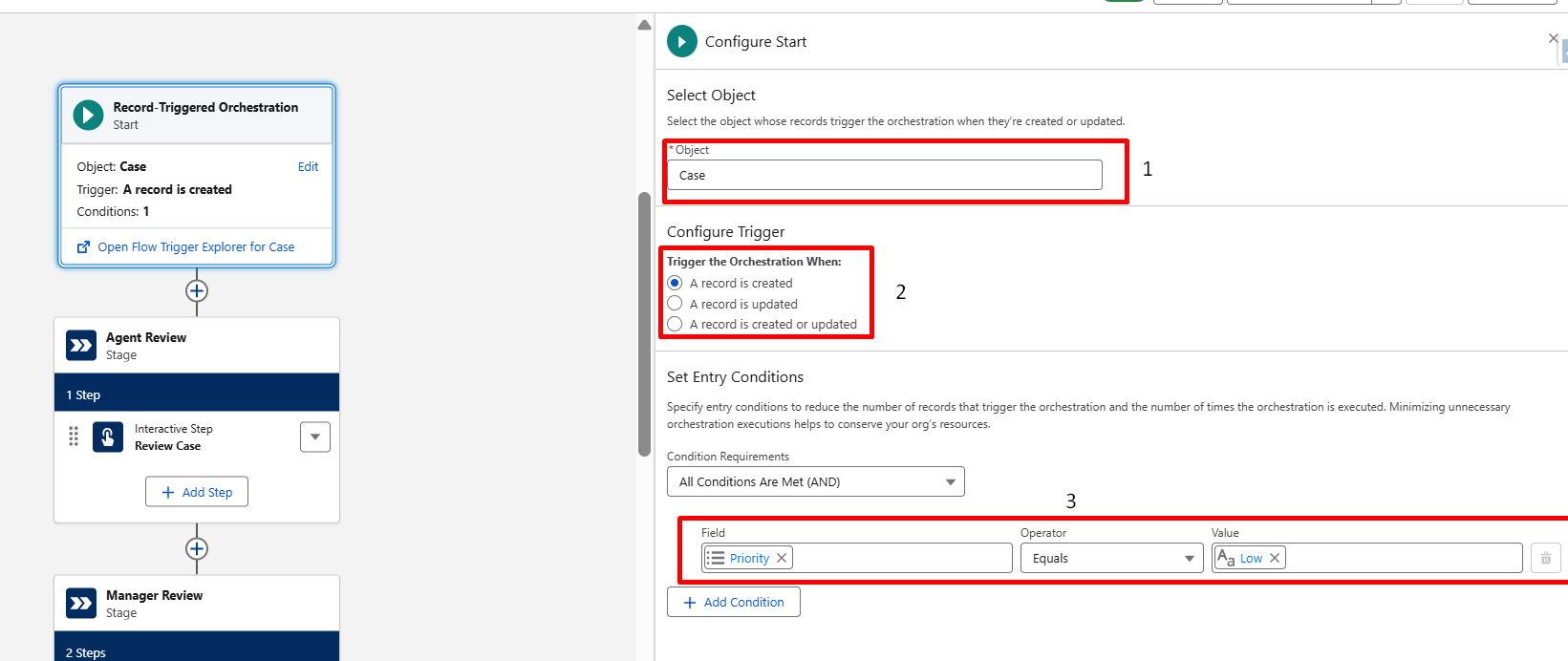
Step 4: Create Agent Review Screen Flow.
Step 5: From Setup, go to Flows, click New Flow, select Screen Flow, then click Create.
Step 6: Add Screen Element.
Step 7: Configure the Screen Flow
- Label – Review Case Screen
- Add Display Text – Please review this case
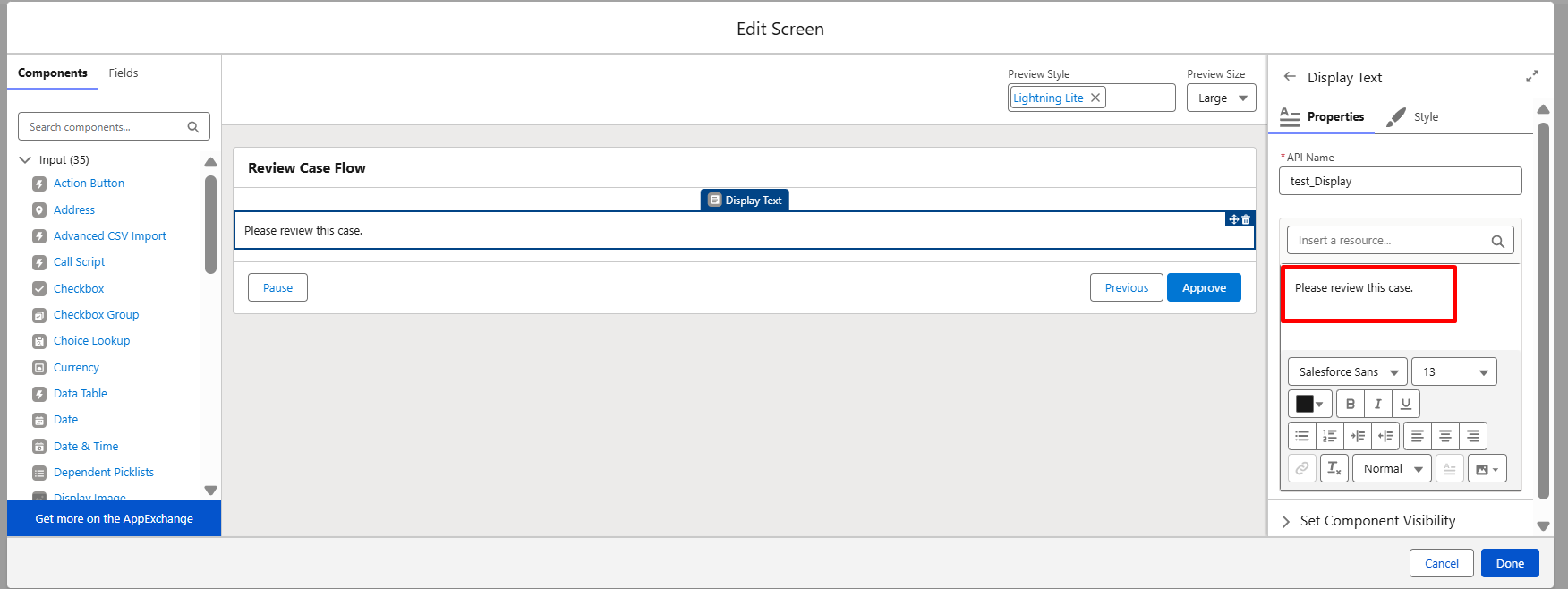
Step 8: Save the flow:
Flow Label – Review Case Flow
Step 9: Activate the flow.
Step 10: Create Manager Verification Screen Flow
Step 11: From Setup in Salesforce, go to Flows, click New Flow, select Screen Flow, and click Create
Step 12: Add Screen Element
Step 13: Configure the screen Flow
- Label – Manager Verification Screen
- Add Display Text – Please verify the case priority
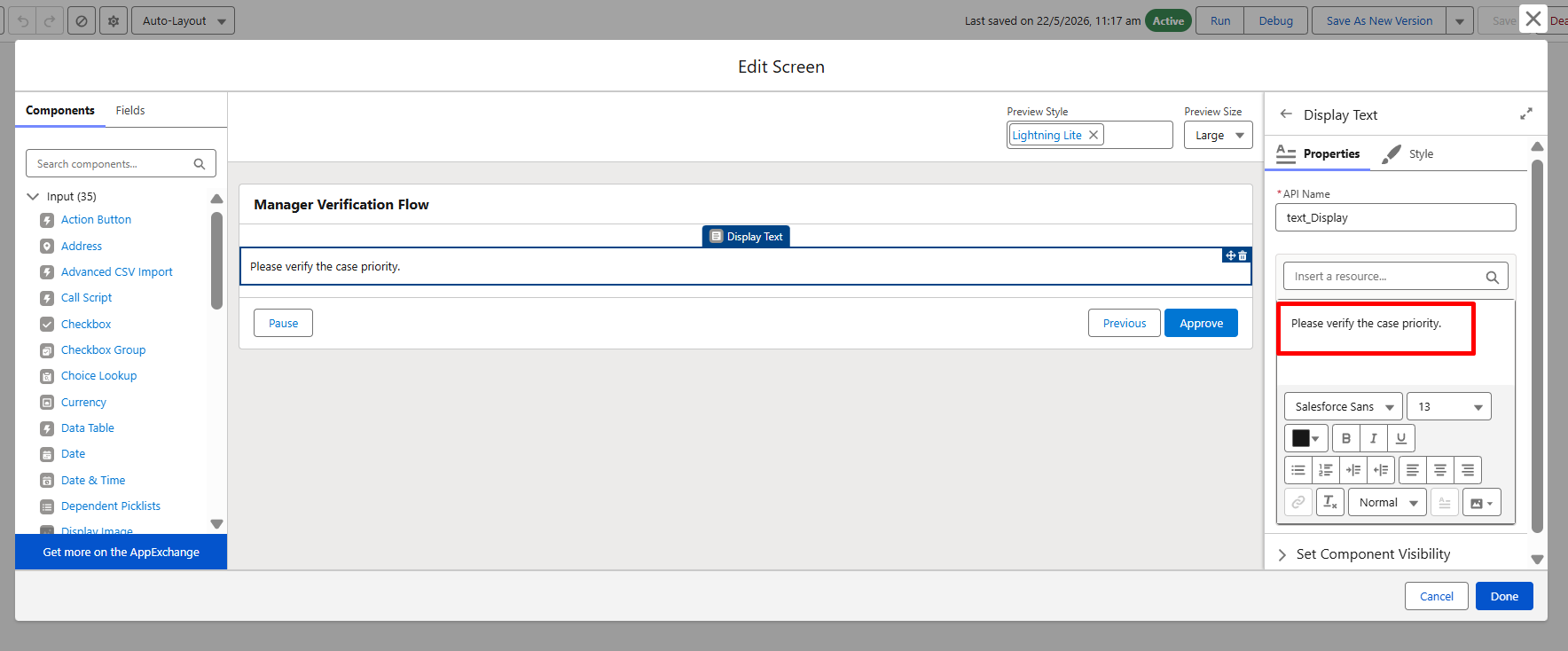
Step 14: Save the flow
Flow Label – Manager Verification Flow
Step 15: Activate the flow.
Create Background Update Flow
Step 16: From Setup in Salesforce, go to Flows, click New Flow, and click Autolaunched Flow (No Trigger)
Step 16.1: Create Input Variable:
- API Name – recordId
- Data Type – Text
- Available for Input – ✔ (Checked)
Beginners may not find this option, so better to update it with the actual name – Autolaunched Flow (No Trigger)
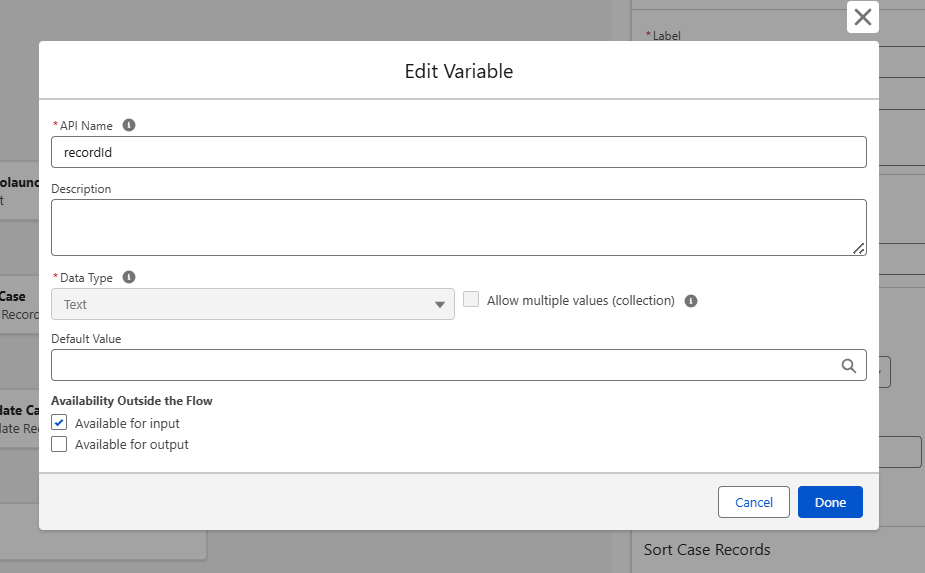
Step 17: Done.
Step 18: Add Update Records:
- Object: Case
- Condition Requirement – All Conditions are Met (AND) – Case ID = recordId
- Set Field Values for the Case Records
- Priority = High
Better Wording:
Priority = High
Also make it a pointer.
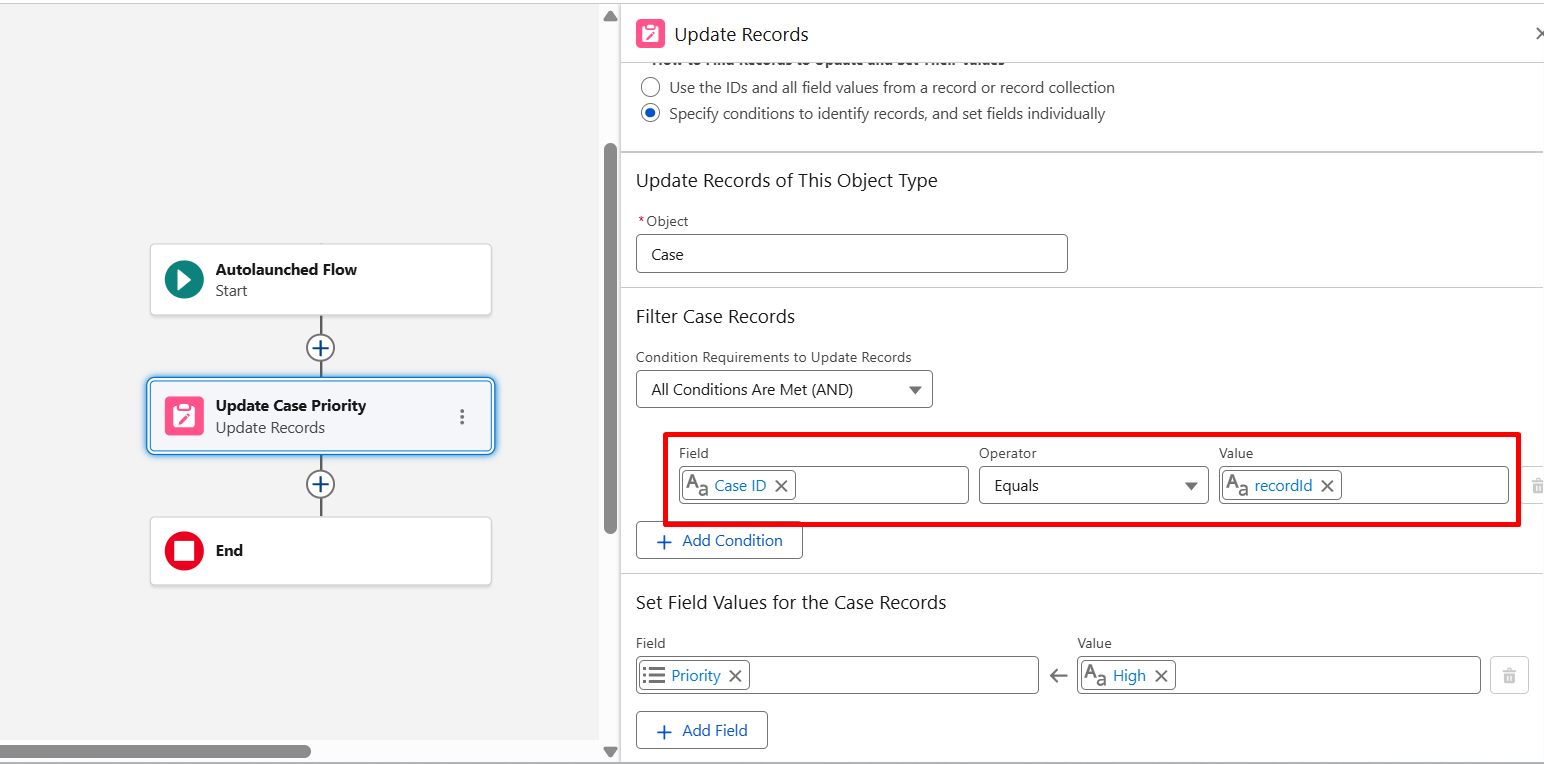
Step 19: Save the flow
Flow Label Update Case Priority
Step 20: Activate the flow.
Step 21: Add Stage 1- Record-Triggered Orchestration
Stage Label – Agent Review
Step 21.1: Add an Interactive Step to Stage 1
- Click Add Step
- Select Interactive Step
Configure the Step
- Step Label – Review Case
- Condition – When the stage starts, the step starts
- Action – Review Case Flow
- Assignee Type – User
- User – Your User
- Related Record ID – {!$Record.Id}
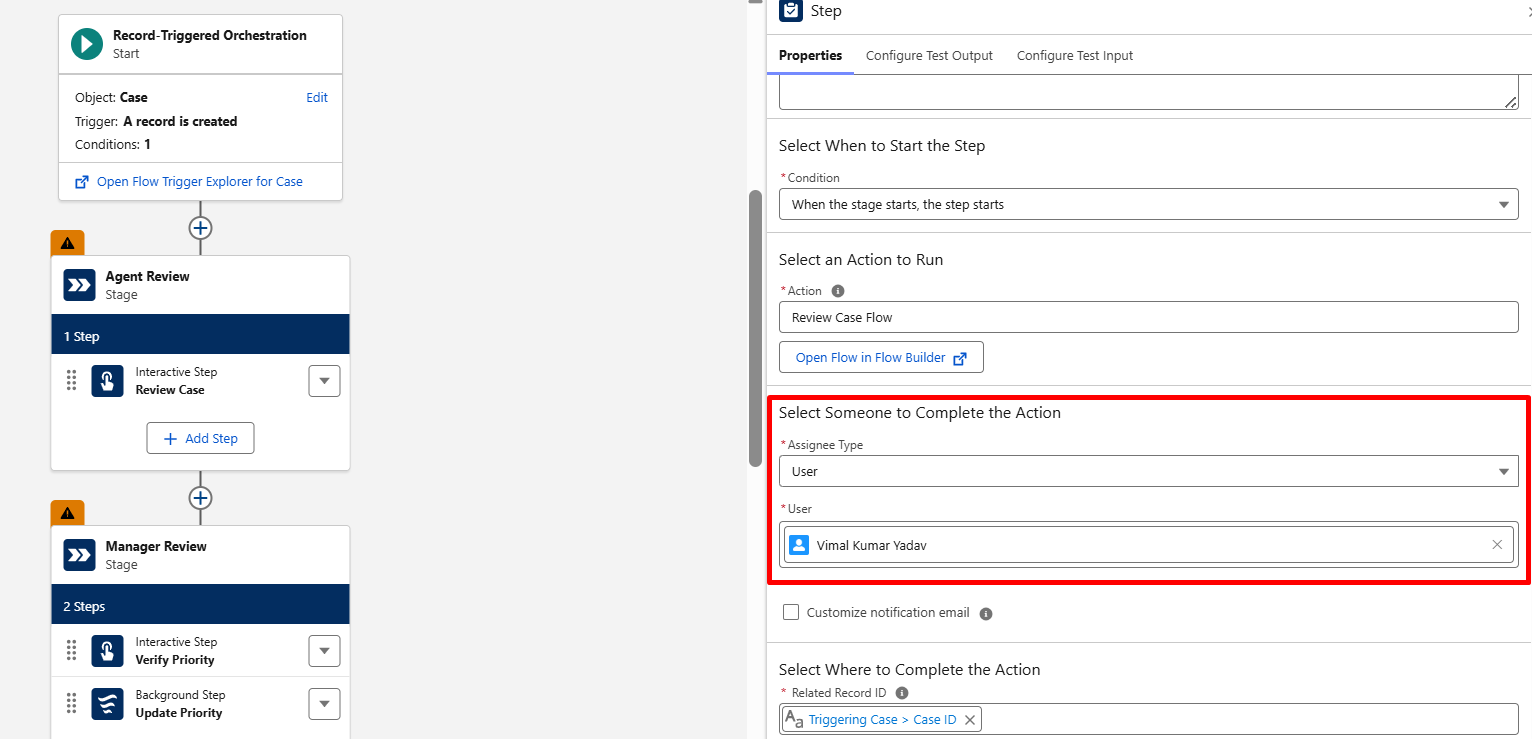
Step 22: Add Stage 2- Record-Triggered Orchestration
Stage Label – Manager Review
Step 22.1: Add Interactive Steps to Stage 2
- Click Add Step
- Select Interactive Step
Configure the Step
- Step Label – Verify Priority
- Condition – When the stage starts, the step starts
- Action – Manager Verification Flow
- Assignee Type – User
- User – Your User
- Related Record ID – {!$Record.Id}
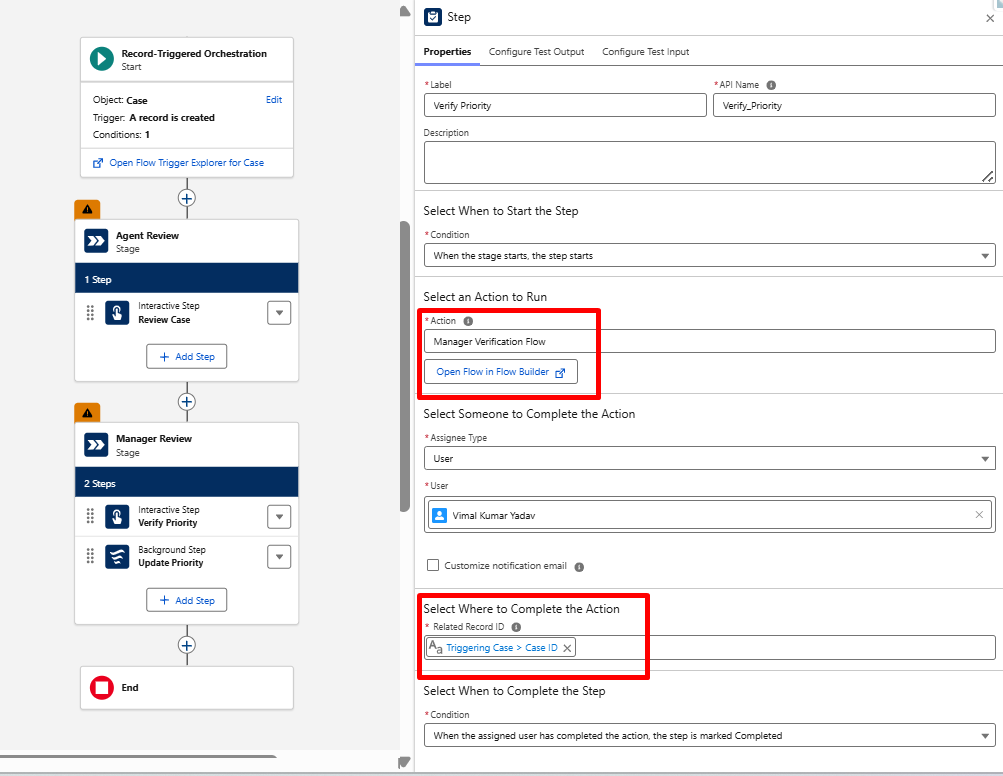
Step 22.2: Add a Background Step to Stage 2
- Click Add Step
- Select Background Step
Configure the Background Step
- Step Label – Update Priority
- Action – Update Case Priority
- Input Variable – recordId
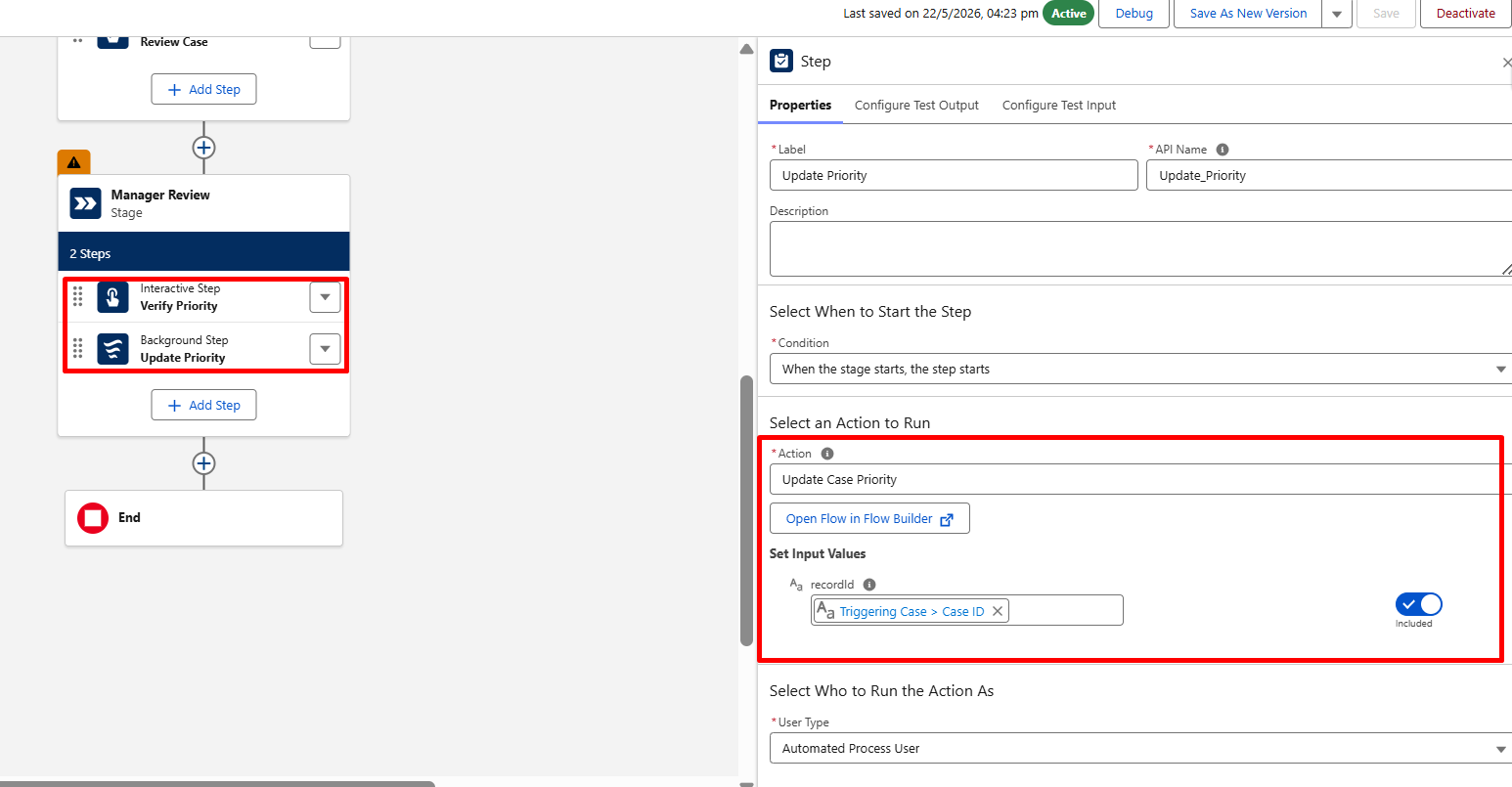
Step 23: Save the flow
Flow Label – Case Management Orchestration
Step 24: Activate the flow.
Add the Case Management Orchestration Flow to Page Layout
Step 1: Go to the Case record, click the Gear Icon (⚙️), and select Edit Page.
Step 2: In the Lightning App Builder, search for Orchestration Work Guide in the left-side Components panel.
Step 3: Drag and drop the Orchestration Work Guide component onto the record page.
Better to be replaced with – Orchestration Work Guide
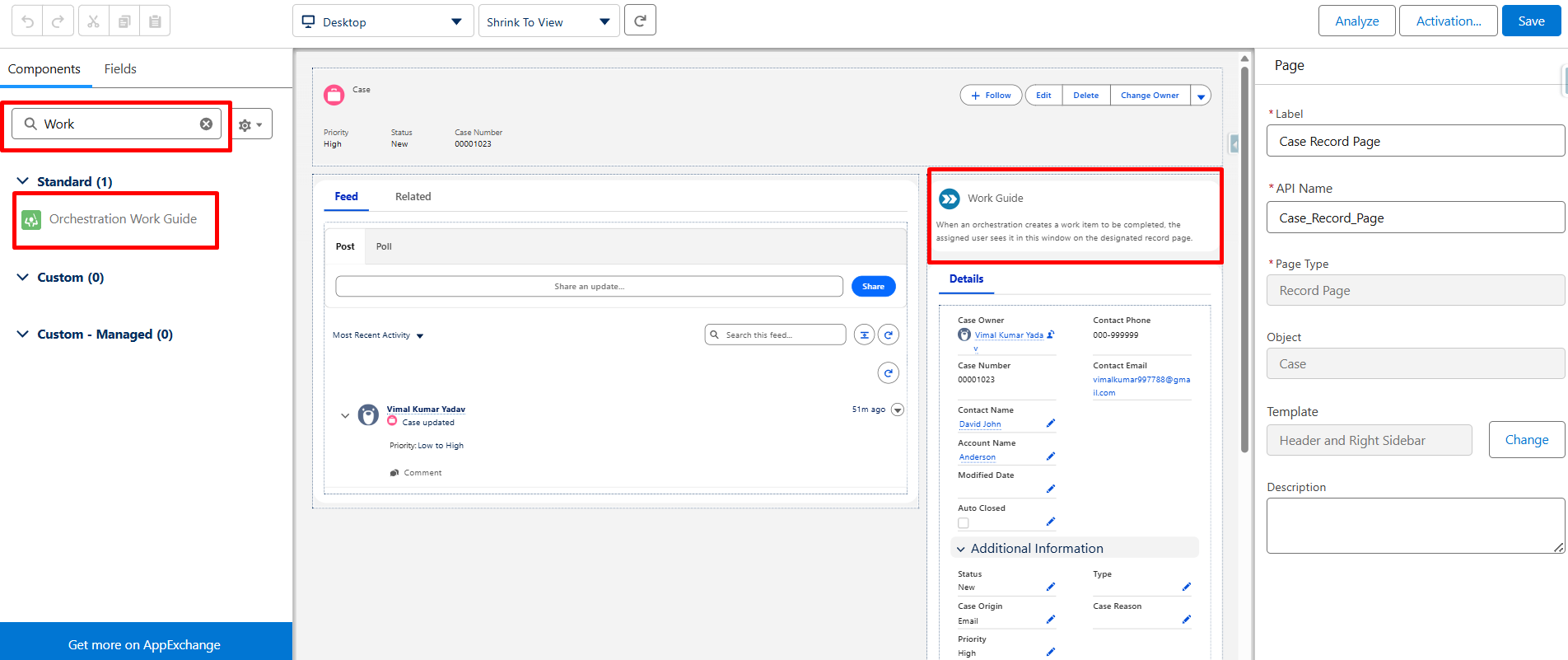
Step 4: Save the Lightning Record Page.
Step 5: Activate the Lightning Record Page and assign it as the Org Default.
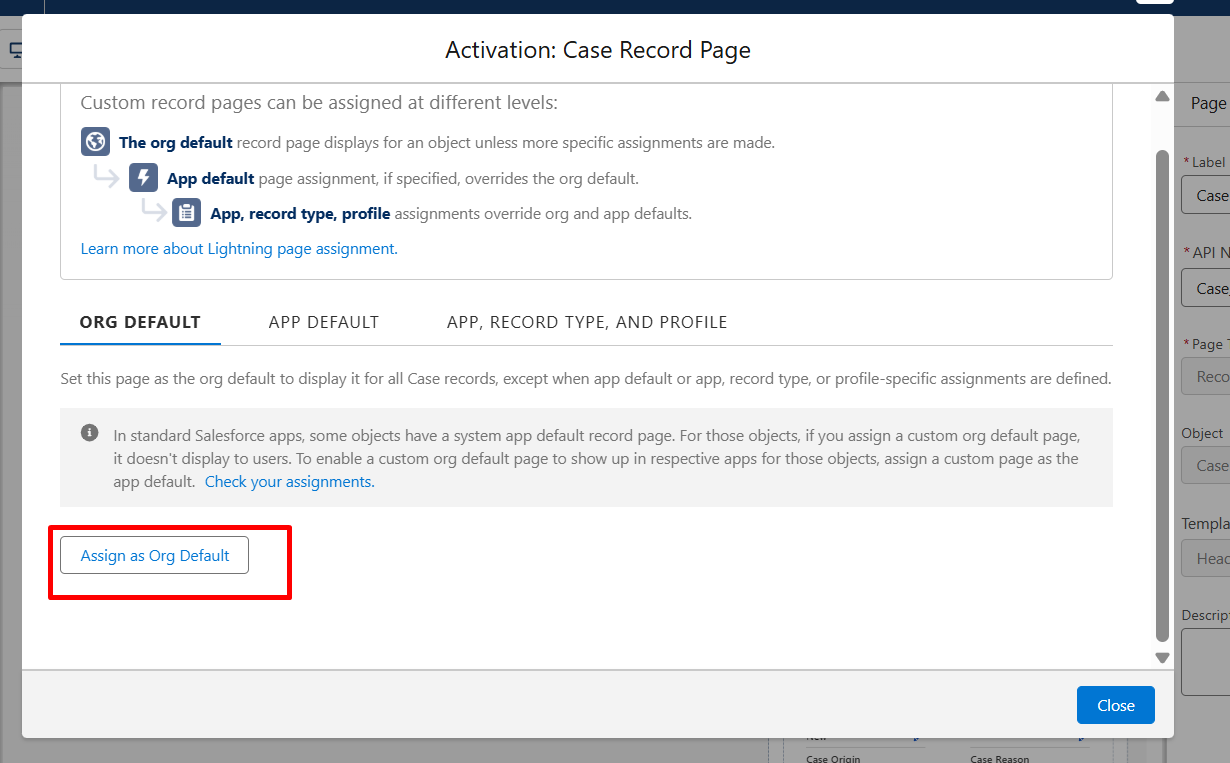
Step 6: Click Close and Save the page layout.
Step 7: Back to Lightning App Builder.
Difference Between Flow Orchestrator vs. Traditional Flows in Salesforce
| Feature | Flow Orchestrator | Traditional Flows |
|---|---|---|
| Purpose | Manage complex multi-user processes | Automate single business processes |
| User Involvement | Supports multiple users and teams | Usually single-user/system automation |
| Process Structure | Uses stages and steps | Uses flow elements only |
| Task Assignment | Assigns work to users or queues | Limited task coordination |
| Human + Automation | Combines user actions and automation | Mostly automation-focused |
| Sequential/Parallel Execution | Native support for sequential and parallel multi-user workflows | Limited support for coordinated multi-user workflow orchestration |
| Tracking | Tracks process progress and work items | Basic flow execution tracking |
| Best For | Complex end-to-end workflows | Simple to medium automation |
| Examples | Case management, onboarding, approvals | Field updates, email alerts, record creation |
| Complexity | Higher | Simpler and faster to build |
Conclusion
Traditional Flows and Flow Orchestrator both play an important role in Salesforce automation, but they are designed for different business requirements.
Traditional Flows are best for simple and fast automation processes such as field updates, notifications, and task creation. Flow Orchestrator is more suitable for complex business workflows that involve multiple users, approvals, and different workflow stages.
By understanding when to use each automation approach, businesses can improve operational efficiency, reduce manual work, and build better workflow management processes inside Salesforce.
Watch Live Demo
No Data Found.






 India
India  USA
USA UK
UK Canada