Loading...

We know that Salesforce is retiring WFRs and Process Builder and recommending Salesforce Flows for all behind-the-scenes automation needs.

As a result, it has become essential to learn and master Flows for building automation solutions.

So, in this blog today, we will share an overview of Salesforce Flows and the best practices to use it, in this quick guide to learning Salesforce Flows.

So, let’s begin!

What is Salesforce Flows

Flow is the most powerful automation tool provided by Salesforce. It is an automated application that captures and records all data and takes necessary actions accordingly in your Salesforce org or an external system.

Salesforce Flow enables building complex business solutions using clicks, not code. It can be triggered for record insert, update and record delete and it can be run for both after and before events.

Types of Flows

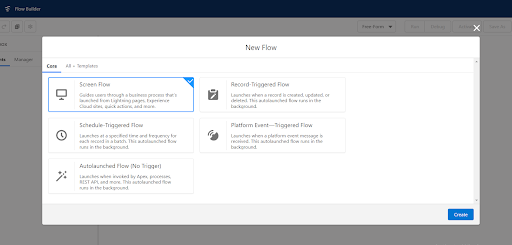
Salesforce Flow provides two types of flows: Screen flows and Auto launched flows.

Screen Flow

A Screen Flow is called through a button or action, or displayed in a Lightning Page or the Utility Bar, and appears as a screen for the user to interact with. This cannot be automatically called.

Record-Triggered Flow

This Flow launches when a record is created, updated, or deleted.

Auto launched Flow

These can be called Apex, Process Builder, or another Flow. They can perform actions automatically behind the scenes.

Scheduled-Triggered Flow

It runs automatically on a recurring schedule. It is helpful for tasks that need to be performed daily on a set of records or to handle jobs that run frequently.

Platform Event Flow

These are called when a platform event is received. It is similar to auto-launched flow.

11 1 11936a6c65

Features Of Flows

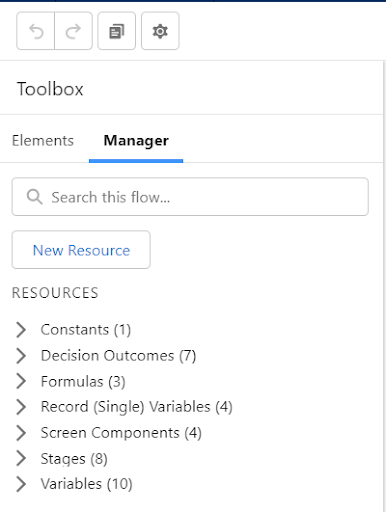
Manager Tab

The manager tab displays the existing resources. Each resource represents a value that is referenced throughout the flow. Some of the resources are as below-

  • Variables: Variables are used to store data to use in the flow. The variables can be of type Text, Number, Record, Dates, Currency, Boolean, Picklist, or Object record.
  • Collections: Collections are used to store a list of variables. They are used to process multiple records at a time.
  • Constants: Constants are values you set once and never change. Constants are recommended when the flow needs to reference the same value multiple times.
  • Formulas: It displays a dynamic value depending on other values within your Flow. If you need to calculate a future date based on when the Flow was run, a Formula will be helpful.
  • Choices: Choices are used in Screen flows to show options to the user.
12 1 11937994eb

Elements Tab

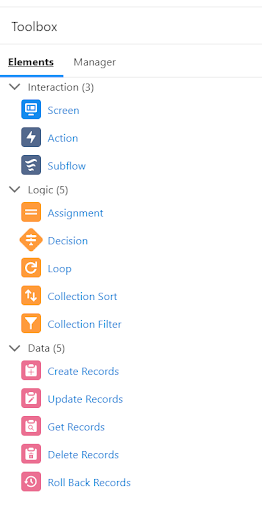
Elements tab displays Interaction, Logic, and Data elements available for the flow. Each element is an action the flow can execute.

Interaction Element includes –

  • Screen: This element is available only in Screen Flows. The screen can be used to display information or can be used to collect data from the user.
  • Actions: An Action element allows you to pass data through to a pre-existing standard or custom action such as Send Email, a Quick Create, or a custom Apex action.
  • Subflow: A Subflow element allows you to call another Flow within your current Flow – this means that if you have another complex Flow set up, you don’t need to replicate the logic in your new Flow.

Logic Elements include-

  • Decisions: Decisions split the flow depending on the data that’s being sent through the decision element.
  • Assignments: Assignments allow you to give a value to a variable.
  • Loops: Loops allow you to handle multiple variables at once using collections.

Data Elements allow the flows to fetch, create, update or delete records in the database. The elements include

  • Get Record,
  • Create Record,
  • Update Record,
  • Delete Record.

Whilst Get Record is used to fetch records from the database, Create Record, Update Record, and Delete Record are used to activate the data in the database.

Connectors decide the available paths that a flow can take at run time. Various elements in the flow are connected using the connectors available. Some types of connectors are Unlabeled, Decision Outcome, Fault, Pause, For each, etc.

13 1 1193883ec6

Best Practices For Flows

  • Plan out your flow before you start building.

  • Build your flows in a test environment—like a sandbox or Developer Edition org.

  • Never hard-code Salesforce IDs.

  • Wait until the end of the flow to make changes to the database.

  • Control when running users can navigate backward.

  • Provide an error handler.

  • Save early and often.

  • Restrict data access via profiles and permission sets.

  • Control data access with the Subflow element.

  • Test as many permutations of your flow as you possibly can.

  • Avoid accessing external objects after DML operations in a transaction.

General Limits For Flows

PER-ORG LIMIT ESSENTIALS OR PROFESSIONAL EDITIONS ENTERPRISE, UNLIMITED, PERFORMANCE, OR DEVELOPER EDITIONS
Versions per flow 50 50
Executed elements at runtime per flow 2,000 2,000
Active flows per flow type 5 4,000
Flow interviews that are resumed per hour or groups of scheduled actions from processes that are executed per hour based on a specific time 1,000 1,000
The combined total of this automation that starts or resume is based on a record’s field value.
  • Resume events that are defined in active flows
  • Groups of scheduled actions that are defined in active processes
  • Time triggers that are defined in active workflow rules
  • Inactive flow interviews that are resumed
20,000 20,000
Schedule-triggered flow interviews per 24 hours 250,000, or the number of user licenses in your org multiplied by 200, whichever is greater

Conclusion

We hope you find this quick guide useful. If you have liked the blog or have any suggestions, do not hesitate to reach out to us at HIC Global Solutions. Catch you in the next one, stay tuned!

No Data Found.

Related Articles
Orchestrator vs. Traditional Flows

Businesses use Salesforce automation to reduce manual work, improve efficiency, and automate repetitive business processes. Two commonly used automation approaches inside Salesforce are Traditional Flows and Flow Orchestrator. Traditional Flows are mainly used for simple automation tasks such as updating records, sending notifications, creating tasks, and automating business logic. Flow Orchestrator is designed for more […]

Read More
The Rise of Agentic Government_ What Salesforce’s 2026 Insights Mean for the Future of Public Sector AI

Government technology has often been seen as slower to evolve than the private sector. But Salesforce’s latest research challenges that idea in a big way. In fact, the new findings suggest that public sector organizations may now be moving faster than many businesses when it comes to adopting AI agents and preparing for a more […]

Read More
How To Use Email Service in APEX

Managing approvals, updates, and record changes directly from email can significantly improve efficiency within Salesforce workflows. Instead of logging in, navigating records, and manually updating fields, users can simply respond to emails and trigger automated updates using Email Service in APEX. This approach is especially useful for businesses leveraging Salesforce automation and looking to enhance […]

Read More
Design and Implementation of Salesforce Jira Task Integration 1 1

Businesses have been using Salesforce for CRM operations and Jira for Agile project tracking. However, without integration, teams manually update both systems, leading to data inconsistency and inefficiency.This mechanism establishes a real-time integration between Salesforce and Jira, allowing seamless synchronization of tasks and agile board statuses.  A custom Salesforce dashboard was developed that replicates Jira-style […]

Read More
Dark Mode in Salesforce Enabling It and Creating Theme Ready Lightning Web Components with SLDS 2.0 1 1

With the Winter ’26 release, Salesforce introduced Dark Mode in Lightning Experience. Dark Mode has been introduced as a beta feature in Winter ’26, and at first it was available only for Starter Edition orgs. It is now rolling out further with Spring ’26 to Professional, Enterprise, and Developer editions. To use Dark Mode, Salesforce […]

Read More
How to Merge and Brand PDF Files in Salesforce Using LWC Visualforce PDF LIB 1

Salesforce developers frequently encounter document automation requirements that go beyond standard Apex-based PDF generation. From merging multiple ContentVersion files to dynamically applying branding like watermarks and headers, traditional server-side approaches often hit Salesforce heap size limits (6MB/12MB), creating performance and scalability challenges. This guide presents a heap-limit-safe PDF merging architecture in Salesforce using Lightning Web […]

Read More
Our Location worldwide
Indian Flag India
3rd Floor, A-10, Pegasus Tower, Sector 68, Noida, Uttar Pradesh 201301 +91-1203239658
United States of America Flag USA
333 West Brown Deer Road Unit G – 366 Milwaukee WI, USA 53217 +1(262) 310-7818
United Kingdom Flag UK
7 Bell Yard, London, WC2A 2JR +44 20 3239 9428
Canada Canada
HIC Global Solutions INC
6D - 7398 Yonge St #1124 Thornhill, ON L4J 8J2 Canada +1(262) 310-7818