


Loading...

Looking to bridge the gap between your lead generation and CRM efforts? Integrating Apollo with Salesforce is the answer. This connection enables your sales and marketing teams to automate prospecting, sync contacts and activities in real time, and maintain a single source of truth for every customer interaction.

In this guide, we’ll walk you through the complete Apollo-Salesforce integration process from access verification and system configuration to field mapping and log monitoring. Whether you’re setting it up for the first time or fine-tuning your sync settings, this step-by-step breakdown will help you execute the integration with confidence and precision.

Connecting Apollo to Salesforce

1 1

Preparing for Integration

2 2

Before initiating the integration, ensure that all prerequisites and system requirements are met to avoid compatibility issues and guarantee a seamless setup process.

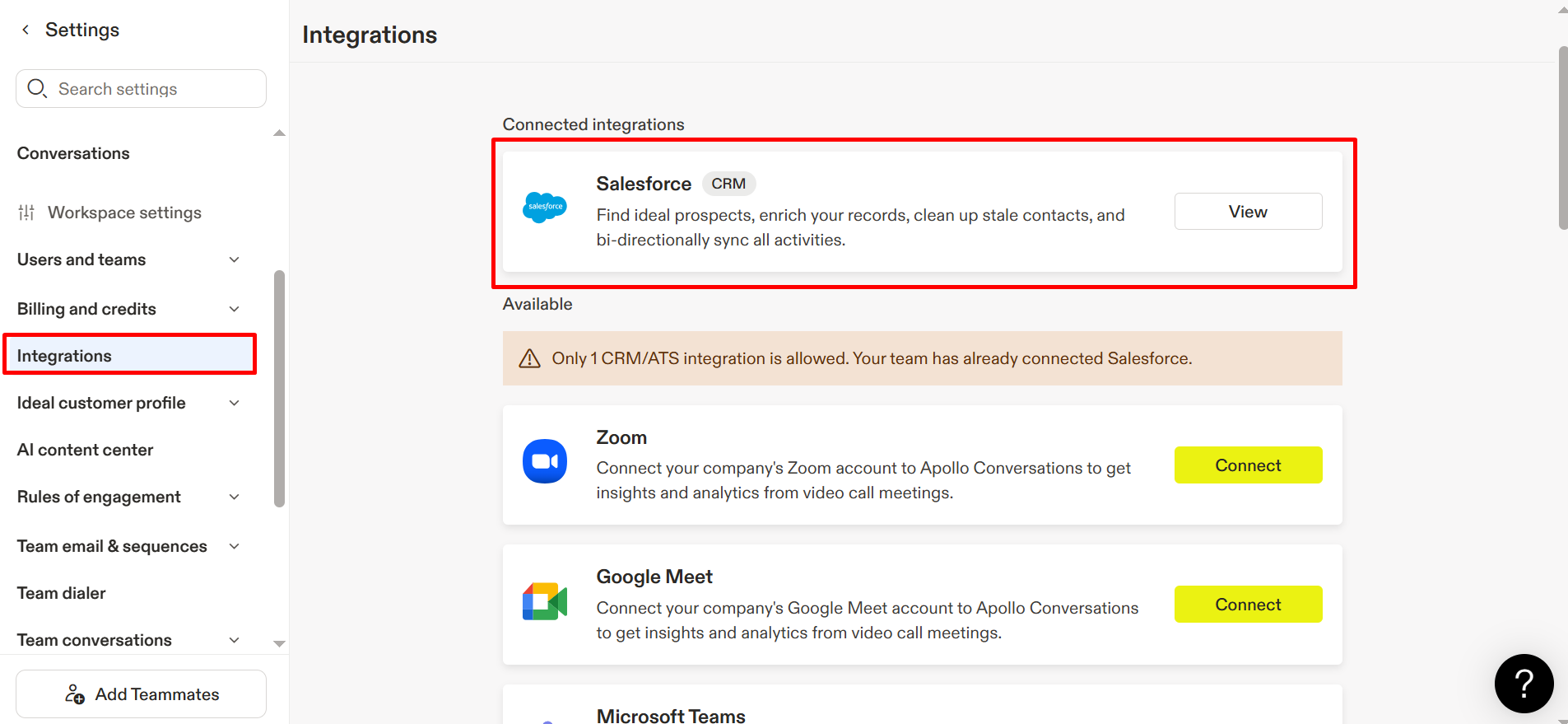
Steps to Connect Apollo to SF Account

Step 1: Verify Basic Access

Before proceeding, confirm that you possess admin access to both Apollo and Salesforce, check that your Salesforce version is compatible with third-party applications, and ensure you have a reliable internet connection along with a suitable browser.

3 2

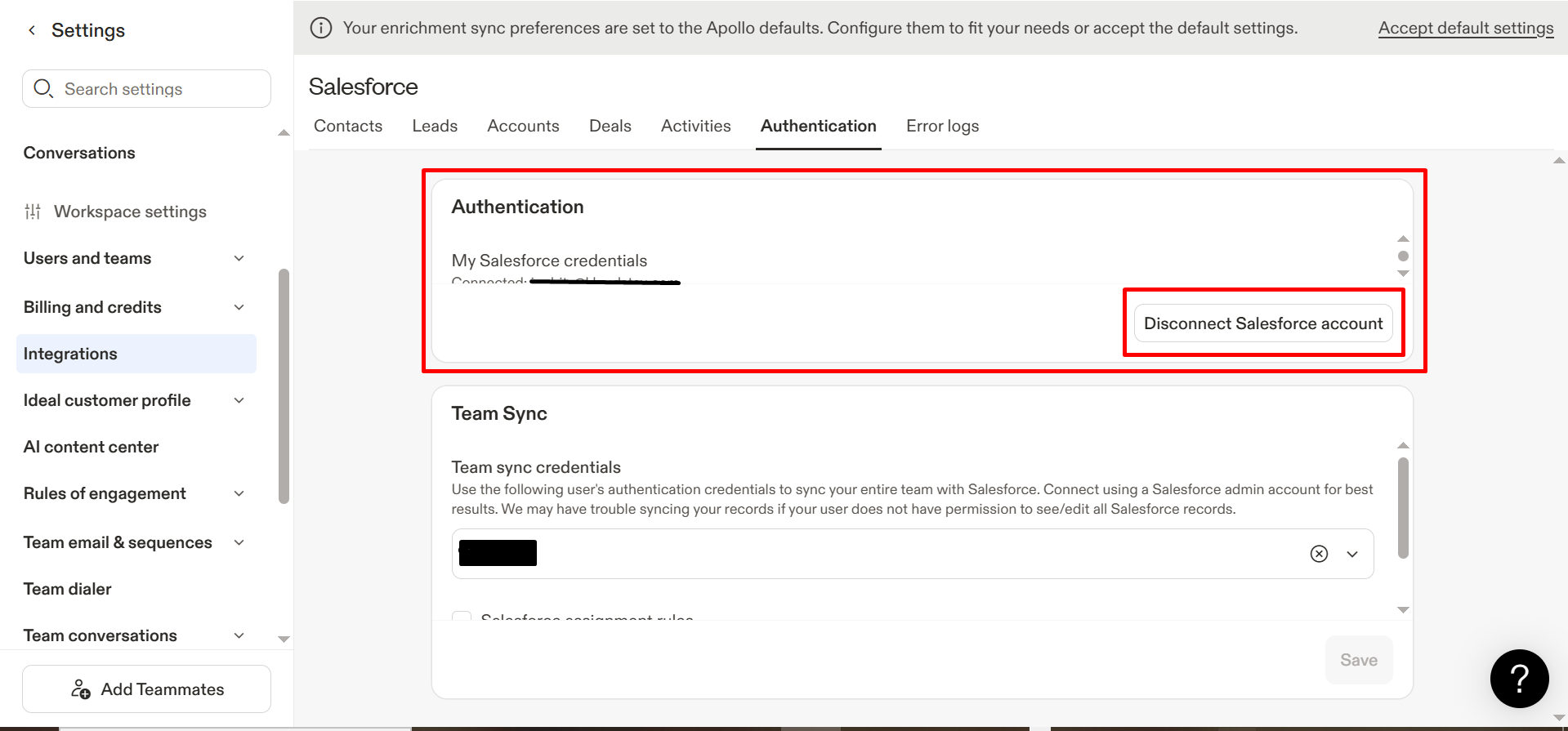
Step 2: System Configuration

The setup wizard will guide you through the process of connecting both systems, necessitating the entry of required credentials and adjustments to specific settings to align with your workflow. Additionally, you should determine the objects you wish to synchronize.

4 1

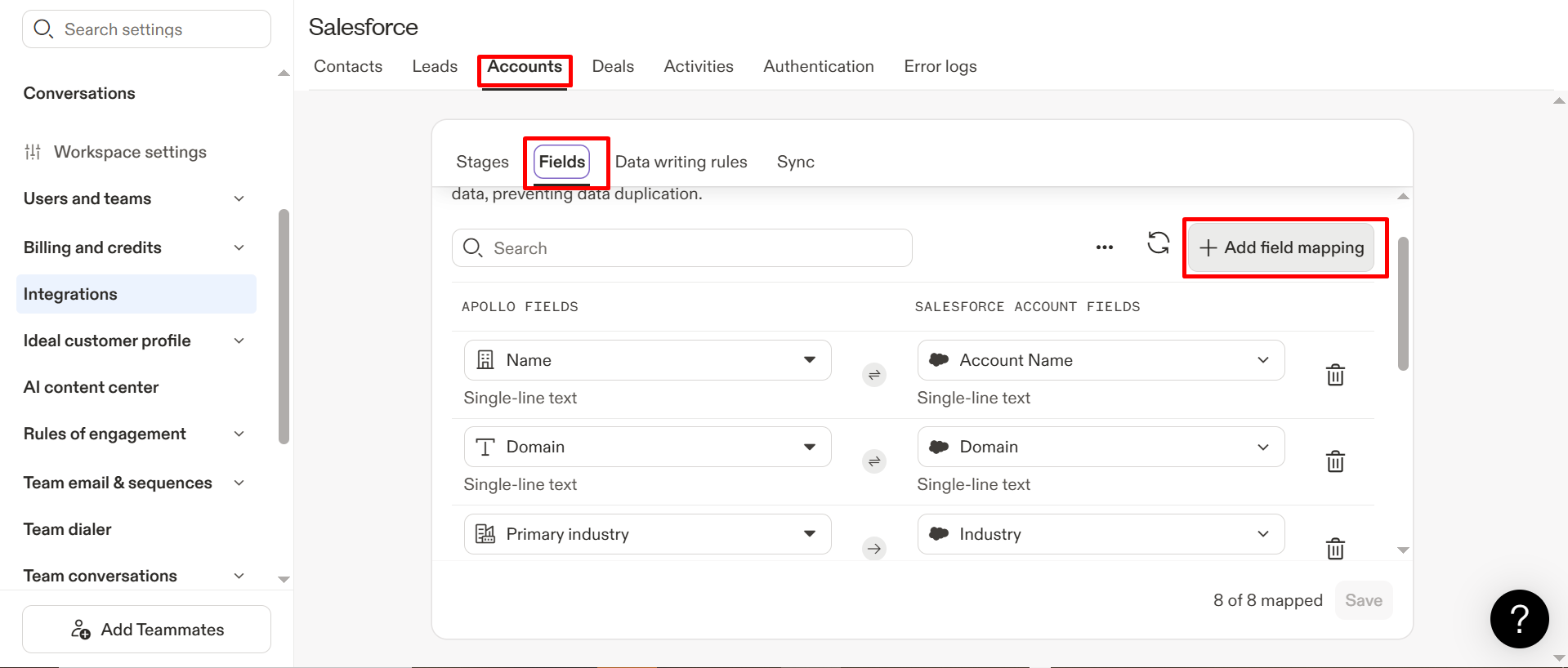
Step 3: Field Mapping and Information Synchronization.

At this critical juncture, it is essential to verify that fields are correctly mapped. Ensure that the data from Apollo corresponds with the appropriate fields in Salesforce, clearly specifying the synchronization parameters, such as the update frequency and whether they should modify existing records or generate new ones.

Conduct multiple test synchronizations to ensure that all functions are as intended, and examine the logs for any possible issues that might arise.

5 1

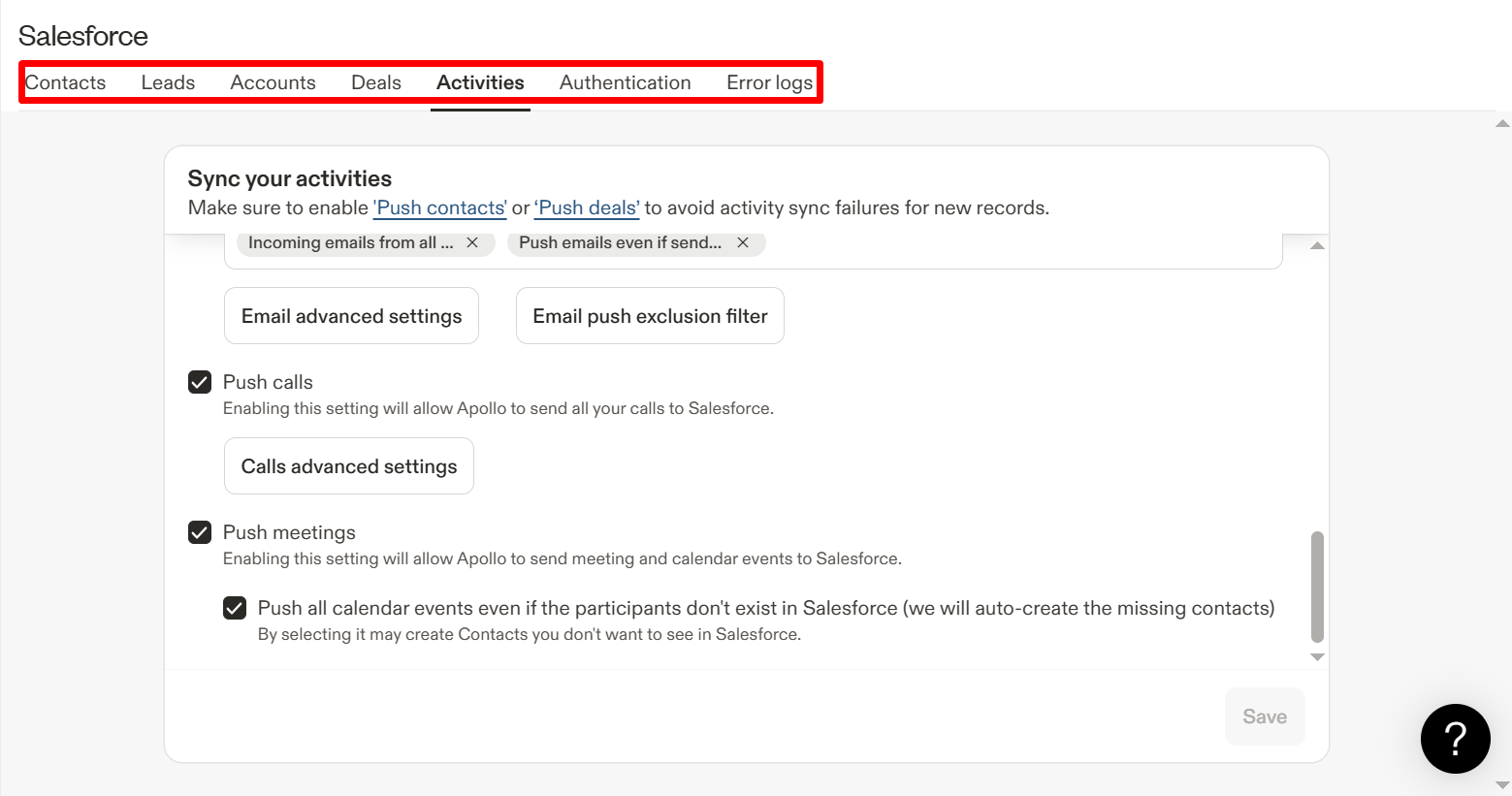
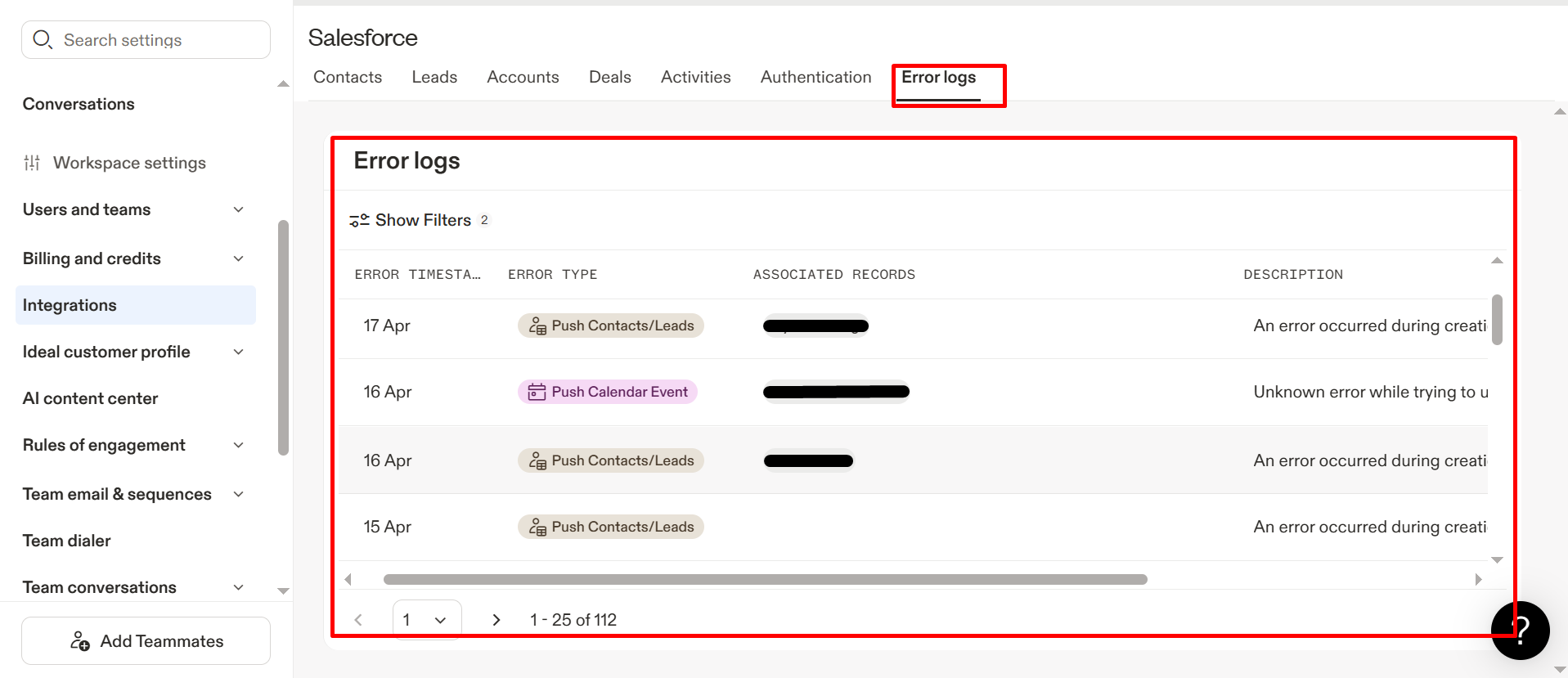
Step 4: Examine Error Logs.

Consistently monitor the error logs located in the Apollo Connector settings in Salesforce, as problems like missing data or permission errors can occur. If you find any inconsistencies, implement the required changes and try the process once more; occasionally, merely refreshing the page can fix minor issues.

6 1

Check out the live demo:

Conclusion

Integrating Apollo with Salesforce isn’t just a technical task; it’s a strategic move to supercharge your sales pipeline with better data, fewer silos, and more intelligent workflows.

By carefully following the steps outlined, verifying access, configuring systems, mapping fields, and reviewing logs, you’ll set the foundation for a robust, error-free integration that unlocks real-time prospect insights inside Salesforce.

Ready to maximize ROI from both platforms? The Apollo-Salesforce connection is your launchpad to smarter selling and faster revenue acceleration.

If you are looking to export Salesforce Data to Excel Using SheetJS in LWC, checkout this guide.

No Data Found.

Related Articles
Orchestrator vs. Traditional Flows

Businesses use Salesforce automation to reduce manual work, improve efficiency, and automate repetitive business processes. Two commonly used automation approaches inside Salesforce are Traditional Flows and Flow Orchestrator. Traditional Flows are mainly used for simple automation tasks such as updating records, sending notifications, creating tasks, and automating business logic. Flow Orchestrator is designed for more […]

Read More

The Rise of Agentic Government_ What Salesforce’s 2026 Insights Mean for the Future of Public Sector AI

Government technology has often been seen as slower to evolve than the private sector. But Salesforce’s latest research challenges that idea in a big way. In fact, the new findings suggest that public sector organizations may now be moving faster than many businesses when it comes to adopting AI agents and preparing for a more […]

Read More

How To Use Email Service in APEX

Managing approvals, updates, and record changes directly from email can significantly improve efficiency within Salesforce workflows. Instead of logging in, navigating records, and manually updating fields, users can simply respond to emails and trigger automated updates using Email Service in APEX. This approach is especially useful for businesses leveraging Salesforce automation and looking to enhance […]

Read More

Design and Implementation of Salesforce Jira Task Integration 1 1

Businesses have been using Salesforce for CRM operations and Jira for Agile project tracking. However, without integration, teams manually update both systems, leading to data inconsistency and inefficiency.This mechanism establishes a real-time integration between Salesforce and Jira, allowing seamless synchronization of tasks and agile board statuses.  A custom Salesforce dashboard was developed that replicates Jira-style […]

Read More

Dark Mode in Salesforce Enabling It and Creating Theme Ready Lightning Web Components with SLDS 2.0 1 1

With the Winter ’26 release, Salesforce introduced Dark Mode in Lightning Experience. Dark Mode has been introduced as a beta feature in Winter ’26, and at first it was available only for Starter Edition orgs. It is now rolling out further with Spring ’26 to Professional, Enterprise, and Developer editions. To use Dark Mode, Salesforce […]

Read More
How to Merge and Brand PDF Files in Salesforce Using LWC Visualforce PDF LIB 1

Salesforce developers frequently encounter document automation requirements that go beyond standard Apex-based PDF generation. From merging multiple ContentVersion files to dynamically applying branding like watermarks and headers, traditional server-side approaches often hit Salesforce heap size limits (6MB/12MB), creating performance and scalability challenges. This guide presents a heap-limit-safe PDF merging architecture in Salesforce using Lightning Web […]

Read More
Our Location worldwide
Indian Flag India
3rd Floor, A-10, Pegasus Tower, Sector 68, Noida, Uttar Pradesh 201301 +91-1203239658
United States of America Flag USA
333 West Brown Deer Road Unit G – 366 Milwaukee WI, USA 53217 +1(262) 310-7818
United Kingdom Flag UK
7 Bell Yard, London, WC2A 2JR +44 20 3239 9428
Canada Canada
HIC Global Solutions INC
6D - 7398 Yonge St #1124 Thornhill, ON L4J 8J2 Canada +1(262) 310-7818