Loading...

Today, Most companies prefer digital document signing over the old-age paper-based signing method.

And we all know that DocuSign is a powerful tool that allows instant electronic signature generation for any document.

So, the global CRM leader Salesforce built a plugin to enable its users to capture digital signatures using DocuSign right from their Salesforce org.

So, for this week’s issue, we have brought a strategic guide on how to install and configure DocuSign in Salesforce org without any code.

So, let’s jump straight to the installation and Setup process.

Step by Step Guide to Install and Set up DocuSign

How to install DocuSign in Salesforce org

To get started with codeless DocuSign configuration in your Salesforce org, first, we need to install Salesforce’s app “DocuSign eSignature for Salesforce: The trusted eSignature solution” from Salesforce AppExchange.

Step 1

Visit Salesforce AppExchange and search for DocuSign eSignature for Salesforce in the search bar. Once the app page is displayed, click on ‘Get It Now.

docusign

Step 2

Next, you will be prompted to log in to your Salesforce Account. After successful login, you will be asked whether you want to install the package in Production or sandbox.

Click on “Click here” to continue installing in Production.

s2 1171935894

Step 3

Review all the information details and click on the checkbox for terms and conditions. Then click on Confirm and Install.

After confirmation, you will be asked whether you want to install for users, admins, or specific groups. Select the options you want and click on Install.

After the installation is complete, you should be able to see DocuSign in the installed packages list of your Salesforce org.

s3 117202219e

How to set up DocuSign in Salesforce org

Step 1

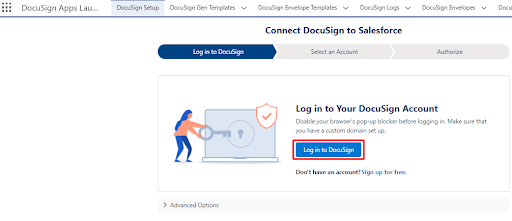
To configure DocuSign, Go to the AppLauncher and search for DocuSign. Now, Click on the app and go to DocuSign Setup.

You will be asked to log in to DocuSign. In case you don’t have a DocuSign account, you can sign up from here as well.

s4 117211425c

Step 2

Select the login options as you please. Choose Advanced Options if you are not using any production account or you may select Log into Demo Account if you are looking for a DocuSign Demo or using a Sandbox account.

s5 1172252793

Step 3

In this step, you will configure the e-signature functionality by adding a Button. Click on eSignature→Button.

Now, choose your desired Object to see the layouts. Then Select the layouts where you would like to add the ‘Send with DocuSign’ button. Click on Update Layouts.

s6 117230c32c

Step 4

To see the DocuSign Files, go to Component and scroll down to the Custom-Managed section and click on DocuSign Files.

s7 1172479e24

Step 5

You can now see the status as Signed in the Details section by clicking on DocuSign Envelope Status.

s8 117256aa6c

Conclusion

We hope you find this guide helpful. Try out this solution for an effortless e-signature generation with DocuSign right from your Salesforce stance.


Also, get in touch with our Salesforce developers at HIC Global Solutions in case you need any assistance with any Salesforce development project. Stay in touch and keep learning!

No Data Found.

Related Articles
Design and Implementation of Salesforce Jira Task Integration 1 1

Businesses have been using Salesforce for CRM operations and Jira for Agile project tracking. However, without integration, teams manually update both systems, leading to data inconsistency and inefficiency.This mechanism establishes a real-time integration between Salesforce and Jira, allowing seamless synchronization of tasks and agile board statuses.  A custom Salesforce dashboard was developed that replicates Jira-style […]

Read More
Dark Mode in Salesforce Enabling It and Creating Theme Ready Lightning Web Components with SLDS 2.0 1 1

With the Winter ’26 release, Salesforce introduced Dark Mode in Lightning Experience. Dark Mode has been introduced as a beta feature in Winter ’26, and at first it was available only for Starter Edition orgs. It is now rolling out further with Spring ’26 to Professional, Enterprise, and Developer editions. To use Dark Mode, Salesforce […]

Read More
How to Merge and Brand PDF Files in Salesforce Using LWC Visualforce PDF LIB 1

Salesforce developers frequently encounter document automation requirements that go beyond standard Apex-based PDF generation. From merging multiple ContentVersion files to dynamically applying branding like watermarks and headers, traditional server-side approaches often hit Salesforce heap size limits (6MB/12MB), creating performance and scalability challenges. This guide presents a heap-limit-safe PDF merging architecture in Salesforce using Lightning Web […]

Read More
Building a Reusable Popup Modal Architecture in Salesforce LWC 02 1

Modern Salesforce applications frequently rely on popup modals for confirmations, warnings, access control decisions, and destructive actions. However, building modal logic separately inside every Lightning Web Component often leads to duplicated code, inconsistent user experiences, and growing technical debt. This blog introduces a flexible popup modal architecture in Lightning Web Components (LWC) that centralizes modal […]

Read More
How to Add a Lookup Recipient in a Sign Template

This step-by-step guide will provide you with quick steps on how to add a lookup recipient inside a sign template in just a few easy steps. This process improves your eSignature for Salesforce workflow by pulling recipients directly from related records. Whether you rely on Salesforce digital signature features or any eSignature integration, adding lookup […]

Read More
Agentforce VS code

As Salesforce continues to move toward AI-assisted development, Agentforce is emerging as a powerful tool that helps developers interact with their org metadata, objects, and configurations using intelligent prompts. When combined with Visual Studio Code (VS Code) and the Salesforce CLI, Agentforce enables a faster, more context-aware way to explore and build on the Salesforce […]

Read More
Our Location worldwide
Indian Flag India
3rd Floor, A-10, Pegasus Tower, Sector 68, Noida, Uttar Pradesh 201301 +91-1203239658
United States of America Flag USA
333 West Brown Deer Road Unit G – 366 Milwaukee WI, USA 53217 +1(262) 310-7818
United Kingdom Flag UK
7 Bell Yard, London, WC2A 2JR +44 20 3239 9428
Canada Canada
HIC Global Solutions INC
6D - 7398 Yonge St #1124 Thornhill, ON L4J 8J2 Canada +1(262) 310-7818