

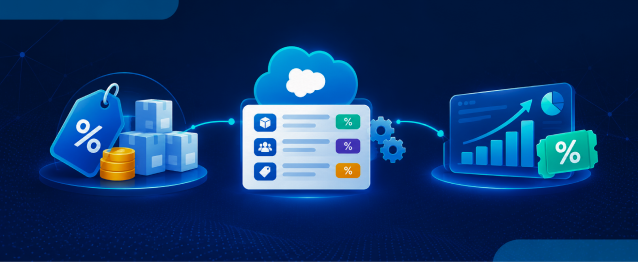
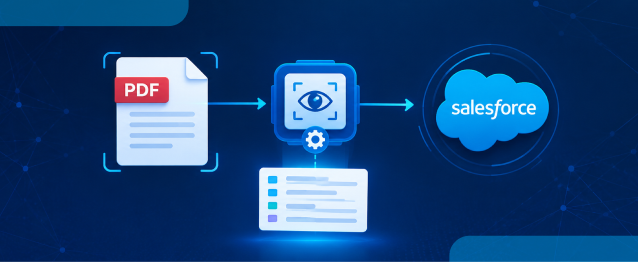
Integrating external healthcare platforms like Niko Health with Salesforce helps streamline document management and improve operational efficiency. In this guide, we will walk through the complete process of fetching a document from Niko Health using APIs and attaching it to a Salesforce account as a file.
This step-by-step implementation is useful when you want to automatically sync patient-related documents, invoices, prescriptions, or any external files into Salesforce.
Step 1: Set Up Named Credential
The first step is to configure a Named Credential in Salesforce. Named Credentials provide a secure and easy way to store authentication details and endpoint URLs for external systems.
As part of a Salesforce API integration, we will create a Named Credential for the Niko Health API endpoint. This helps avoid hardcoding sensitive information like usernames, passwords, or tokens directly in Apex code.
Why Use Named Credentials?
- Secure authentication management
- Simplifies API callouts
- Supports OAuth and token-based authentication
- Reduces maintenance effort
Configuration Includes:
- Endpoint URL of Niko Health API
- Authentication type
- API credentials or token
- Permission setup
- External Credentials:

- Name Credentials:

- Name Principals:

- Give the user permission to access this External Credential.

- Give user external Credential Permission:

- Once configured, Salesforce can securely communicate with the Niko Health system.
Step 2: Make First API Call (Fetch Documents List)
After setting up the Named Credential, the next step is to make an HTTP callout to the Niko Health API to fetch the list of available documents.
This initial step is a key component of a Salesforce Niko Health integration, enabling Salesforce to retrieve document metadata from the external system securely and efficiently.
Using Apex HttpRequest and HttpResponse, we send a GET request to the API endpoint.
Purpose of This API Call
The API returns metadata about documents, such as:
- Document ID
- File name
- File type
- Created date
- Download URL
This response is usually returned in JSON format.
Example Flow
- Create HTTP request
- Set endpoint using Named Credential
- Set request method as GET
- Send request
- Receive response
This response will be used in the next steps to identify and download the required document.

Step 3: Parse JSON Response
Once the API response is received, the JSON data must be parsed in Salesforce.
Salesforce provides methods like:
- JSON.deserialize()
- JSON.deserializeUntyped()
These methods help convert the raw JSON response into Apex objects or maps for easier access.
Why is Parsing Important?
The API response contains multiple fields and nested objects. Parsing helps extract specific values like:
- Document ID
- Download URL
- File name
Without parsing, Salesforce cannot understand the JSON structure properly.
Best Practice
Create wrapper classes for structured and clean code when dealing with large API responses.

Step 4: Extract Document Details
After parsing the response, the next step is to extract the required document details.
At this stage, we identify:
- Which document needs to be downloaded
- The exact download URL
- File extension and name
Common Logic Used
You can filter documents based on:
- Latest uploaded document
- Specific file type
- Matching patient/account information
- Document category
These details are important because Salesforce will use them while saving the file.

Step 5: Download the Document
Once the download URL is available, another API call is made to fetch the actual document file.
This API call generally returns the file content in binary format.
Process Includes
- Creating another HTTP request
- Sending GET request to download endpoint
- Receiving file body from response
The document can be:
- Image
- Excel file
- Text document
At this point, Salesforce receives the raw file data from Niko Health.

Step 6: Convert File into Blob (Binary Large Data)
Salesforce stores files in Blob format. Therefore, the downloaded file content must be converted into a Blob before saving.
The HTTP response body is converted using:
Blob fileBody = response.getBodyAsBlob();
Why Blob Conversion is Required?
Blob is Salesforce’s binary data type used for:
- PDFs
- Images
- Attachments
- Documents
Without Blob conversion, the file cannot be stored in Salesforce Files.

Step 7: Save File in Salesforce (ContentVersion)
Now the document is ready to be stored in Salesforce.
Salesforce Files are stored using the ContentVersion object. This approach strengthens Salesforce document management by centralizing files within the CRM and making them easily accessible to authorized users.
Required Fields
- Title
- PathOnClient
- VersionData
Example Process
- Create ContentVersion record
- Add Blob data
- Insert the record into Salesforce
After insertion, Salesforce automatically creates a file in the Files section.
Benefits of Using ContentVersion
- Modern Salesforce file storage
- Better sharing capabilities
- Version management support
- Easy attachment to records

Step 8: Get ContentDocumentId
Once the ContentVersion record is inserted, Salesforce generates a related ContentDocumentId.
This ID is important because it represents the actual file stored in Salesforce.
Why Do We Need ContentDocumentId?
The Content Document Id is used to:
- Link the file to Salesforce Account
- Share files with users
- Access file records later
You can retrieve it by querying the inserted ContentVersion record.
Final Step
Using ContentDocumentLink, the document can be attached directly to the Salesforce Account.
This completes the entire process to Fetch Document from Niko Health and Attach it to Salesforce Account, ensuring that users can access important files without leaving Salesforce.

Conclusion
Integrating Niko Health with Salesforce for document synchronization improves automation and reduces manual work. By using Named Credentials, API callouts, JSON parsing, Blob conversion, and Salesforce Files, organizations can seamlessly manage external documents directly within Salesforce.
This approach provides:
- Secure integration
- Automated document handling
- Better record management
- Centralized file storage in Salesforce
Organizations looking to implement similar solutions can leverage expert Salesforce services and Salesforce integration services from HIC Global Solutions to build secure, scalable, and efficient healthcare integrations. With this implementation, healthcare and operational teams can access important documents without switching between systems.
Watch Live Demo
No Data Found.

 India
India  USA
USA UK
UK Canada