

Businesses have been using Salesforce for CRM operations and Jira for Agile project tracking. However, without integration, teams manually update both systems, leading to data inconsistency and inefficiency.This mechanism establishes a real-time integration between Salesforce and Jira, allowing seamless synchronization of tasks and agile board statuses.
A custom Salesforce dashboard was developed that replicates Jira-style columns:
- To Do
- In Progress
- Done
Tasks are fetched directly from Jira and displayed in respective columns. Additionally, users can create tasks from Salesforce, which automatically generate issues in Jira and reflect back in Salesforce dashboard.
(2) Business Requirement
Functional Requirements:
- Connect Salesforce to Jira securely.
- Create a Custom Dashboard in Salesforce.
- Add “Create Task” button.
- On button click:
○ Open Task creation page.
- On Save:
○ Create Issue in Jira.
○ Add Issue to Sprint.
○ Set Jira Status.
○ Store Jira Issue Key in Salesforce.
- Fetch Jira Issues using API.
- Display issues in 3 columns:
○ To Do
○ In Progress
○ Done
(3) How to Connect Salesforce with Jira
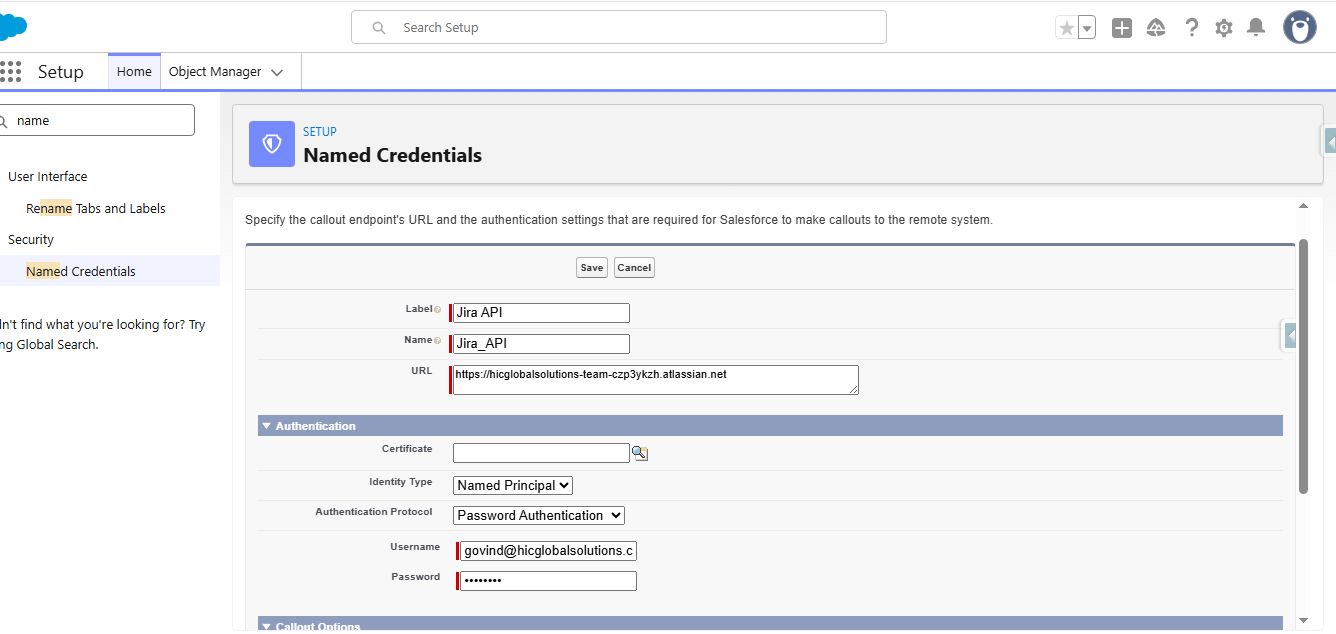
Integration is established using Named Credentials.
Configuration Steps:
Setup → Named Credentials
Create New Credential
Configure:
- Label: Jira_API
- URL: https://yourdomain.atlassian.net
- Authentication: Basic Auth
- Username: Jira Email
- Password: API Token
Named Credentials Screen
Click Save
(4) Custom Salesforce Dashboard (LWC)
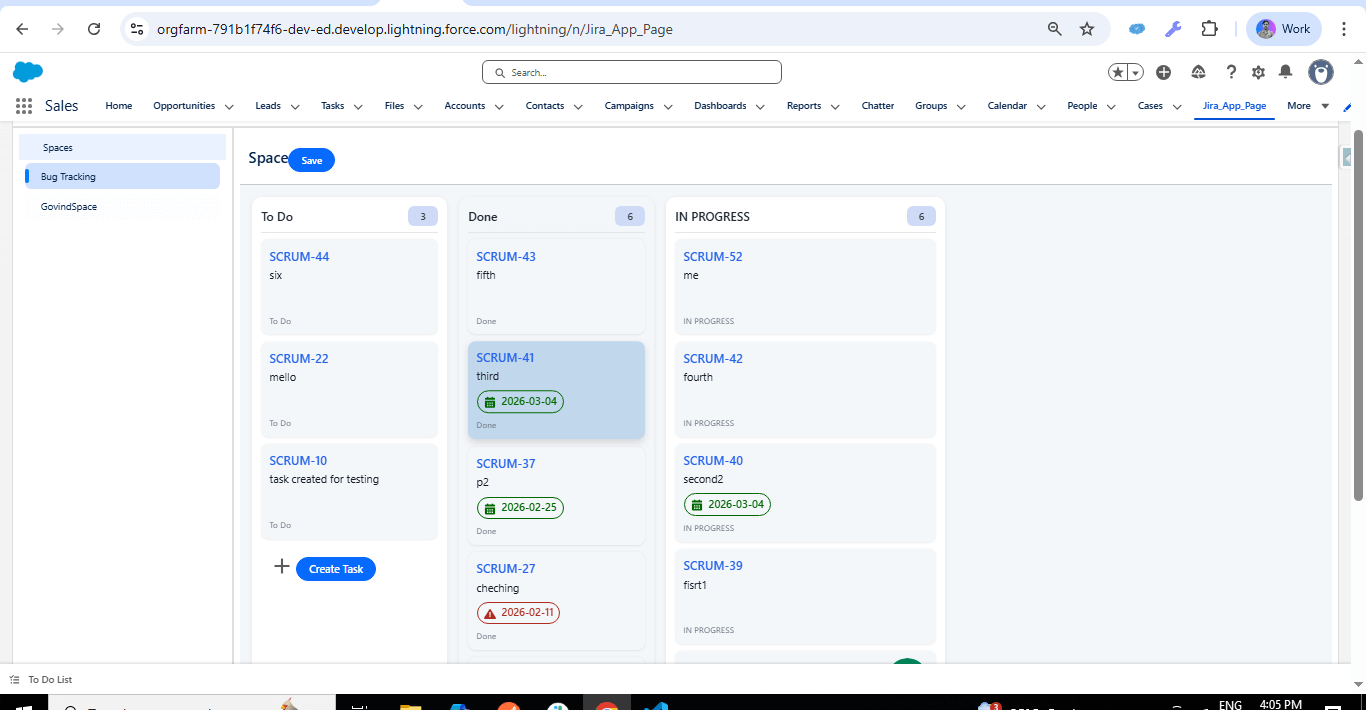
The Custom Salesforce Dashboard is built using Lightning Web Components (LWC) to create a dynamic, responsive, and user-friendly interface within Salesforce that integrates seamlessly with Jira. This dashboard functions as a centralized Visual-style board where Jira issues are fetched in real time through secure Apex REST API callouts and displayed across three stages — To Do, In Progress, and Done — based on their current status. It enables users to visually track and manage development tasks directly inside Salesforce without switching platforms. A key capability of the dashboard is its drag-and-drop functionality, which allows users to move issues between stages, automatically triggering status updates in Jira through API synchronization. By leveraging LWC for fast rendering and component-based architecture, the dashboard ensures high performance, real-time data visibility, and efficient cross-team collaboration within a unified Salesforce environment.
Dashboard Features:
- Create Task Button
- Three Status Columns:
○ To Do
○ In Progress
○ Done
- Real-time Jira Issue Display
UI Layout Concept:
Done To Do InProgress
Task1 Task2 Task3
Jira issues were fetched using the Jira API. The issues were then filtered based on their status and displayed in their respective columns within the dashboard.
Custom Salesforce Dashboard (LWC) Screen
Handler Class
The JiraHandler Apex class serves as the integration layer between Salesforce and Jira. It is responsible for making secure REST API callouts using Named Credentials to fetch Jira data and provide it to the Lightning Web Component (Custom Dashboard). This class retrieves user information, project details, Jira issues (tickets), and board configuration dynamically based on the selected project.
The getTicketsInfo method acts as a central handler that fetches both issue data and board column configuration, ensuring that the dashboard displays Jira issues categorized according to their workflow stages. The class uses reusable callout methods (doAPIcallout and doAPIcalloutInternal) to standardize API communication and handle responses efficiently.
By serializing and returning structured JSON data to the LWC, this Apex controller ensures real-time synchronization and seamless rendering of Jira issues within the Custom Salesforce Dashboard.
Handler class Code
Custom Salesforce Dashboard (LWC) Code
CSS
HTML
Javascript
js-Meta.Xml
(5) Task Creation Process
Step 1: Button Click
Using NavigationMixin:
- NavigationMixin.Navigate()
Task record page open
Step 2: Save Task
After save:
- Apex Trigger / Method invoked
- Queueable class called
- Task Creation Screen
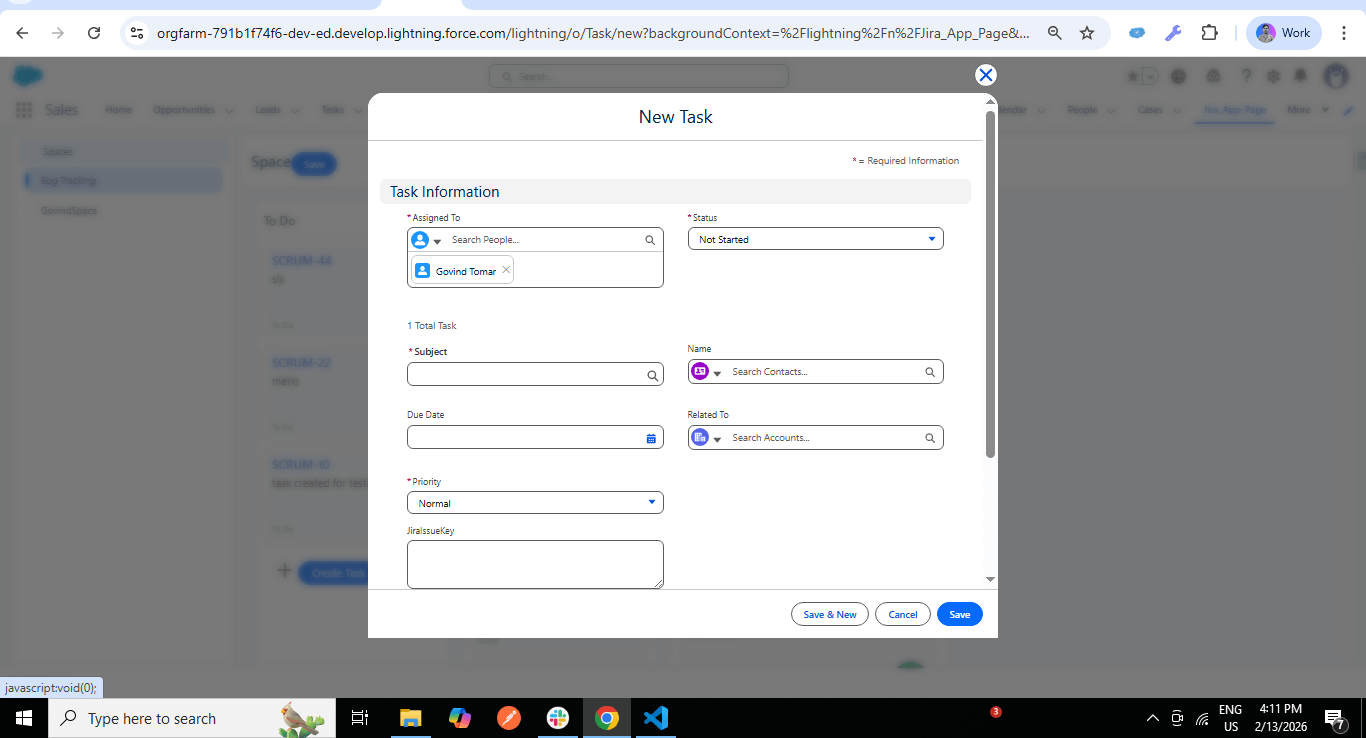
- After the task is created, an after-insert trigger will run.
Apex Trigger
To enable automatic synchronization between Salesforce and Jira, a Trigger-based asynchronous integration mechanism has been implemented. Whenever a new Task record is created in Salesforce, the TaskTrigger (after insert) event is executed. This trigger calls the JiraTaskHandler
Handler Class
Queueable Class
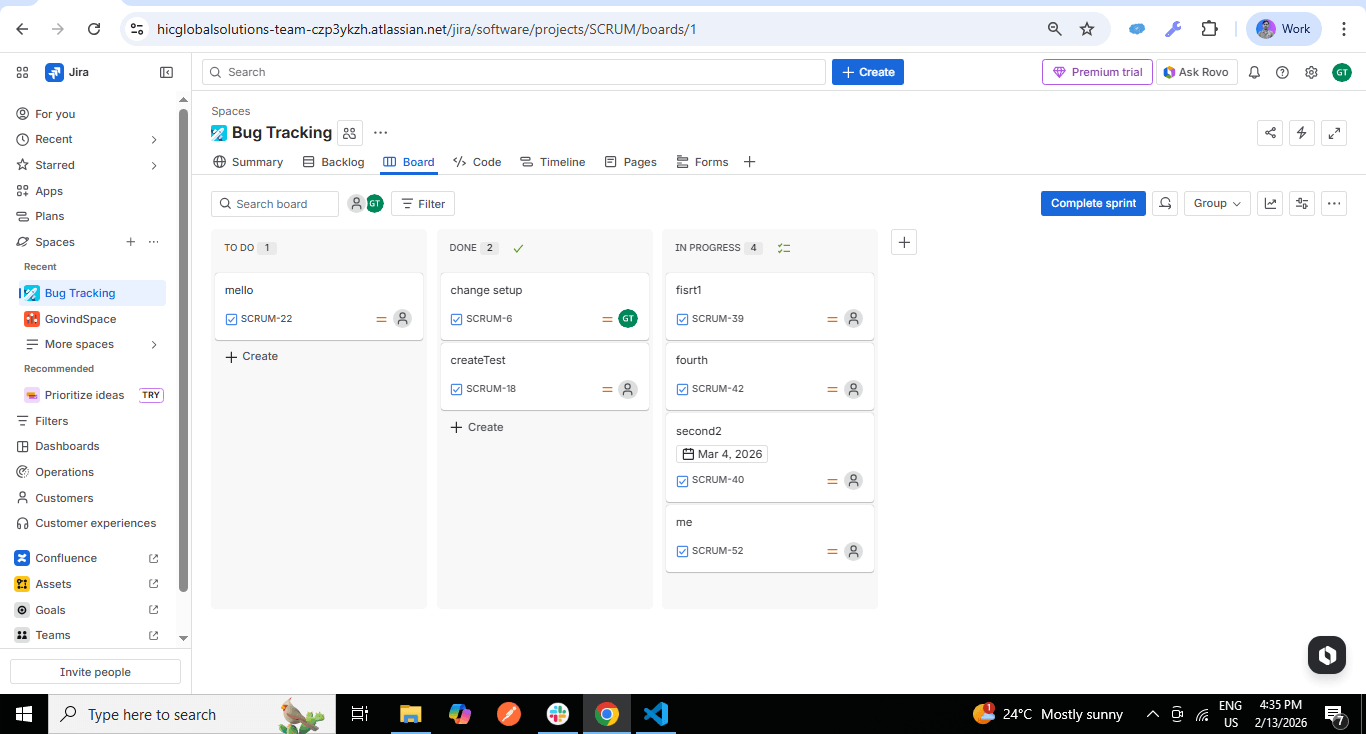
The task that was created in Salesforce is now visible on the board here.
Watch Live Demo
https://hicdemo-dev-ed.my.salesforce-sites.com/JiraDashboard
No Data Found.


 India
India  USA
USA UK
UK Canada